Filter
Open Filter in the toolbar to access its response graph and settings. Use it to focus the analysis on a frequency region.
Main controls
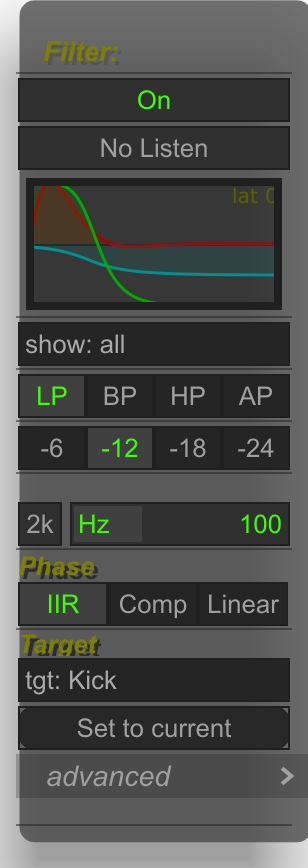
First select the target in Target → tgt:. This chooses which signal the filter processes for analysis:
- sum filters the combined signal from the enabled sounds. Make the sum visible to inspect this target.
- A sound name, such as Kick, filters that individual source so you can inspect its selected frequency region in the comparison.
Set to current assigns the individually selected sound as the target. In sum, layers or stack view, it assigns sum. Check the tgt: label, then enable the filter and adjust its settings. The target also determines whether Listen is available, as explained below.
The menu contains an On / Off switch, Type, Poles, cutoff Hz and the response graph's show selection. Changing the cutoff updates the filter response.
The 20k option changes the cutoff control's upper limit between the wider range and a range focused on bass adjustment.
Filter types
Choose the filter type, then adjust Hz to move its cutoff or center frequency:
| Mode | What it does |
|---|---|
| LP — Low-pass | Keeps low frequencies and attenuates frequencies above the cutoff. Useful for inspecting the low end of kick and bass. |
| HP — High-pass | Keeps high frequencies and attenuates frequencies below the cutoff. Useful for inspecting higher-frequency detail. |
| BP — Band-pass | Keeps a band around the selected frequency and attenuates frequencies below and above it. Useful for isolating a frequency region. |
| AP — All-pass | Preserves the magnitude response while changing phase with frequency. Useful for examining phase-related waveform changes rather than isolating a frequency band. |
Phase and visual latency
The Phase row chooses the trade-off between phase alignment and the delay needed to display the filtered signal:
| Mode | Phase and visual delay |
|---|---|
| IIR | No added filter buffering delay, but the filter introduces frequency-dependent phase shift. |
| Comp | Keeps IIR filtering and uses a delay estimate from its phase response to realign the analysis. This reduces the apparent timing/phase offset without correcting phase at every frequency. Its visual delay adapts to the filter settings instead of requiring the full Linear FIR delay. |
| Linear | Avoids IIR's frequency-dependent phase shift after accounting for its constant delay. The trade-off is FIR processing latency before the aligned result can be displayed. |
Choose IIR for an immediate view, Comp for an adaptive alignment compromise, or Linear when phase-preserving analysis matters more than display responsiveness. The response graph's lat readout shows the current filter delay in samples. AP is an all-pass case: it retains its phase-shifting role and does not use the Linear FIR path.
Listen
Listen enables auditioning of the filtered output for a sound target in IIR phase mode. It is unavailable for the Sum target and for non-IIR phase modes.
Check the target and Listen state when using the filter during playback. Use No Listen when you want to finish auditioning the filtered sound.
Inspect a filtered frequency region
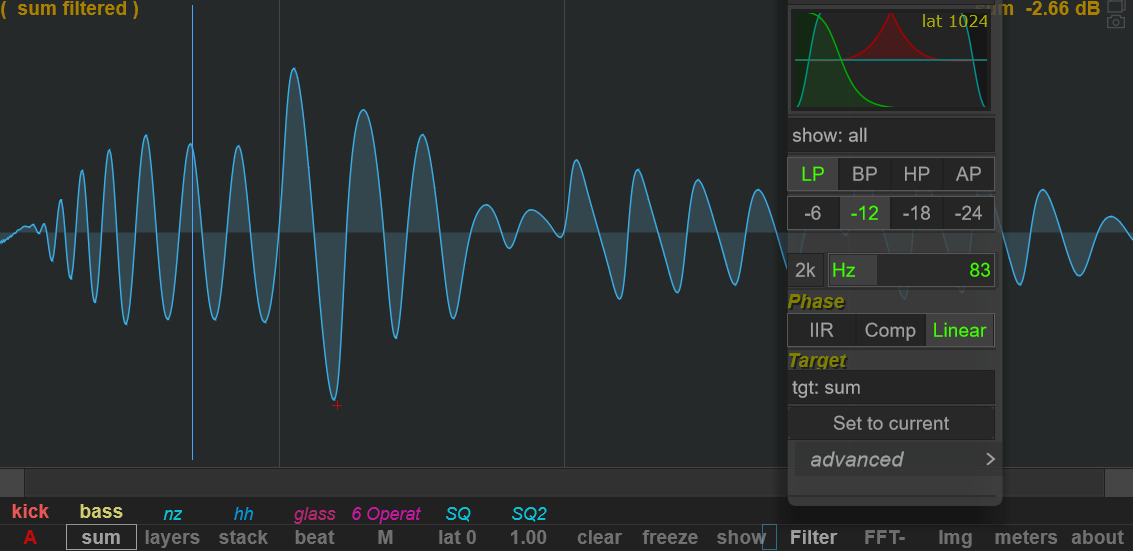
This example shows a low-pass analysis of the sum with Linear selected. Use the filter's target selector to choose the sum or a sound, then inspect the response graph while adjusting the cutoff.
For kick and bass work, focusing the analysis on the low end can make their overlapping cycles easier to examine. Check the target before interpreting the result, and keep the Listen conditions above in mind when auditioning a sound target.
The full reference for advanced FIR settings remains to be completed.