Advanced spectrogram views
After setting up a spectrogram, use the FFT menu to explore its Sharp and isometric presentations.
Sharp mode
Enable Spectro, then switch Normal to Sharp in the Sharp mode section of the FFT menu. The algorithm selector chooses the Sharp method. Compare the same passage and time interval as you change it.
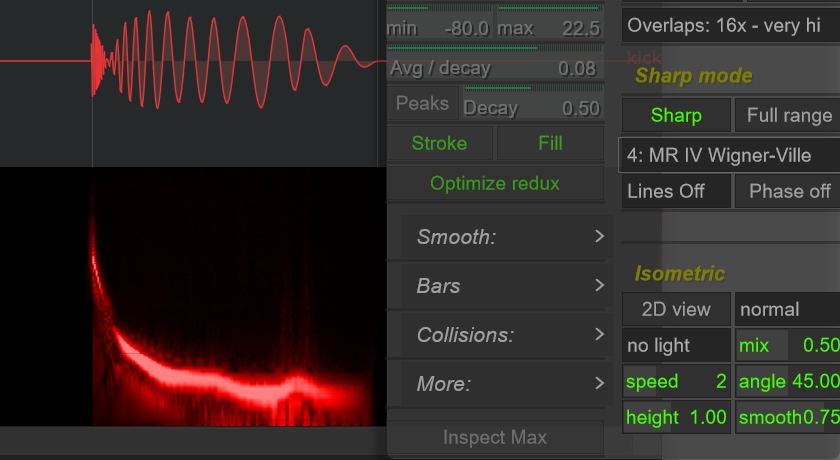
Try a kick with a downward pitch sweep. Inspect the frequency trace near its attack and along its tail. Keep the FFT size, display range and sound selection consistent so you can judge the change in the spectrogram itself.
Use the 2D view when comparing Sharp settings. The isometric view uses its own spectrogram presentation and does not combine with the Sharp calculation.
Isometric view
In the Isometric section of the FFT menu, switch 2D view to 3D iso. The spectrogram is drawn as a raised surface.
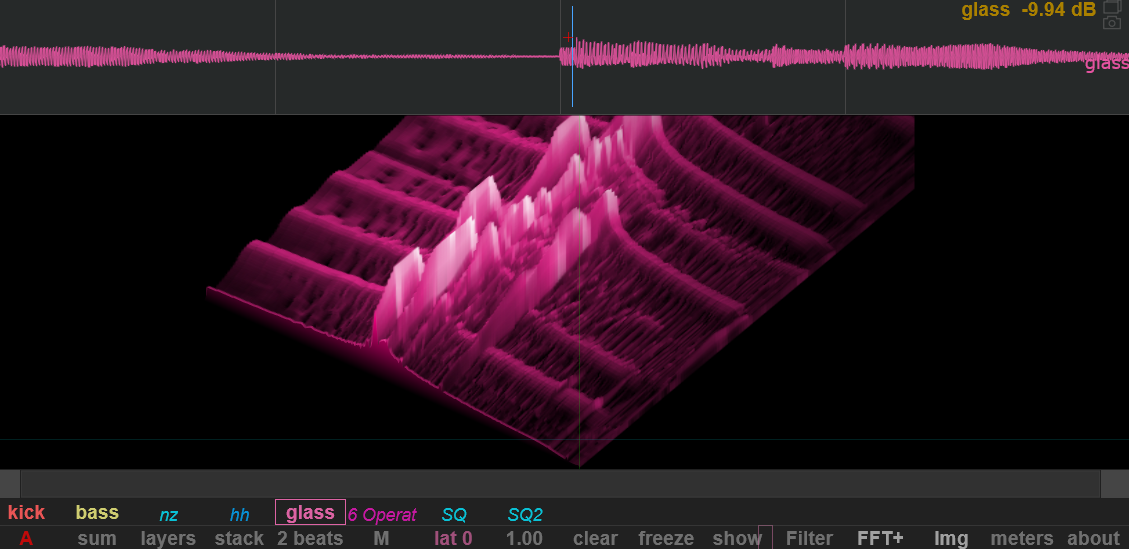
angle changes the viewing angle, height changes the surface's vertical scale, and smooth adjusts the smoothing of height changes. The section also provides orientation, lighting and speed controls.
Use the raised surface to explore how energy develops across a sustained sound or repeating pattern. Return to the 2D spectrogram when you want a flat view for comparing the position of details.