Synchronization and channels
Choose the time interval
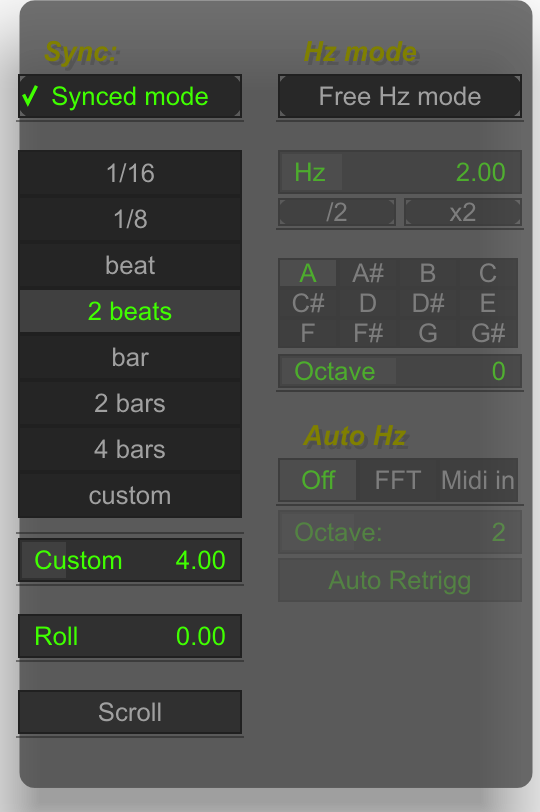
Open the duration control in the toolbar to access Sync settings.
- Synced mode follows the DAW tempo and uses a beat interval for the buffer cycle.
- Custom lets you choose a custom number of beats.
- Roll changes where the waveform starts on screen.
- Scroll switches between a scrolling presentation and the fixed view.
Use a beat interval when comparing a rhythmic pattern. The mouse wheel over the duration control changes the selected interval in synchronized mode.
Hz mode
Hz mode sets the buffer cycle by frequency. A higher frequency corresponds to a shorter cycle; a lower frequency corresponds to a longer one. The mouse wheel over the duration control adjusts Hz while this mode is active.
Use this view to inspect a repeating waveform. Start with a known steady tone before using it on a complex sound.
Choose channels
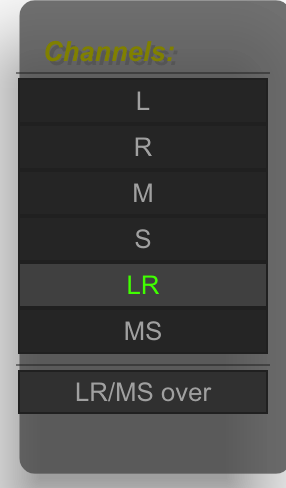
Left-click the channel control to open Channels.
| Choice | View |
|---|---|
L |
Left channel |
R |
Right channel |
M |
Mono / mid component |
S |
Side component |
LR |
Left and right together |
MS |
Mid and side together |
For dual-channel views, use the LR/MS stack / LR/MS over option to change their arrangement. Right-clicking the toolbar's channel control also toggles this arrangement. The mouse wheel cycles through channel choices.
Adjust alignment
The lat (latency) control manually compensates the timing used to position captured audio in PSYSCOPE's analysis buffer. Its toolbar value is in samples. Use it when a known transient does not line up with the expected beat position, or when one source has a timing offset relative to the others.
Why PDC can leave an offset
Plugin delay compensation (PDC) aligns audio paths that contain devices with different processing delays. The transport position or clock supplied to a plugin does not always follow the compensated audio timing at that point in the chain. A synchronized analyzer can therefore receive audio that is offset from the clock it uses to place the waveform, even while the DAW compensates its audio playback.
This can occur in hosts such as Ableton Live, particularly after devices that introduce latency. Ableton documents that devices following Live's internal clock can be out of sync when placed after latency-producing devices; see Live's Device Delay Compensation documentation. In that situation, lat provides a manual alignment correction for PSYSCOPE's analysis. The required correction depends on the session and device chain.
Choose per-sound or global correction
The same lat cell edits two different settings, depending on the display selection:
| Select first | What lat edits | Use it when… |
|---|---|---|
| Left-click a sound button, such as Kick, to enter its individual view | That sound's offset | One source needs its own correction. |
| sum, layers or stack | The global offset shared by the analysis workspace | The sources need a common timing correction against the host clock. |
The per-sound and global offsets are retained separately and can be used together. Switching views changes which value the lat cell displays and edits. The global correction is shared across groups. If a source is reused through instance copies, adjust its original entry to apply the same correction to it and its copies.
Set the offset
| Gesture on lat | Action |
|---|---|
| Vertical drag or mouse wheel | Adjust the currently selected offset. |
| Hold Ctrl while dragging or scrolling | Make a finer adjustment. The wheel changes by one sample per step with Ctrl, or ten without it. |
| Double-click | Open Sound Latency offset or Global Latency offset, according to the selected view. Enter a number and choose Samples or Ms. Enter confirms as samples; Cancel / Esc cancels. |
| Right-click | Reset the currently selected offset to zero. Reset the per-sound and global values separately if both have been used. |
For example, at 48 kHz, 1 ms equals 48 samples. The toolbar continues to show samples even when you enter the correction with Ms. Offsets start at zero; reduce the current value toward zero to undo a correction.
Align a session in practice
- Start playback with freeze off, and choose a synchronized interval. Use a transient whose intended timing you know, such as a kick placed exactly on the beat.
- If the sources share the same offset against the grid, select layers, stack or sum, then adjust lat globally until the reference is positioned correctly.
- If one source still needs a separate correction, left-click its sound button first, then adjust lat for that sound. Return to layers or stack to compare it with the others.
- Use Ctrl for fine adjustment, or double-click lat to enter a known correction in samples or milliseconds. Let the buffers refresh before checking the result; freeze the view afterwards if needed.
Changing a plugin's lookahead, oversampling or other latency-producing settings can change the required correction. Recheck alignment after changing the device chain. lat adjusts PSYSCOPE's analysis timing; it does not change the DAW's track-delay settings or move the audio you hear.