Freeze and exports
Freeze the waveform
Left-click freeze to stop the waveform buffers updating. Click it again to resume. This holds the captured material while you inspect it; it does not pause the DAW.
Clear captured material
Click clear to clear the oscilloscope buffer. Right-click it to clear all buffers. This helps remove older material before capturing a new passage.
Save a WAV
Right-click freeze to open the WAV save dialog. The export uses the horizontal start and end of the current waveform view.
For a straightforward first export, select L, R or LR before saving: L and R produce a single-channel export; LR produces a stereo export. Check the saved file before using it in a production workflow.
Save an image
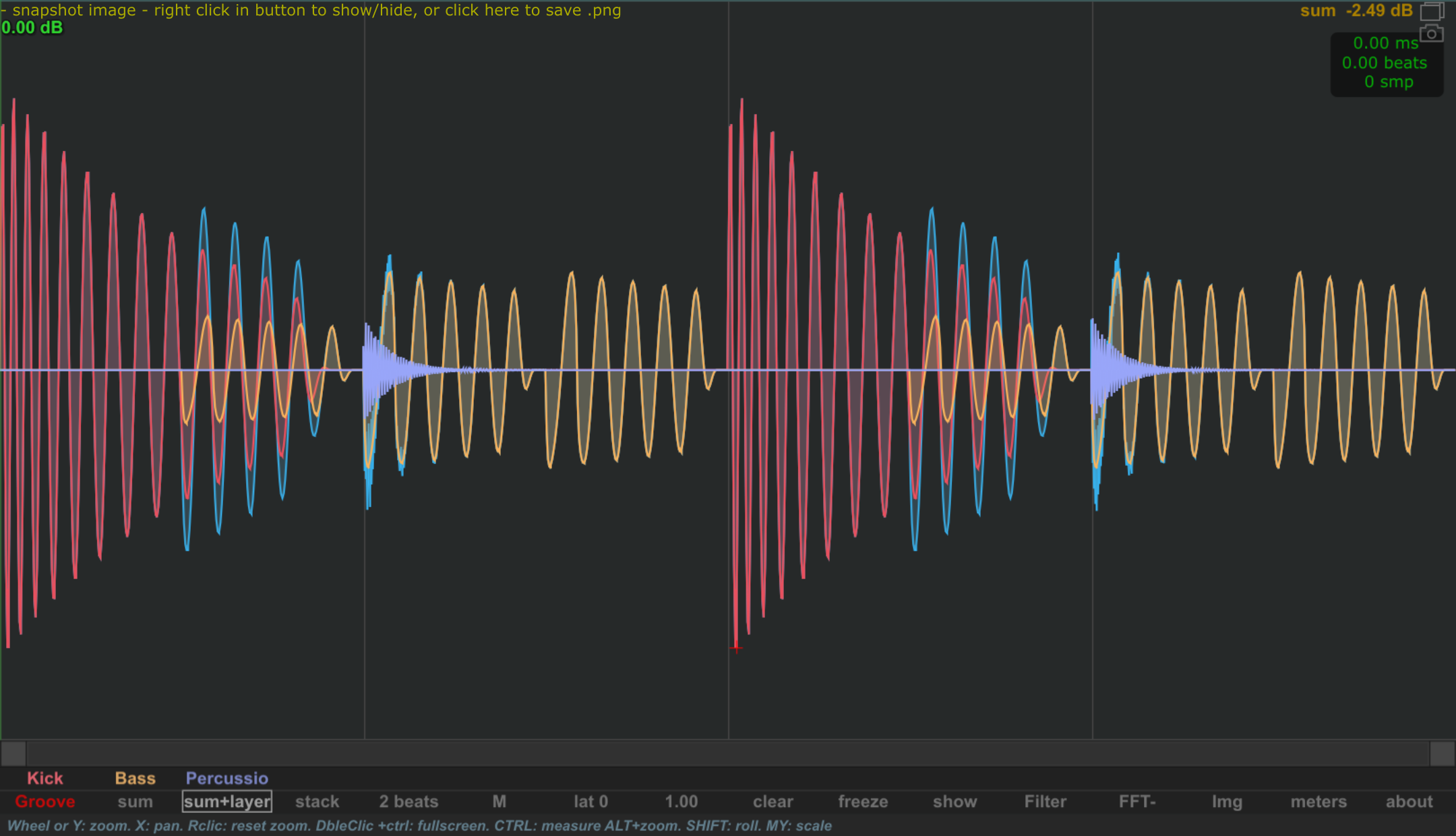
Use the editor's camera icon to capture a snapshot of the interface. Right-click the icon to show or hide the stored image.
While the snapshot is displayed, click its top message area to open the PNG save dialog. This is useful for keeping a visual reference of your analysis.
The snapshot example uses the native editor. Its top message area provides access to PNG saving.