Groups and sets
Use groups to organize the sounds you compare, and sets to recall combinations of enabled sounds.
Think of a Set as a memory button for your main toolbar selection: it recalls the group, which sounds are enabled and how they are displayed. For example, a Kick + Bass sum Set brings back just those two sounds added together in sum view.
Open the organization panel
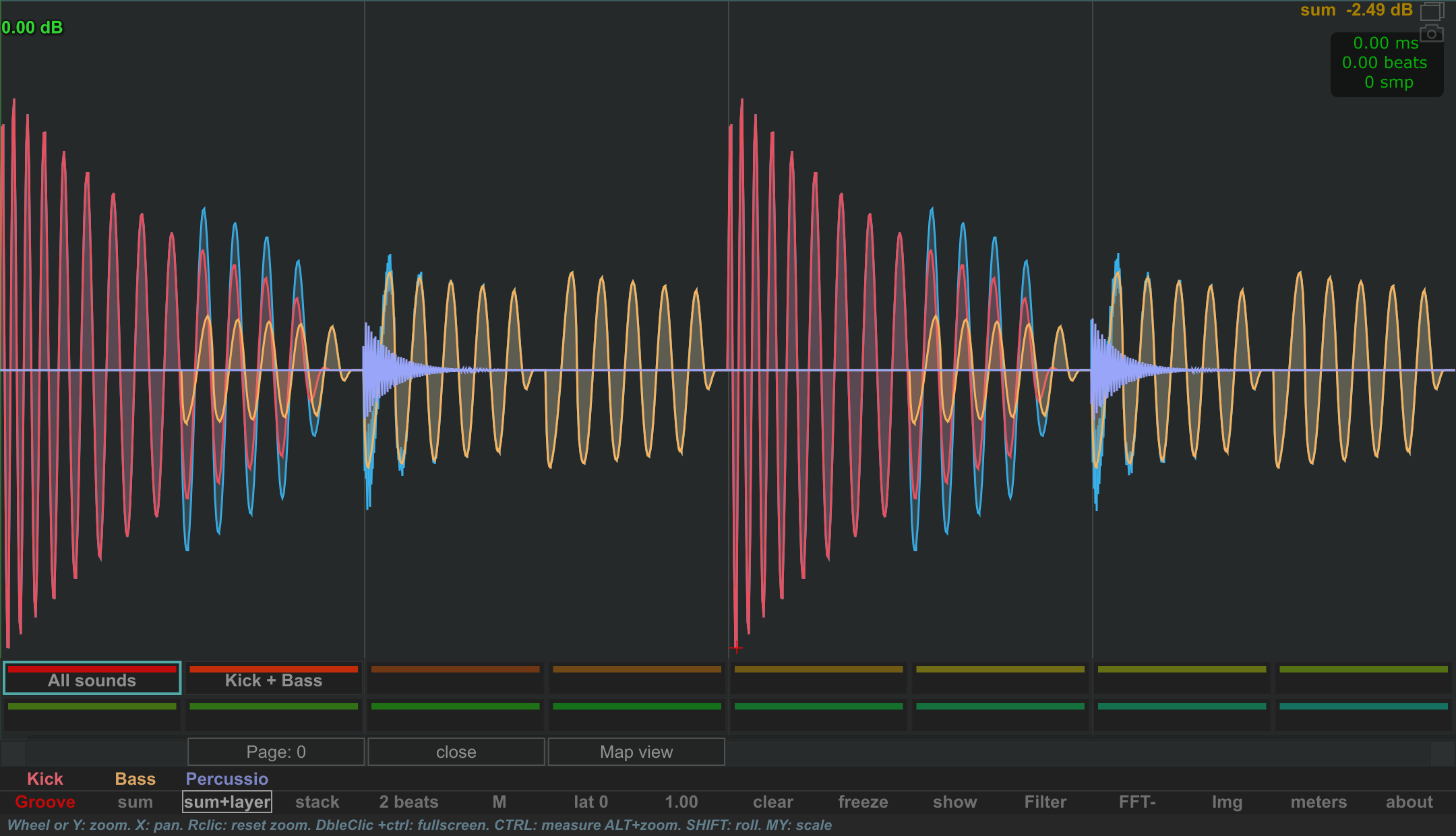
Click the toolbar's group selector, whose text shows the current group name. This opens the instances setup panel. Right-click the selector to request the sets view.
The mouse wheel over the group selector changes groups. Scrolling over a sound or a comparison-mode button also changes groups; holding Ctrl there changes the display selection instead.
Compare related sounds
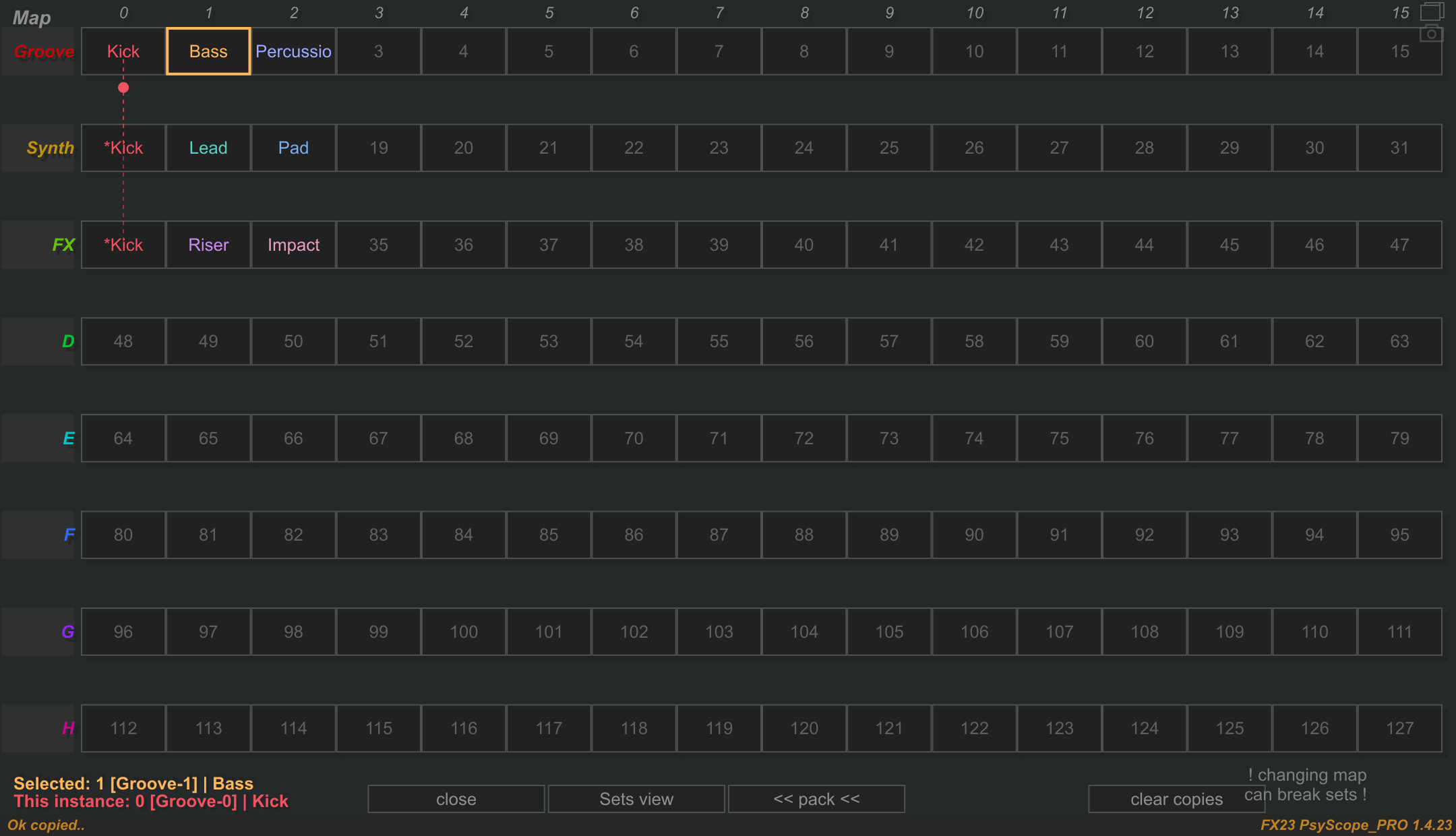
In this example, Groove contains Kick, Bass and Percussion; Synth contains Lead and Pad; FX contains Riser and Impact. The *Kick entries in Synth and FX are linked copies of Groove's Kick. Follow the dashed red lines to see their common source. This keeps the same kick available as a timing reference when comparing either group.
Organize sounds that you want to inspect together, then select layers or stack. Use individual sound buttons to include or leave out a sound.
For example, keep the sources you want to compare in the same group before checking their transient alignment.
Map commands
Use Map view to arrange sounds in the grid. Each row is a group; each cell is a sound slot. The bottom of the panel identifies both Selected and This instance, so you can distinguish the sound you are inspecting from the plugin instance whose editor you opened.
| Target | Mouse action | Result |
|---|---|---|
| Sound cell | Left-click | Select that group and sound slot, keeping the panel open. |
| Existing sound cell | Double-click | Open its individual waveform view and close the panel. |
| Group name, at the left of a row | Double-click | Edit the group's name and color. |
| Sound cell | Drag to another cell | Exchange the two positions. Drop onto an empty cell to move the sound. |
| Sound cell | Hold Ctrl before pressing, then drag to an empty cell in another group | Create a linked instance copy. |
| Copy cell | Right-click | Delete that copy from the map. |
| clear copies | Click | Remove all instance copies across the map. Original instances remain. |
| Sets view / Map view | Click | Switch between the two organization views. |
| close | Click | Close the panel. |
Name and color a group
Double-click the group name at the left of its row, enter a name and choose a color in the dialog. Select Apply, or press Enter, to accept. Cancel or Esc leaves the edit unapplied. The toolbar's group selector uses the group's name and color, making comparisons easier to recognize.
Move and exchange sounds
Drag a cell without Ctrl to reorganize the map. An occupied destination exchanges positions with the source; an empty destination moves the source into that slot. You can move between groups, provided the resulting group does not contain both an original and its own copy.
Arrange the map before storing your Sets. Sets refer to sound positions: moving sounds or packing the map can change what an existing Set recalls. Check and store affected Sets again after reorganizing.
Reuse a sound in several groups
An instance copy is a linked entry for an existing sound. It lets you inspect the same incoming source in another group without adding another PSYSCOPE instance to that track. Copies are marked with an asterisk (*) before their name in the map, and dashed lines connect them to their original.
For example, keep the original Kick with Bass in a Kick + Bass group, and use copies of Kick in Kick + Percussion and Kick + Leads groups. You can then switch groups and compare each part against the same kick reference.
- In Map view, identify the original Kick cell and an empty cell in another group.
- Hold Ctrl before pressing the left mouse button, then drag Kick to that empty cell and release.
- Check the new
*Kickentry and its connection to the original. - Place the other sounds you want to compare in the destination group. Close the panel, select that group and choose layers, stack or sum.
Repeat for additional groups as needed. Each destination group can contain only one entry for the same source: you cannot add a second copy where that source's original or another copy is already present. The destination cell must be empty, and a copy must be created in a different group from the cell you drag. Dragging an existing copy with Ctrl also refers back to its original source.
Remove copies
Right-click a copy cell to remove just that entry. Use clear copies to remove every copy in the map, across all groups. These commands remove the linked entries; they leave the original plugin instances in place. Store any affected Sets again if their sound-slot combinations have changed.
Pack the map
Use << pack << to remove gaps between occupied cells.
| Action | Result |
|---|---|
Left-click << pack << |
Compact sounds toward the left within each group, preserving group membership. |
Right-click << pack << |
Compact across the whole map; sounds can move between groups. |
Click undo pack >>, while available |
Restore the map from immediately before the last pack. |
General packing can remove redundant copy entries when the same source would otherwise appear twice in a group. Check the resulting groups and Sets. Use undo pack immediately if you want to restore the previous arrangement; it is specific to packing, and later map interactions can make it unavailable.
Recall enabled sounds
Sets store the group, its enabled/disabled sound combination, and the display selection (sum, layers, stack or an individual sound). They are useful when switching between comparisons without rebuilding each selection.
Example: a shortcut to the Kick + Bass sum
- Select the group containing Kick and Bass.
- Use the toolbar's sound buttons to enable only Kick and Bass. Right-click a sound button to toggle its enabled state; disable Percussion and any other sounds in that group.
- Click sum. The waveform now shows Kick and Bass added together.
- Open Sets view and right-click an unused Set cell to store this selection. Name it Kick + Bass sum. If the cell already has a name, double-click it to edit the name and color.
- After selecting another Set, left-click Kick + Bass sum to return to that group, enable just Kick and Bass, and restore sum view.
This creates a reusable comparison shortcut. Store another Set with the same two sounds in layers to switch between their combined waveform and their individual shapes. Sets remember the group, sound on/off states and display selection; controls such as duration, channels, zoom and filter settings are adjusted separately.
Store and recall a Set
- Choose the group and display mode, then enable the sounds you want to compare.
- Right-click the group selector in the main toolbar to open Sets view. If the organization panel is already open in Map view, click Sets view at the bottom.
- Choose the destination cell. Use Page: 0 / Page: 1 to reach the other bank if needed. Right-click that cell to store the display selection you just prepared. A right-click writes to the cell immediately and replaces any previous combination there.
- If the cell has no name, the name/color dialog opens automatically. Enter a name, choose a color and click Apply or press Enter.
- Switch to another Set, then left-click the stored Set to recall its group, sound states and display selection. Clicking the already selected Set does not reload it; select another Set first if you need to reapply it.
To update a Set later, prepare the new comparison in the main toolbar, reopen Sets view and right-click the same destination cell again. Its existing name and color are retained.
Name and color a Set
- In Sets view, double-click the Set cell you want to label.
- Edit the name in the text field, for example Kick + Bass sum.
- Choose a color in the color picker in the same dialog. The Set cell's colored strip helps you recognize it in the grid.
- Click Apply or press Enter to keep both changes. Click Cancel or press Esc to discard the name/color edit.
Double-clicking edits the Set's label and color. To store a different comparison in that cell, use right-click after preparing the desired toolbar selection.
| Target | Mouse action | Result |
|---|---|---|
| Set cell | Right-click | Store the current group, enabled sounds and display selection. |
| Another nonempty Set cell | Left-click | Select and recall that Set. |
| Set cell | Double-click | Edit its name and color; Enter / Apply accepts, Esc / Cancel cancels the edit. |
| Set cell | Drag onto another Set cell | Swap their stored combinations, names and colors. |
| Page: 0 / Page: 1 | Click | Switch between Sets 0–15 and 16–31. |
The Set dialog's Cancel button cancels name/color edits; it does not undo a combination already stored by right-clicking. Name edits and color choices identify the Set, while right-clicking stores its comparison state.