Skin editor
Use the Skin editor to adjust PSYSCOPE's interface palette, waveform colors, line width and data-text size. Open show → Skin → Edit Skin from the main toolbar. Changes appear as you edit, so you can judge them against the waveform display.
The editor at a glance
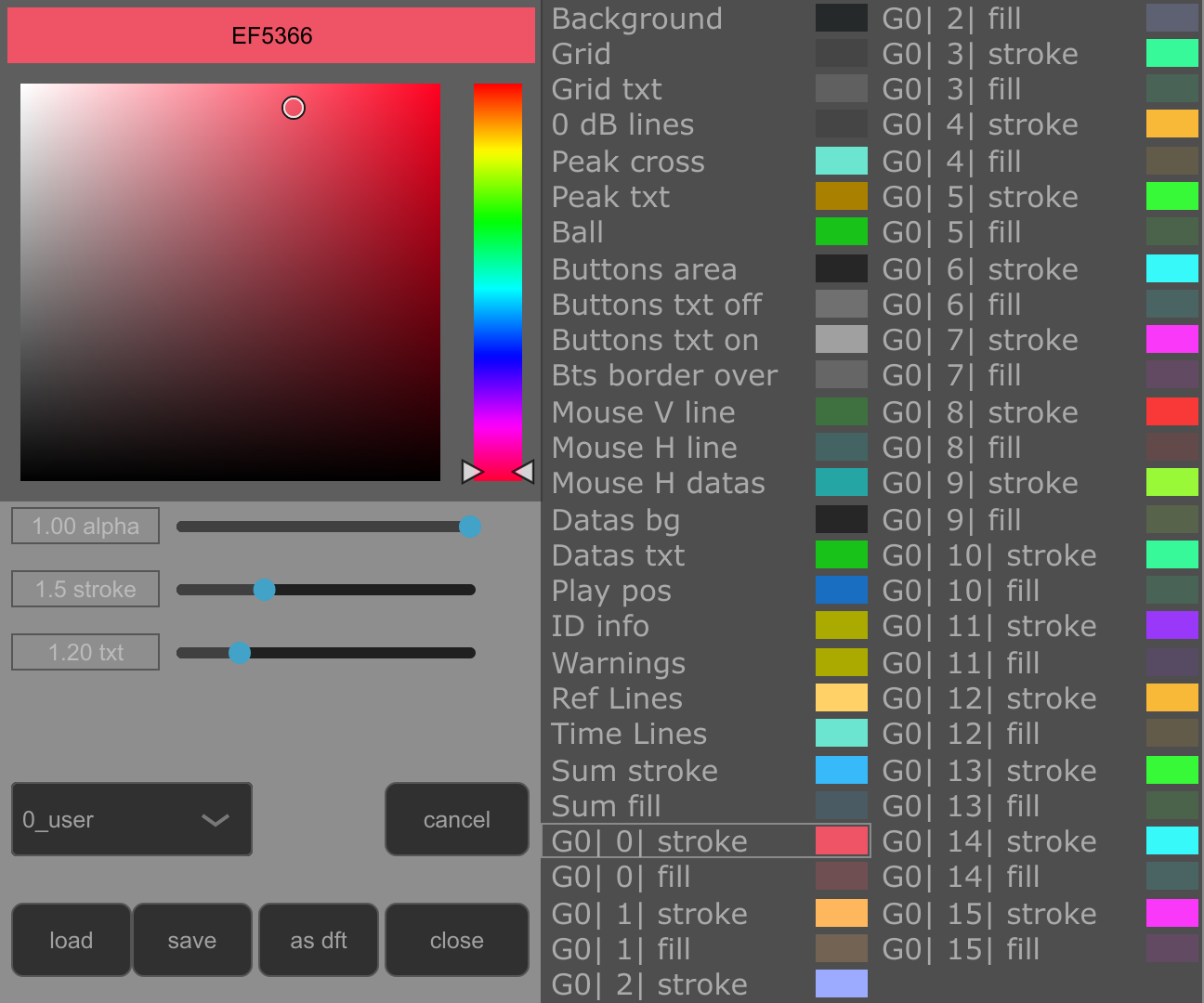
The left side contains the color picker, three adjustment sliders, a template selector and the file buttons. The two columns on the right list the elements you can recolor. Each row has a color swatch; the outlined row is the current selection.
- Click the row for the element you want to change, such as Background, Grid or Sum stroke.
- Use the color picker on the left to choose its color. You can also edit the color value shown at the top of the picker.
- Adjust alpha to set that color's opacity. At 0 it is transparent; at 1 it is fully opaque.
- Repeat for other elements, then use close to keep the current appearance, or cancel to restore the skin from when you opened the editor.
DAW colors and manual colors
Use Daw colors is in show → Skin. It decides who supplies the sound colors; it does not lock the rest of the interface palette.
| Setting | Sound colors | Other interface colors |
|---|---|---|
| Use Daw colors on | In a compatible VST3 host that supplies track colors, PSYSCOPE uses those colors for the sounds. The waveform stroke inherits the supplied color, and the fill follows its hue. | You can still edit the background, grid, text, buttons, reference lines and other listed interface elements. |
| Use Daw colors off | Choose the sound's stroke and fill colors yourself in the Skin editor. | The same interface controls remain available. |
For example, keep Use Daw colors on to recognize your DAW tracks while making the background darker and the grid more discreet. Turn it off when you want a sound palette chosen entirely in PSYSCOPE.
Turning the option off lets you edit the current colors; it does not automatically restore an earlier custom palette. Load your saved .skin file if you want that palette back. Turning it on again reapplies available stored DAW track colors. If the host does not provide track colors, the option cannot obtain them.
Use Gradient, also in show → Skin, replaces the normal sound coloring with a frequency-based gradient. Turn it off as well when you want the waveform to show the individual stroke and fill colors you chose. The Skin editor can show a reminder when DAW colors or gradient coloring override sound colors.
Choose what to recolor
| Rows | What they control |
|---|---|
| Background, Grid, Grid txt, 0 dB lines | The display background, grid and its labels, and the full-scale reference lines. |
| Peak cross, Peak txt, Ball | Peak markers, peak readouts and the waveform-point marker. |
| Buttons area, Buttons txt off, Buttons txt on, Bts border over | The toolbar background, inactive and active button text, and hover borders. |
| Mouse V line, Mouse H line, Mouse H datas | The cursor guides and associated horizontal-guide data. |
| Datas bg, Datas txt, Play pos, ID info, Warnings | Data-box background and text, play position, source information and warning colors. |
| Ref Lines, Time Lines | Level-reference and time-reference line colors. |
| Sum stroke, Sum fill | The combined waveform's outline and filled area. |
| Numbered stroke and fill rows | Each sound slot's outline and fill in the current group. The G prefix identifies the group. |
Stroke is the waveform outline; fill is the area inside it. To see both, select show → Skin → Paint Mode → Both. If you only display strokes, changes to a fill color will not be visible until you enable fills.
Opacity, line width and text size
The three sliders below the picker have different scopes:
| Slider | Effect |
|---|---|
| alpha | Changes the opacity of the selected color only. Use a lower fill opacity to keep overlapping waveforms readable. |
| stroke | Sets the global waveform outline width, from 0.5 to 4. It is not a separate width for each selected color row. |
| txt | Sets the data-text size multiplier, from 1 to 2, including cursor and peak readouts. |
Templates, save and load
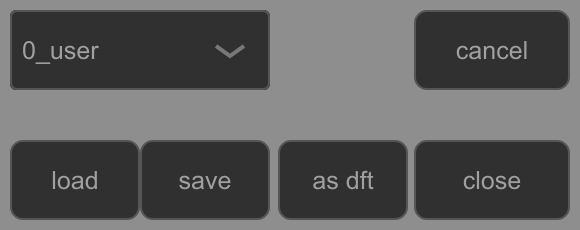
The template selector offers 0_user, 1_dark, 2_mid, 3_light and 4_dft.
- 0_user identifies a custom appearance. Selecting it does not reload a previously saved file.
- 1_dark, 2_mid and 3_light apply the built-in palettes. They provide starting points you can edit further.
- 4_dft reloads your saved default skin. To return to a built-in palette, choose one of the named palettes instead. If no default skin has been saved, 4_dft has no saved file to load.
| Button | What happens |
|---|---|
| save | Opens a file dialog to write the current skin to a .skin file at a location you choose. Use named files to keep several appearances or move a skin between setups. |
| load | Opens a file dialog to read a .skin file and apply its appearance. It does not make that file the startup default. |
| as dft | Saves the current skin as PSYSCOPE's default, replacing the previous default skin. This is the appearance loaded on startup; the confirmation dialog reports the saved location. |
| close | Closes the editor and keeps the current changes. It does not write a named skin file or replace the saved default. |
| cancel | Restores the skin that was active when you opened the editor, then closes it. It does not undo a file already written with save or as dft. |
dft means default. as dft writes the default; 4_dft reads it back. The default file is Psyscope/default.skin in your user Documents folder.
To keep a useful variation, use save and give it a descriptive filename. When you want it to become your usual starting appearance, use as dft as well. Save a named copy of your existing palette before replacing it with a template or another file.
Reuse colors
Right-click a color row to open the color operations menu. copy and paste transfer a color between rows. Other entries copy stroke colors to fills, copy fills to strokes, or apply a common alpha to sound strokes or fills. These bulk operations are useful for making the sound palette consistent; save a copy first if you want to retain the previous arrangement.