Sounds and display modes
Use the sound buttons and the three comparison modes to move between a single source and the combined picture.
The examples use a red Kick and a gold Bass at 144 BPM. The kick drops into the low frequencies; the bass leaves room for its attack, overlaps its tail with a quieter note, then plays two stronger notes. Both meet at a 55 Hz fundamental, and each bass note becomes rounder and more sub-focused toward its end.
Select a sound
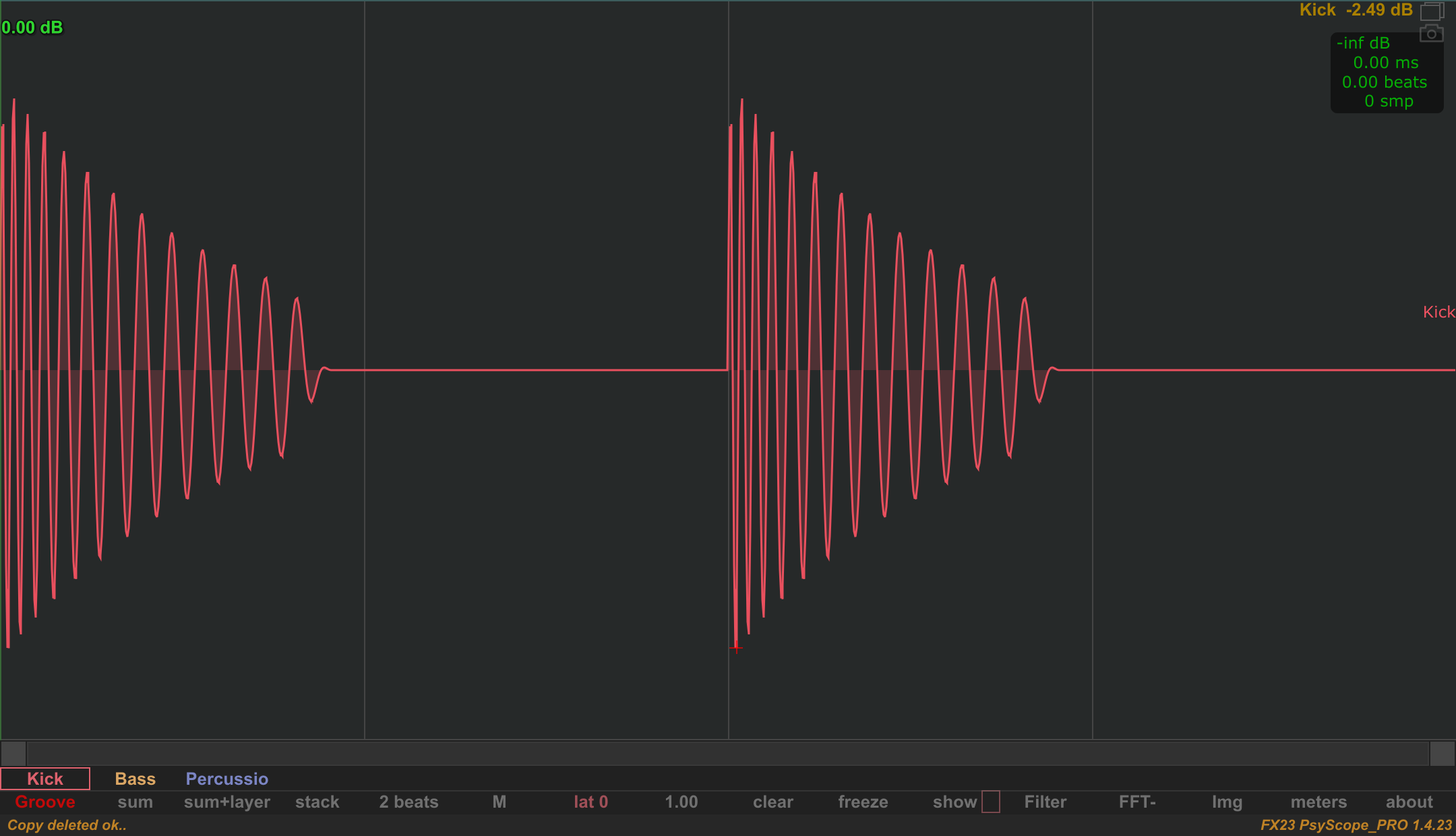
Left-click a sound button to select its individual view. Right-click a sound button to toggle its enabled state for the comparison. This lets you temporarily leave a sound out while comparing the others.
Sum
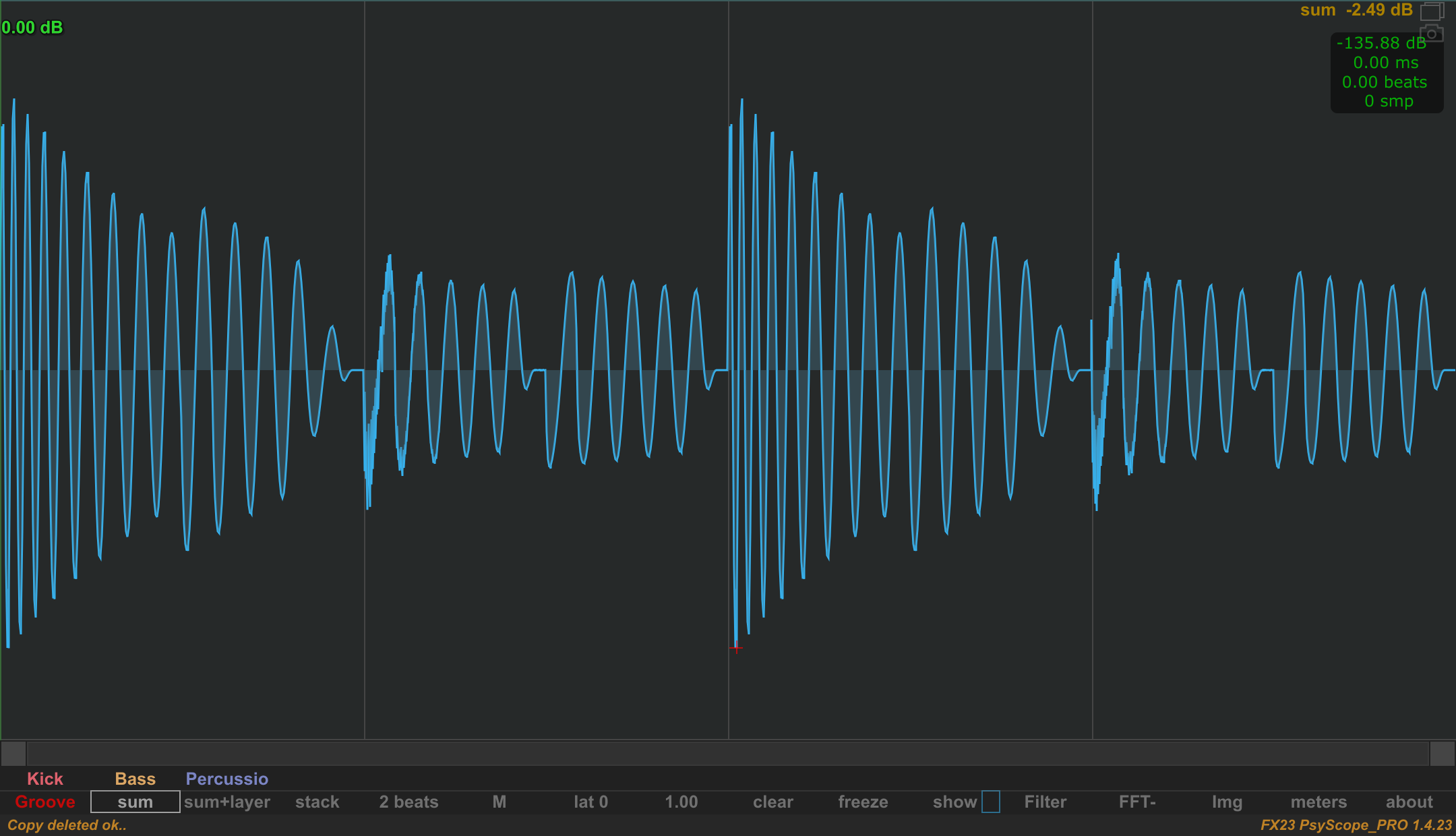
Choose sum to view the enabled sounds added together. This is useful when you want to inspect the resulting waveform rather than each track separately.
Layers
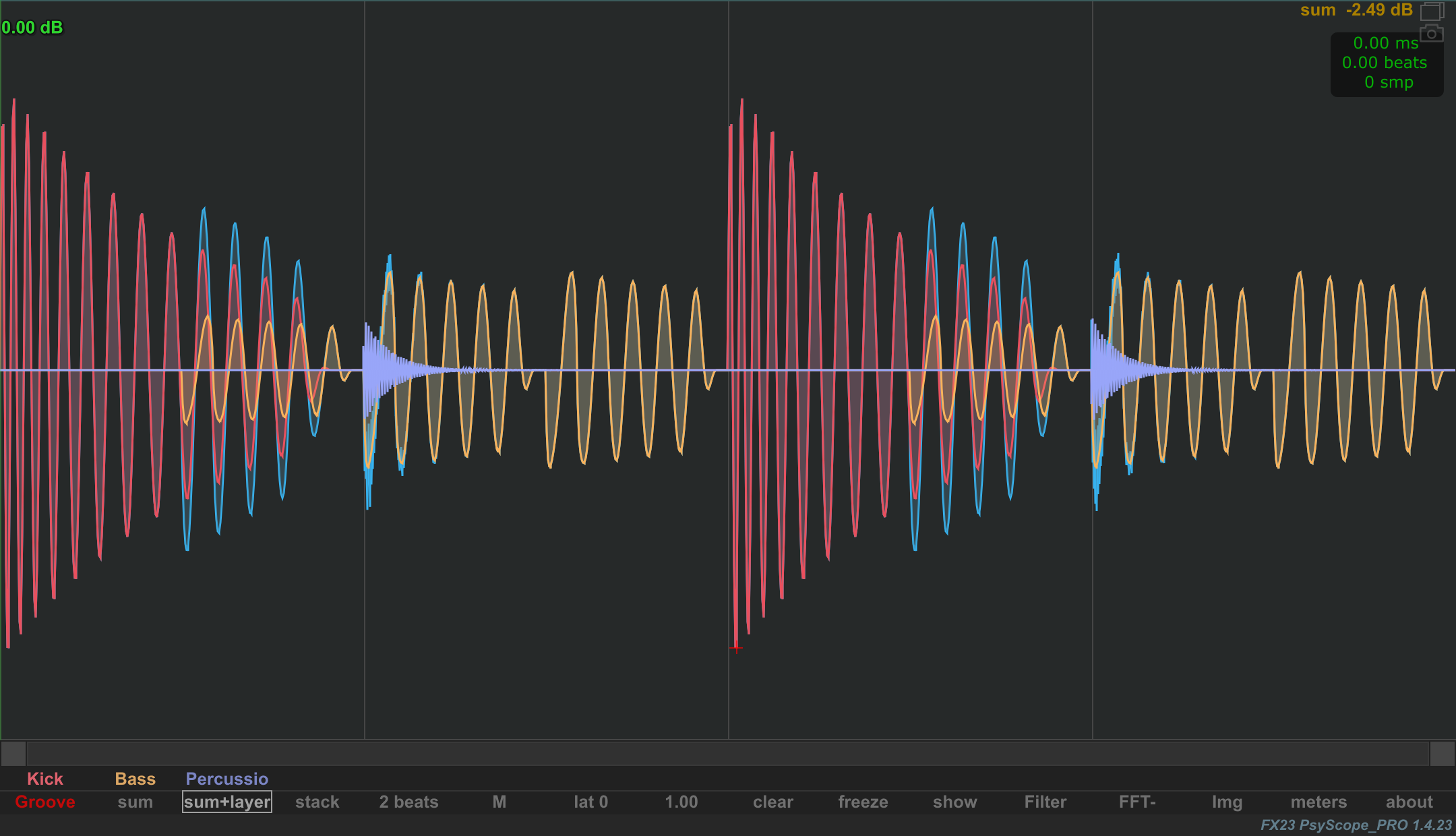
Choose layers to overlay the individual waveforms. Look for transient positions, differing waveform shapes and where the sounds coincide.
Right-click layers to include or hide the sum in the background. Its label becomes sum+layers when that option is active.
Stack
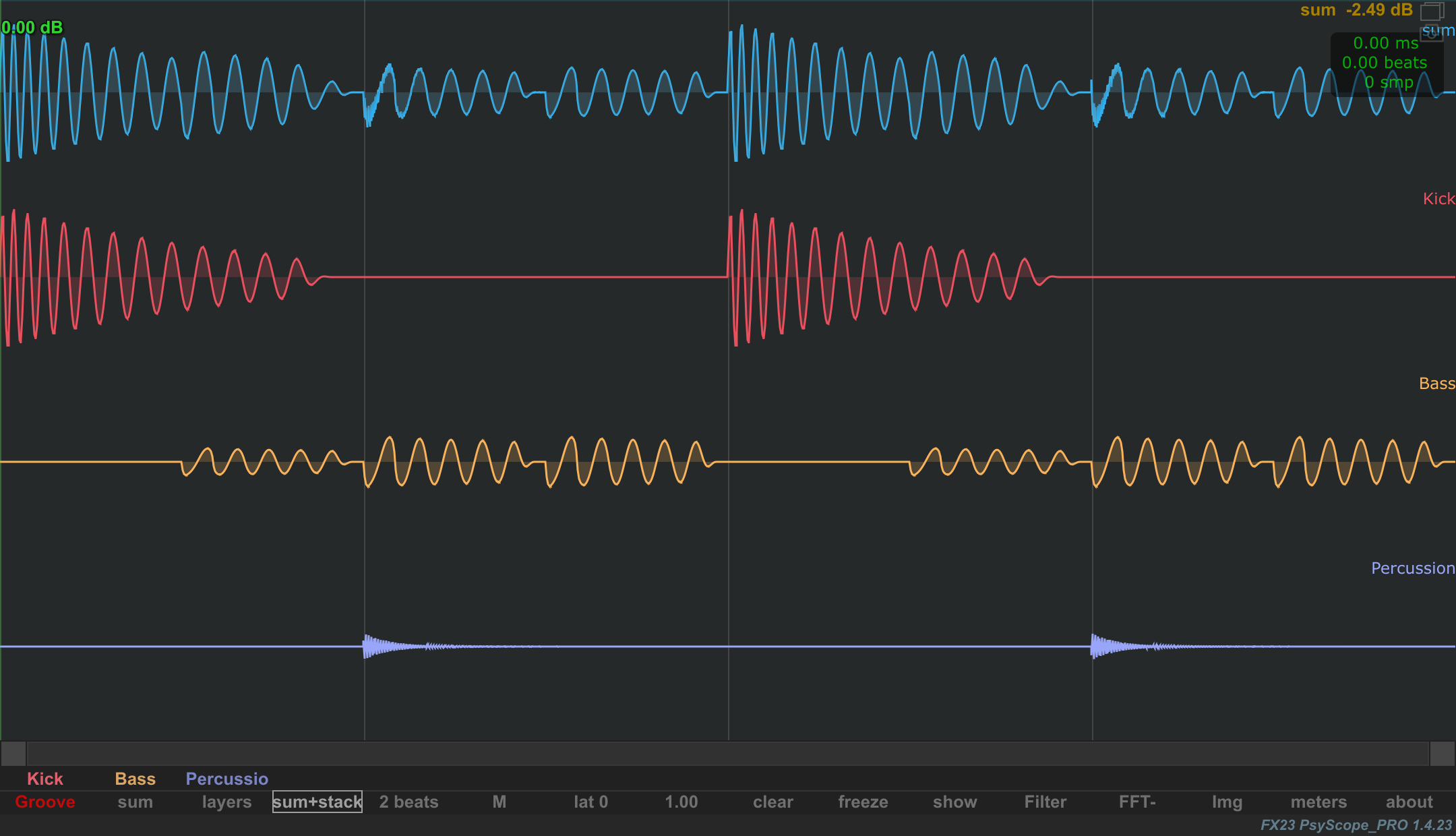
Choose stack to arrange the sounds in separate vertical lanes. This helps when overlaid waveforms become difficult to distinguish.
Right-click stack to include or hide the sum at the top. Its label becomes sum+stack when that option is active.
Zoom and scroll
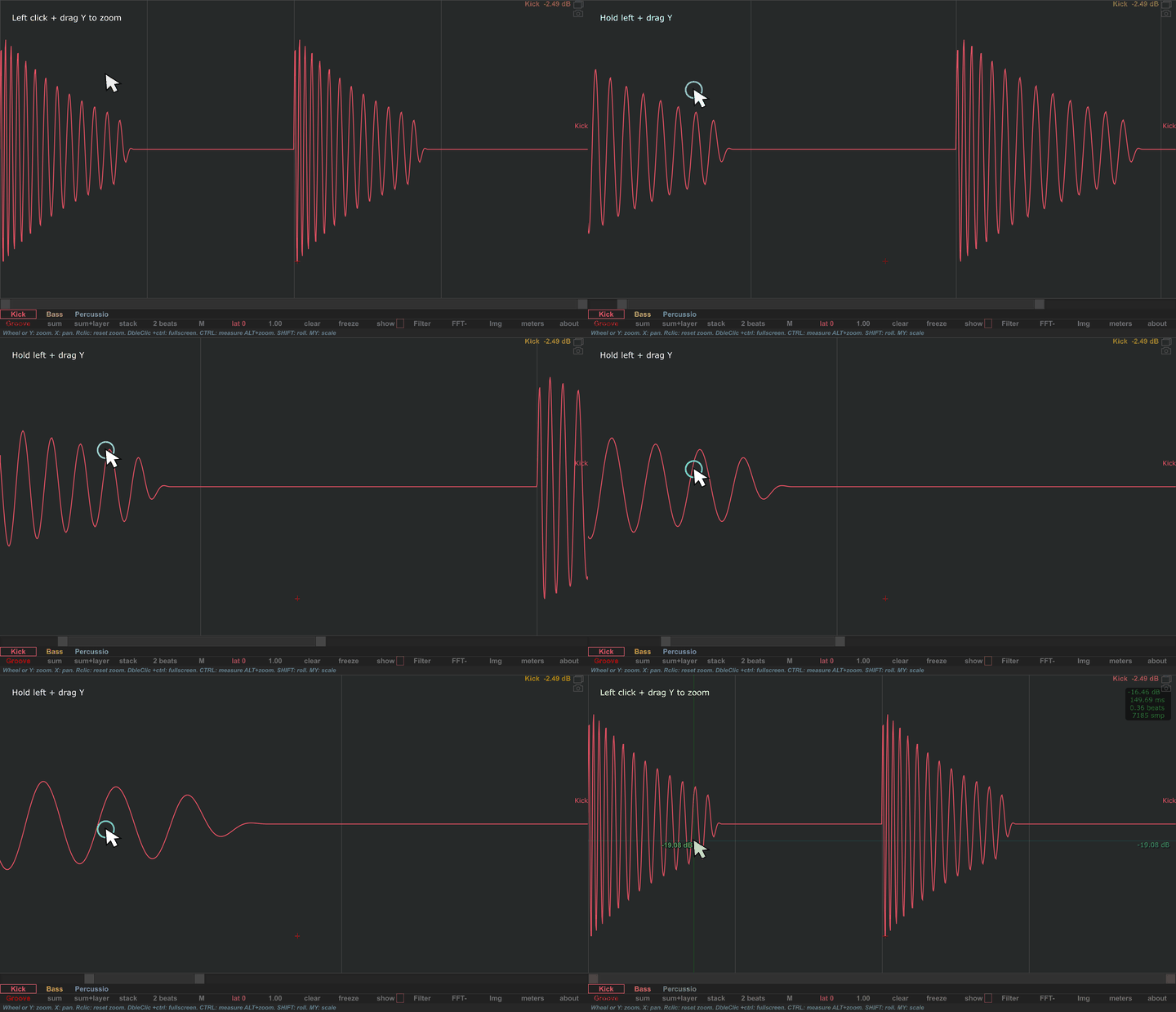
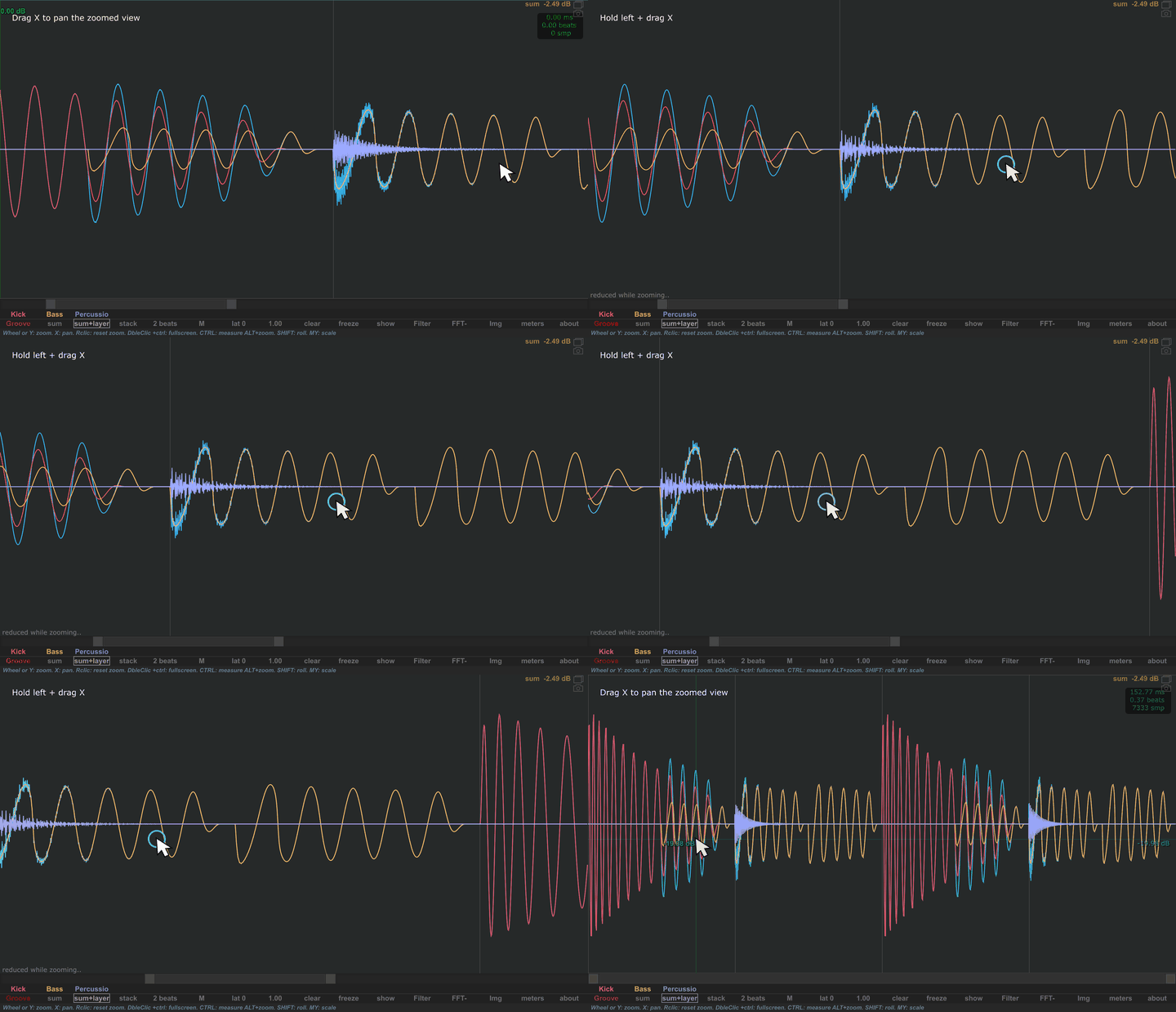
Use the horizontal strip below the main display to zoom into a time region and scroll across it. Right-click the strip to reset the horizontal view.
You can also left-click and drag directly in the waveform view: drag horizontally to scroll, or vertically to zoom around the pointer. Right-click in the waveform view to reset the zoom.
To select a precise time interval, use Alt + left-drag to measure a region and zoom to it on release. Ctrl + left-drag shows the same measurements without zooming on release.
Adjust the display scale
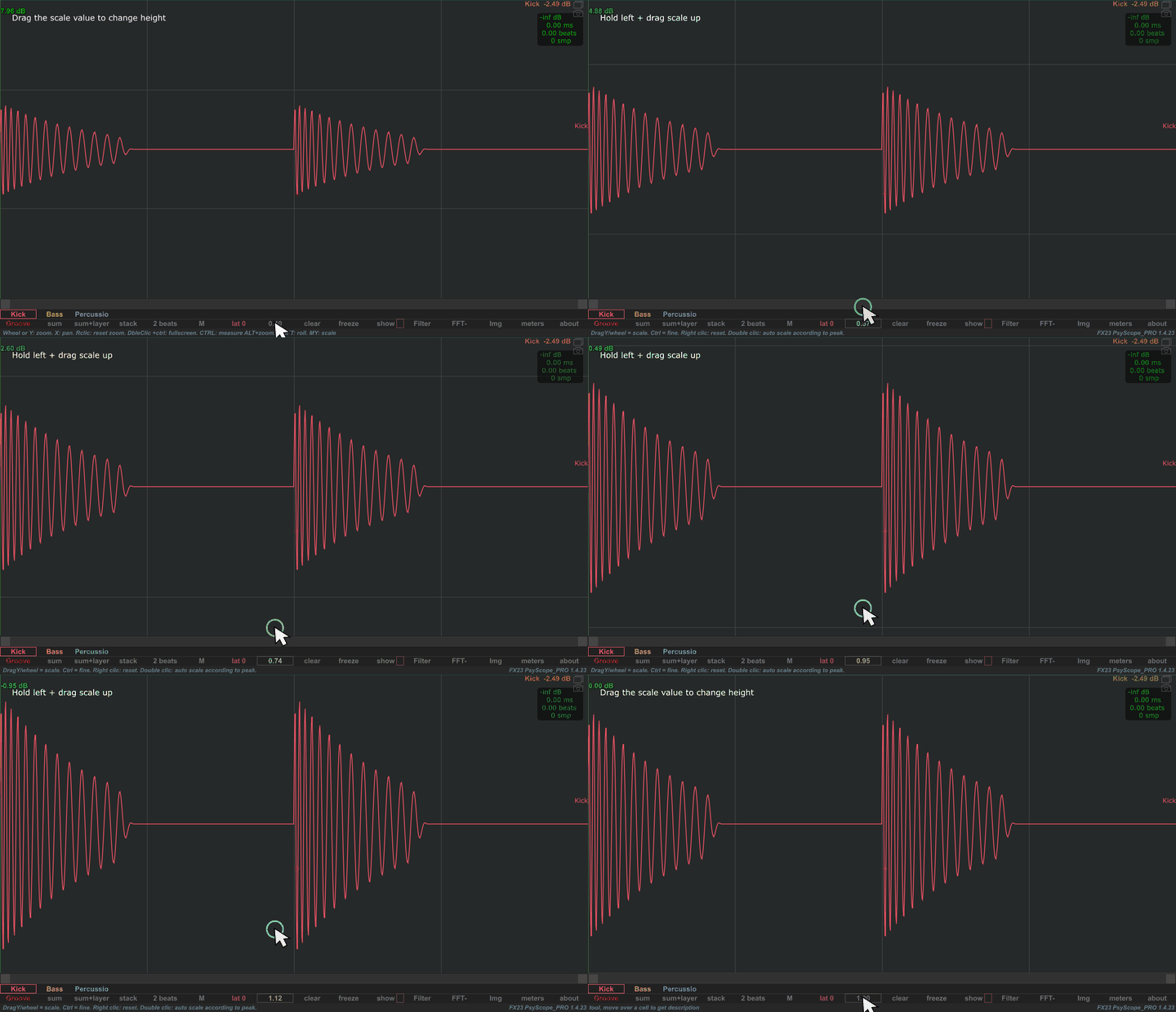
Drag vertically or use the wheel over the scale value to adjust the waveform display. Hold Ctrl for a finer adjustment. Right-click to reset it; double-click to scale according to the peak.
You can also hold the middle mouse button and drag vertically directly in the waveform view to adjust the display scale. Hold Ctrl for a finer adjustment.
The display scale helps reveal detail in a quiet waveform. Use the meters when you need a level reading.