Spectrum and spectrogram
Open frequency analysis
Left-click FFT for the settings menu. Use the mouse wheel over the toolbar button to cycle through the display modes:
| Label | Display |
|---|---|
FFT- |
Waveforms |
FFT+ |
Waveforms and spectrum |
FFT |
Spectrum |
Spectrum controls
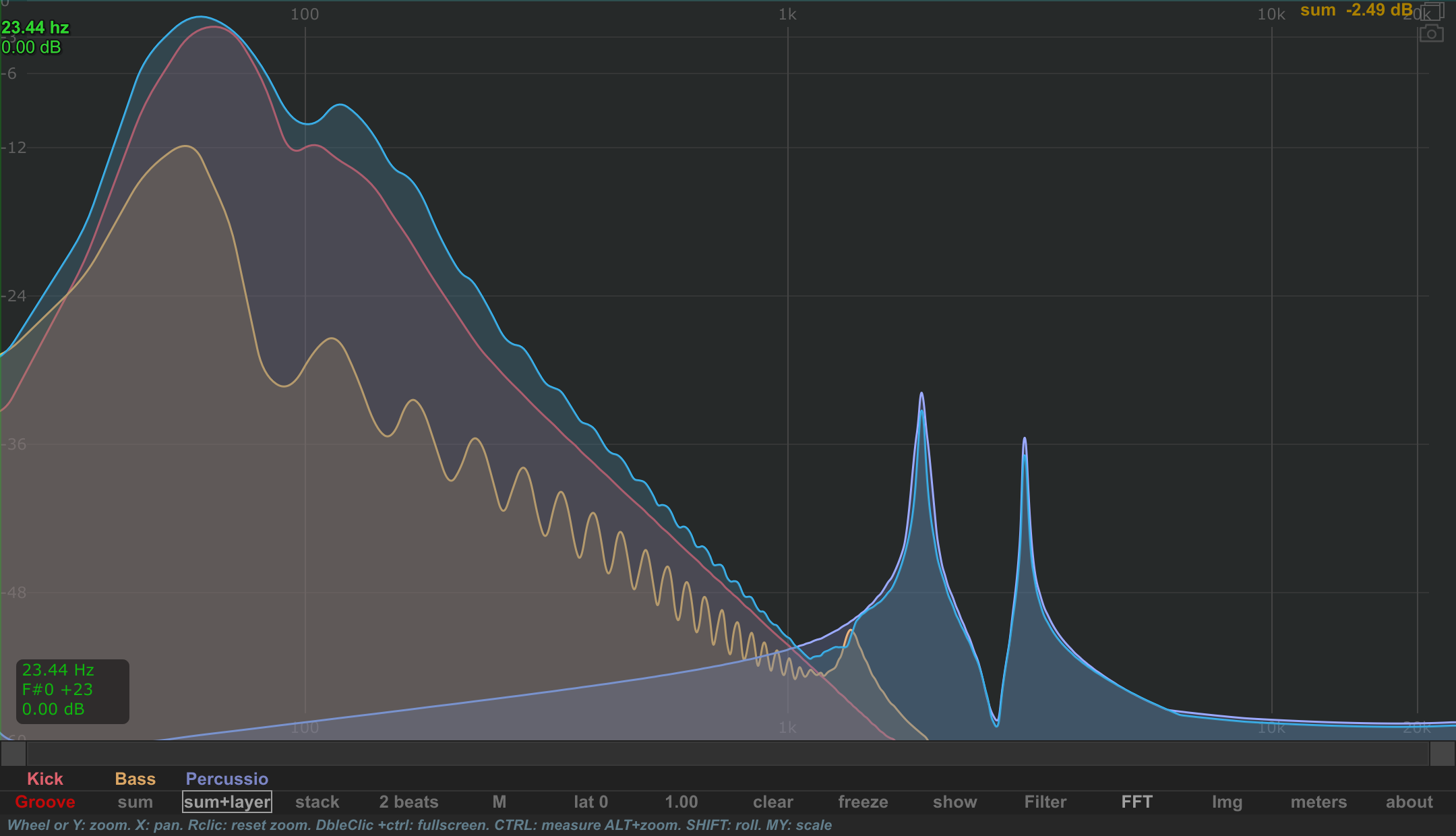
FFT size chooses the analysis window. A longer window helps separate close frequencies but covers a longer interval of the sound. A shorter window follows changes over shorter intervals.
The menu also contains the dB display limits, Avg / decay, Peaks with its decay control, Stroke, Fill, smoothing and bars options. Start with the basic spectrum, then change one display setting at a time so you can see what it contributes.
Use Show Datas to display frequency information and Follow mouse to choose whether that information follows the pointer.
FFT settings menu
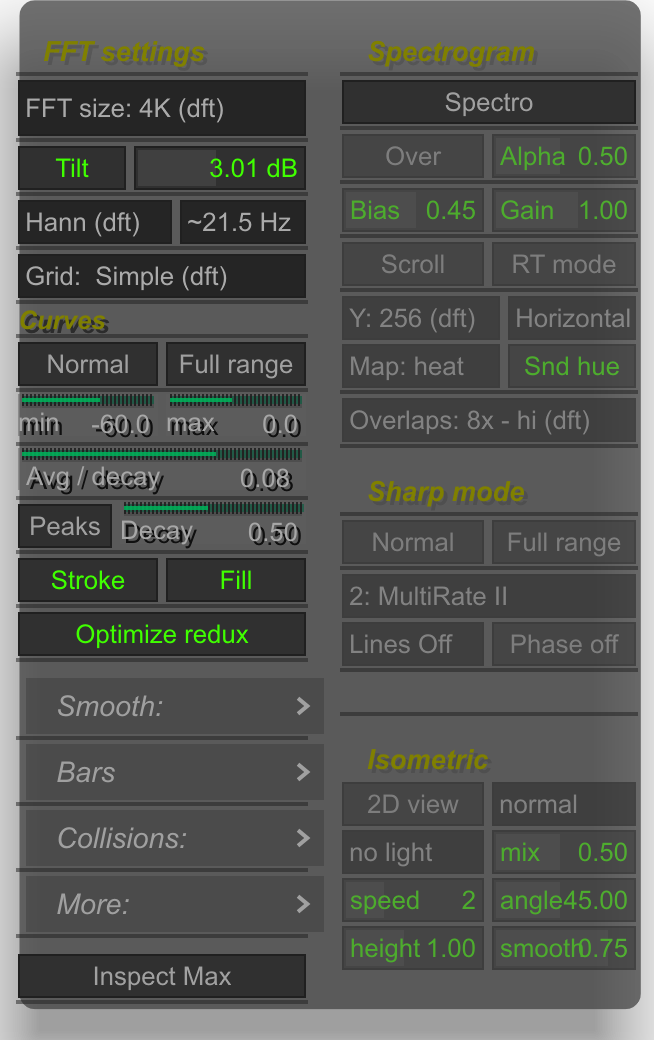
The FFT menu groups the spectrum controls on the left and spectrogram controls on the right.
FFT menu parameter reference
Labels such as Normal, Full range, Over and 2D view show the current state; clicking them switches to their alternative. Curve controls are available when curves are visible, and spectrogram controls when Spectro is enabled.
| Menu / section | Parameter | What it changes |
|---|---|---|
| FFT settings | FFT size | Analysis window length: larger sizes separate closer frequencies but cover more time. |
| FFT settings | Tilt | Enable frequency-dependent weighting of the displayed spectrum. |
| FFT settings | Tilt value | Adjust that weighting; this changes the displayed balance between low and high frequencies. |
| FFT settings | Window (for example Hann (dft)) | Choose the FFT window function, which changes the trade-off between peak width and spectral leakage. |
| FFT settings | Sub min (for example ~21.5 Hz) | Choose the low-frequency boundary. Larger FFT sizes help resolve the lowest frequencies. |
| FFT settings | Grid | Choose Off, Simple or Detail guides, with or without dB labels. |
| Curves | Normal / Multi-Rate | Switch between the normal curve analysis and analysis using multiple FFT scales across the frequency range. |
| Curves | Full range / Bass focus | Trade upper-frequency coverage for finer low-frequency analysis where the selected FFT size supports it. |
| Curves | min | Set the lower dB limit of the curve display. |
| Curves | max | Set the upper dB limit of the curve display. |
| Curves | Avg / decay | Control how quickly the displayed curve falls toward lower incoming levels; higher values follow changes faster. |
| Curves | Peaks | Show an additional peak curve. |
| Curves | Decay | Adjust how quickly that peak curve falls. |
| Curves | Stroke | Draw the spectrum outline. |
| Curves | Fill | Fill the area beneath the spectrum. |
| Curves | Optimize redux | Reduce drawing detail at high frequencies while retaining the maximum represented in each screen-pixel region. |
| Smooth: | On / off | Enable frequency smoothing of the curves. |
| Smooth: | amt | Adjust the smoothing band grouping. |
| Smooth: | octave | Set an approximately octave-wide smoothing grouping for the unzoomed range. |
| Smooth: | 1/3 oct | Set an approximately third-octave smoothing grouping for the unzoomed range. |
| Bars | On / off | Use the bar presentation. |
| Bars | Nb bars | Choose how many frequency bands are displayed. |
| Bars | octave | Set approximately one bar per octave for the unzoomed range. |
| Bars | 1/3 oct | Set approximately one bar per third octave for the unzoomed range. |
| Bars | Color | Enable individual bar coloring. |
| Bars | Mix | Blend that coloring with the source's fill color. |
| Collisions: | On / off | Show frequency-overlap highlights across enabled sounds. |
| Collisions: | Scale | Adjust detection sensitivity. Higher values reveal weaker overlaps. |
| Collisions: | Tilt | Adjust frequency weighting of the overlap display; higher values emphasize higher frequencies. |
| More: | Stack FFT | In stack mode, put spectra in separate lanes instead of overlaying them. |
| More: | Zoom FFT | Let the zoom controls affect the spectrum's displayed frequency range. |
| More: | Show Datas | Show frequency, note and level information at the pointer's position. |
| More: | Follow mouse | Place that information near the pointer instead of at a fixed position. |
| More: | Layers/Sum | In combined waveform + FFT view and layers mode, choose a sum waveform instead of the individual waveform layers. |
| Curves | Inspect Max | Accumulate the maximum spectrum for inspection. Toggling it clears the captured FFT data. |
| Spectrogram | Spectro | Enable the time–frequency image. |
| Spectrogram | Only / Over | Show only the spectrogram, or overlay it with spectrum curves. |
| Spectrogram | Alpha | Adjust image opacity when curves are also displayed. |
| Spectrogram | Bias | Change the intensity-to-color contrast of the image. |
| Spectrogram | Gain | Adjust the intensity used to color the image. |
| Spectrogram | Scroll | Switch from the fixed synchronized presentation to a scrolling image where supported by the current view. |
| Spectrogram | RT mode | Show the latest FFT image frame instead of the accumulated history. |
| Spectrogram | Y | Choose the image's frequency resolution. Higher settings use more processing. |
| Spectrogram | Horizontal / H invert / Vertical / V invert | Choose image orientation and direction. |
| Spectrogram | Map | Choose the intensity color map. |
| Spectrogram | Snd hue | In individual sound view, tint the map with that sound's hue. |
| Spectrogram | Overlaps | Select FFT overlap. The effective update spacing also depends on the active spectrogram mode. |
| Sharp mode | Normal / Sharp | Enable the Sharp spectrogram. Use 2D view for this analysis. |
| Sharp mode | Full range / Bass focus | Favor low-frequency resolution at the expense of upper-frequency coverage. |
| Sharp mode | Algorithm selector (for example MultiRate II) | Choose the Sharp analysis method. |
| Sharp mode | Lines (for example Lines Off) | Choose the Sharp line presentation. |
| Sharp mode | Phase off / True Freqs | In compatible Sharp methods and line modes, refine frequency placement using phase differences. |
| Isometric | 2D view / 3D iso | Switch between the flat image and a raised spectrogram surface. |
| Isometric | normal / freq inv / H inv / both inv | Reverse the frequency direction, history direction or both. |
| Isometric | no light / light A / light B / light C | Choose surface lighting. |
| Isometric | mix | Adjust the contribution of the selected lighting. |
| Isometric | speed | Adjust how quickly the isometric history advances. |
| Isometric | angle | Adjust the viewing angle. |
| Isometric | height | Scale the surface height. |
| Isometric | smooth | Smooth changes in surface height over time. |
Frequency collisions
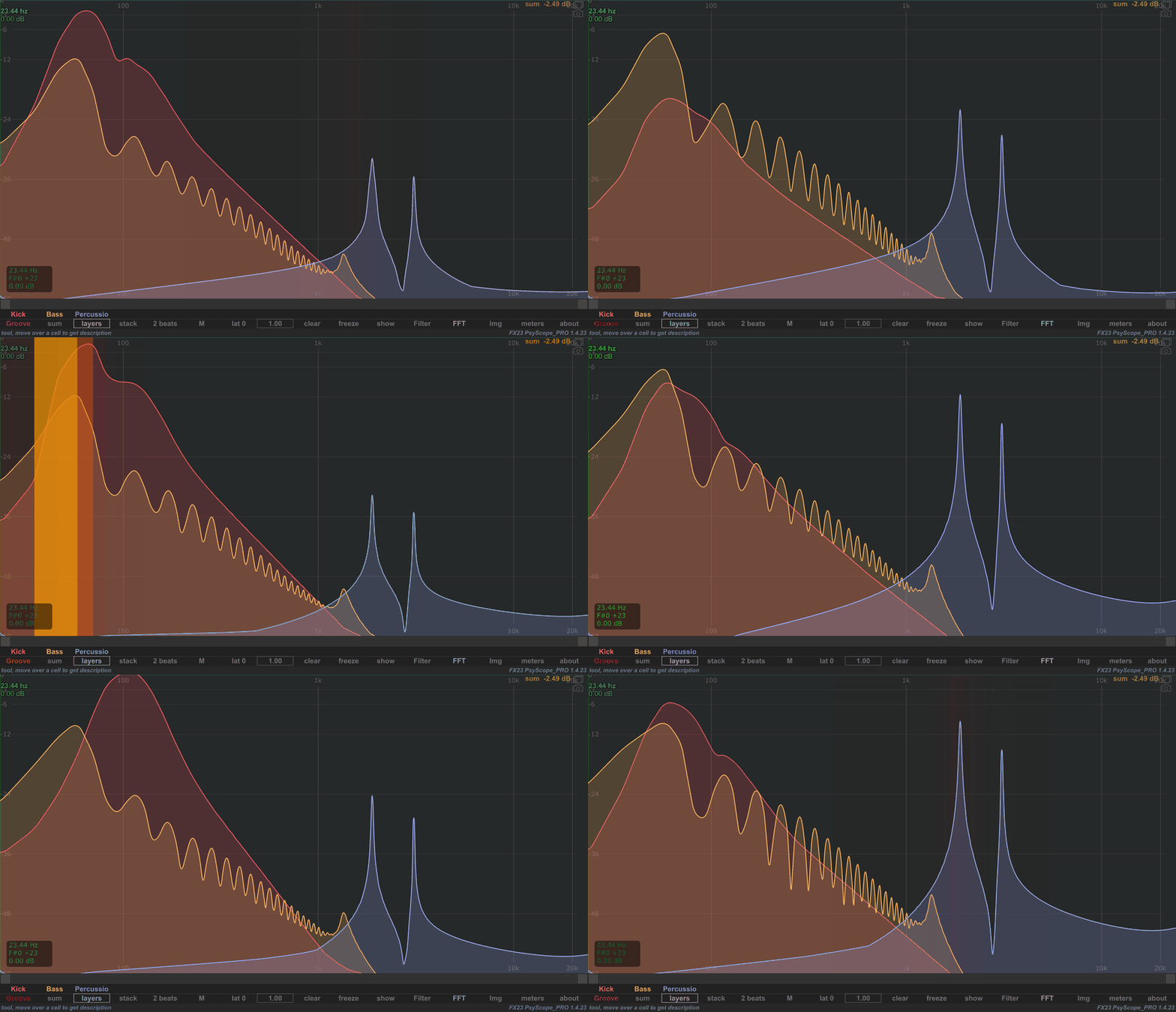
Open FFT → Collisions: and enable On while comparing several enabled sounds. Colored vertical highlights show where their frequency content overlaps during playback. Use the sound buttons' right-click toggle to include or exclude a source from the comparison.
Scale adjusts detection sensitivity; increase it to make weaker overlaps more visible. Tilt changes the frequency weighting, with higher values giving more emphasis to high frequencies. The example uses Scale 4.00 and Tilt 0.50.
An overlap is a cue to inspect the sounds together, not an automatic indication that the mix needs correction. Compare their timing and listen before deciding whether to change them.
FFT bars
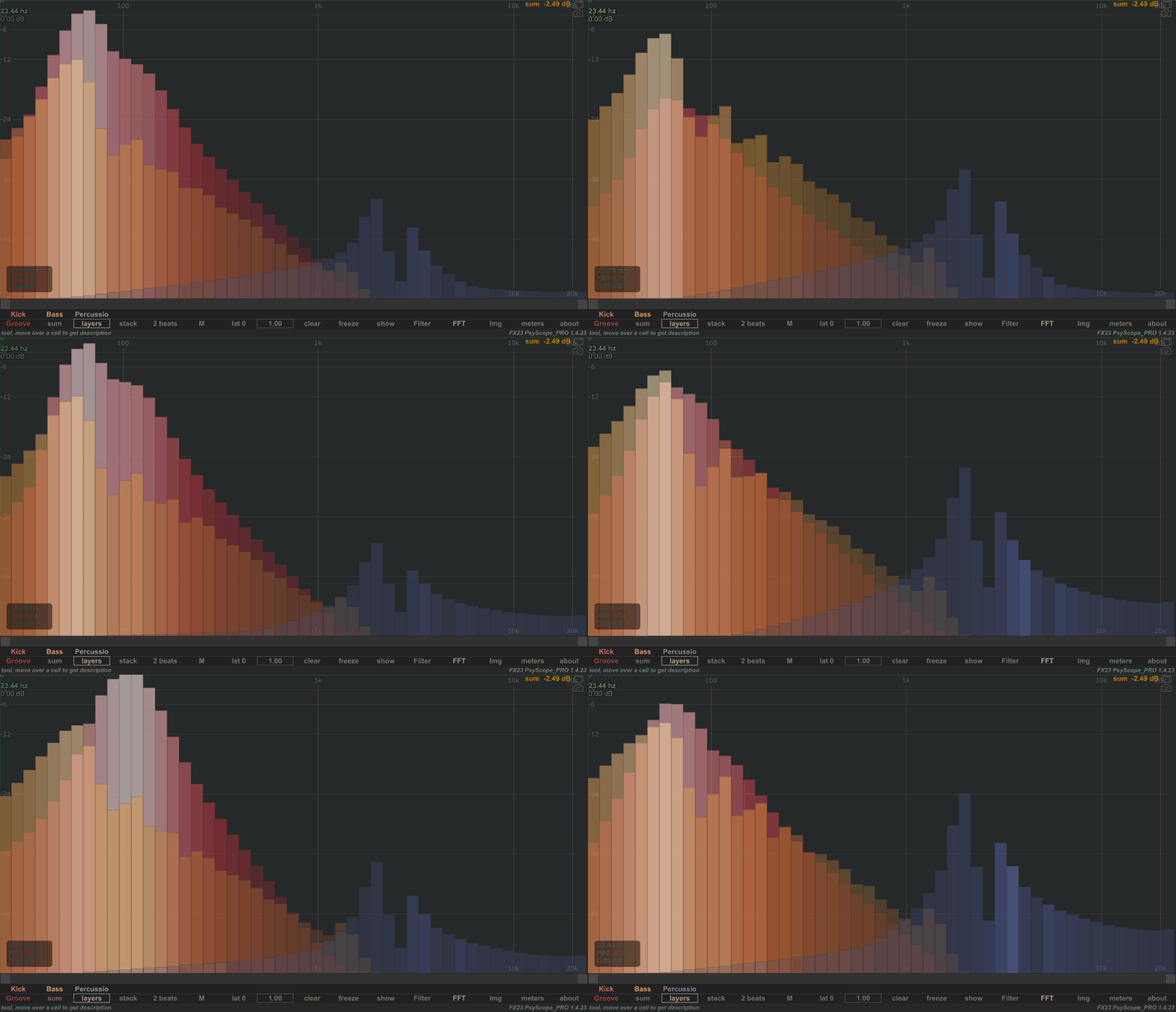
Open FFT → Bars and enable On to show the spectrum as frequency bands. Nb bars chooses the number of bands; octave and 1/3 oct offer approximate octave-based counts for the full, unzoomed range. The example uses 48 bars.
Enable Color for per-bar coloring and adjust Mix to change its contribution. Use fewer bars for a broad overview and more bars to inspect finer differences. The FFT size still controls the underlying analysis window.
Spectrogram
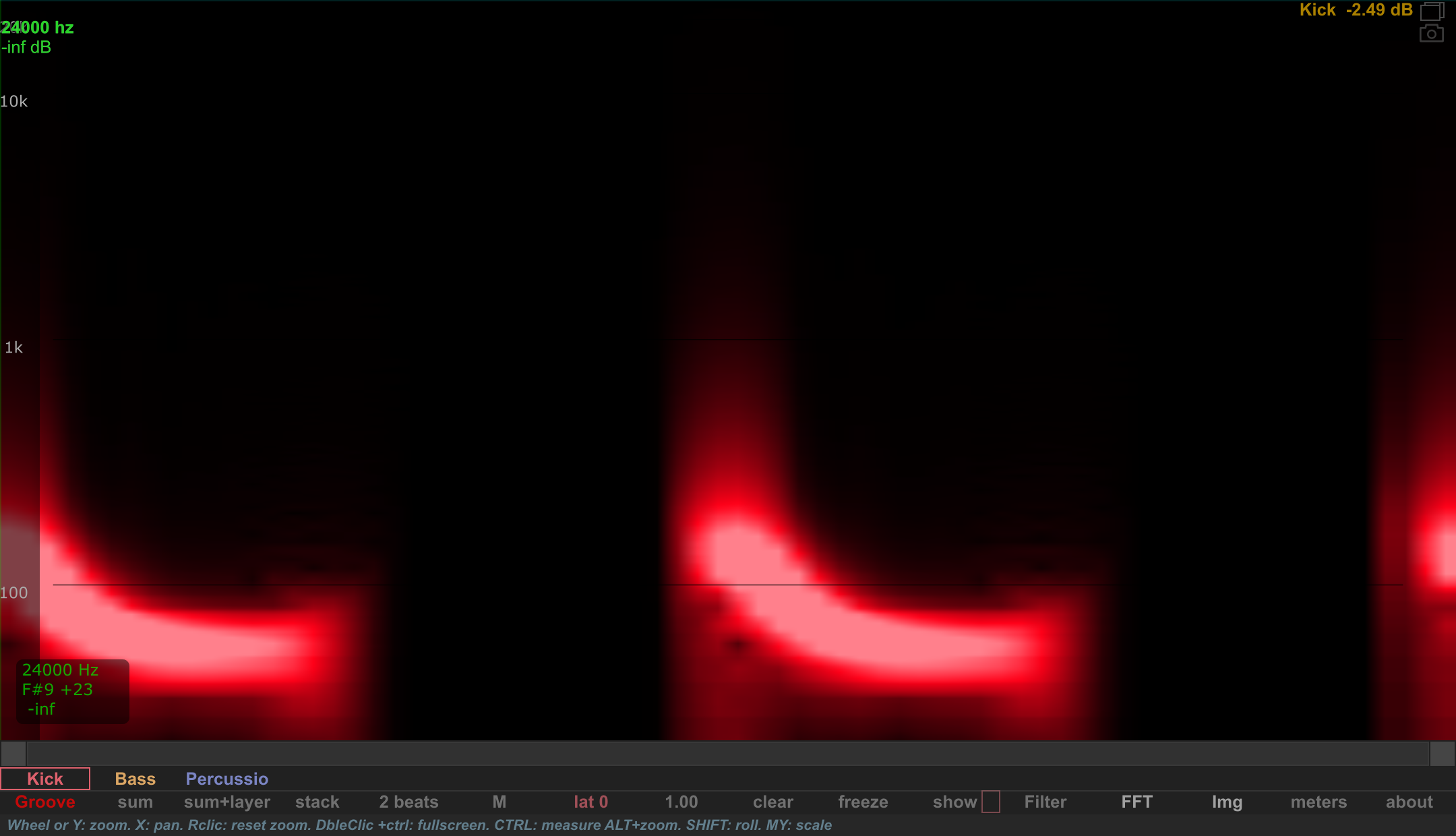
In the FFT menu, enable Spectro to view frequency content across time.
| Control | Purpose |
|---|---|
| Only | Show the spectrogram without the spectrum curves. |
| Alpha | Adjust spectrogram opacity when curves are also shown. |
| Bias and Gain | Adjust the intensity presentation. |
| Scroll | Choose a scrolling presentation. |
| Map | Choose the color map. |
| Snd hue | Tint with the sound's hue in the individual sound view. |
Try a sustained sound followed by a short transient to compare how each appears across time. When investigating a detail, keep the time interval and channel selection consistent between views.
For Sharp mode and the raised 3D presentation, see Advanced spectrogram views. For a difference spectrum between two sounds, see Delta comparison.