FFT templates
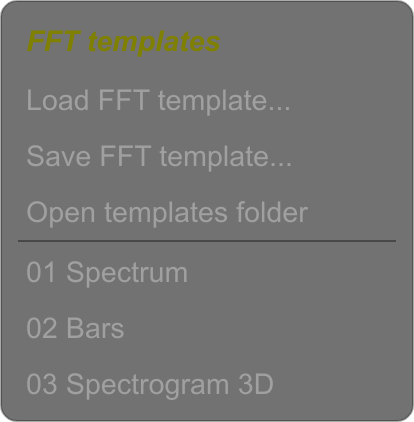
Save an FFT template to reuse an analysis setup: for example, a spectrum with peak curves, a colored bar display or a 3D spectrogram. Templates use .psfft files and are available from FFT → Templates and the FFT radial menu.
What a template stores
A template stores the FFT analysis and display settings: FFT size and window, tilt, frequency and level limits, grid and keyboard, curve averaging and peaks, smoothing, bars, collisions, FFT display options, spectrogram appearance and scrolling, Sharp/reassignment, and 3D settings.
The selected sounds and group belong to your current comparison. Use Sets to recall those selections. FFT templates do not store audio, the waveform/FFT split of the editor, or whether the main FFT view is open.
Loading clears the FFT history
Loading a template replaces the current FFT settings and clears the captured FFT data. Save your current setup first if you want to recall it later. Resume buffering and play audio to build a new analysis history.
Save a setup
- Open frequency analysis and adjust the spectrum or spectrogram as needed.
- Left-click FFT, open Templates, then choose Save FFT template....
- Give the file a descriptive name with the .psfft extension. Save it in the proposed FFT Templates folder to make it available in the menu and wheel.
To update an existing template, save to the same file and confirm replacement in the file dialog. Save under another name to keep both versions.
Recall from the wheel
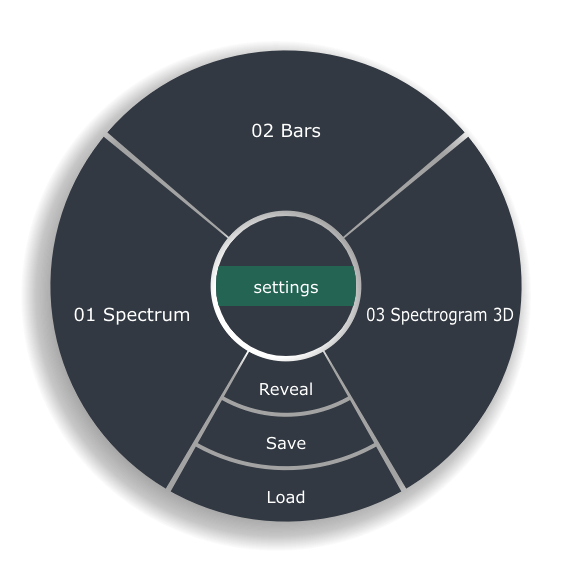
- Move the pointer over the visible FFT display and press A.
- Click template in the center of the wheel.
- Click a template name to load it. The wheel closes and the saved settings are applied.
The wheel lists the files in your FFT Templates folder. The examples shown here are documentation setups that you can create yourself.
| Control | Action |
|---|---|
| Save | Save the current FFT setup to a file. |
| Load | Choose a .psfft file to load. |
| Reveal | Open the FFT Templates folder. |
| settings | Return to the FFT settings wheel. |
Hover a template sector to read its full name below the wheel. If the folder is empty, the wheel shows No templates. The wheel remembers whether you last used the settings or templates page during the session.
Load and organize files
Open FFT → Templates and click a saved name to recall it, or choose Load FFT template... to browse for a file elsewhere. The wheel's Load command opens the same file chooser.
Use Open templates folder in the menu, or Reveal in the wheel, to locate the folder. Place .psfft files directly in this folder to include them in the list; files inside subfolders are not listed. Close and reopen the menu or templates page after changing its contents.
Loading a file from another location applies its settings without copying it into the templates folder. To keep it in the list, copy the file into that folder or save the loaded setup there. Rename or remove saved files through the folder view.
An unsupported or invalid file displays an error without partially applying its settings.