Interface overview
PSYSCOPE combines a waveform display, frequency analysis and an optional meters panel. The toolbar selects what you see and opens the relevant settings.
See the native toolbar capture and cell-by-cell guide for a shortcut to each control's chapter, and the Show menu for its display options and submenus.
Interface map
Select a region to open its explanation. The meters panel is optional; the main display changes with the selected analysis view.
Find your way around
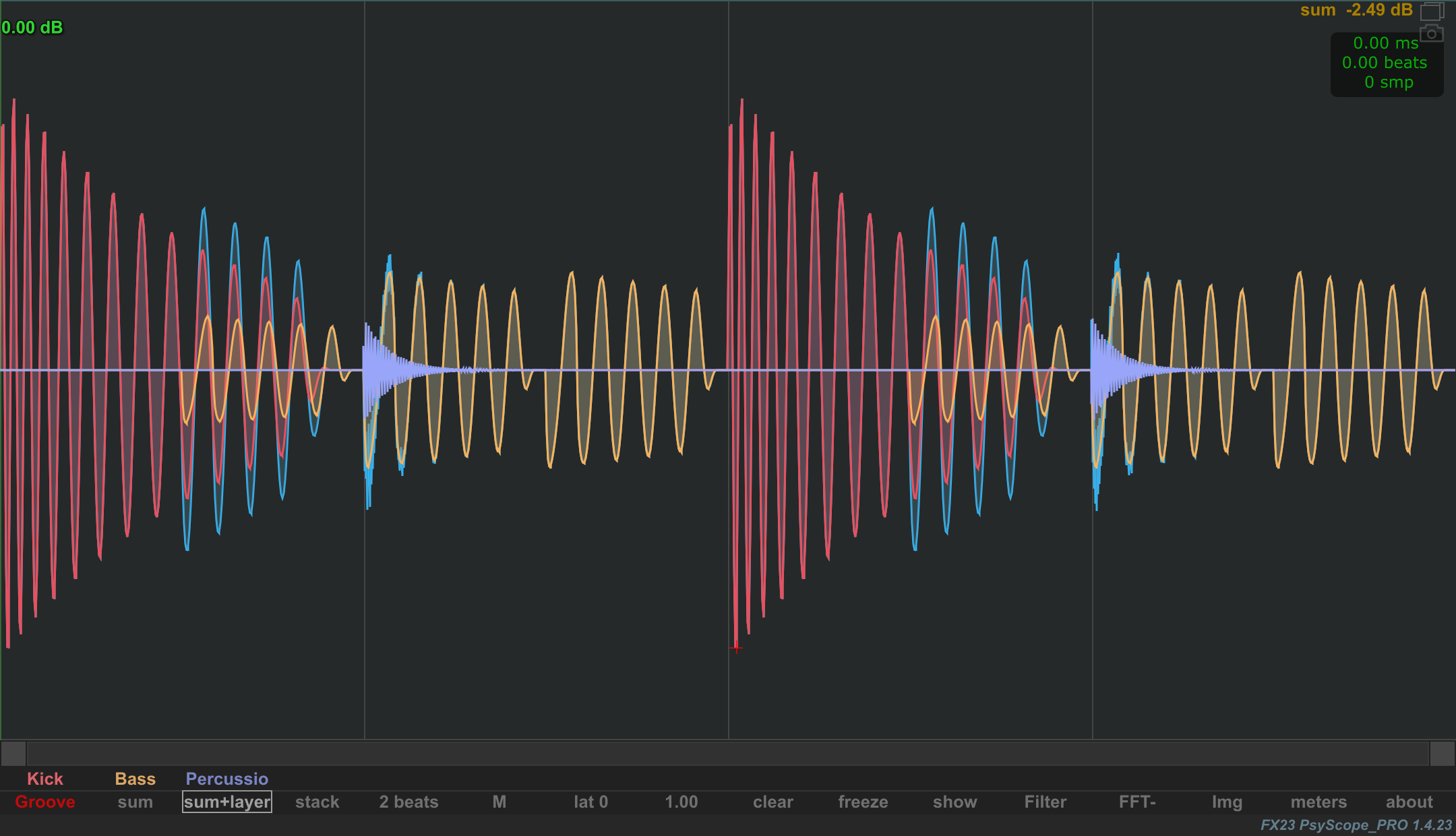
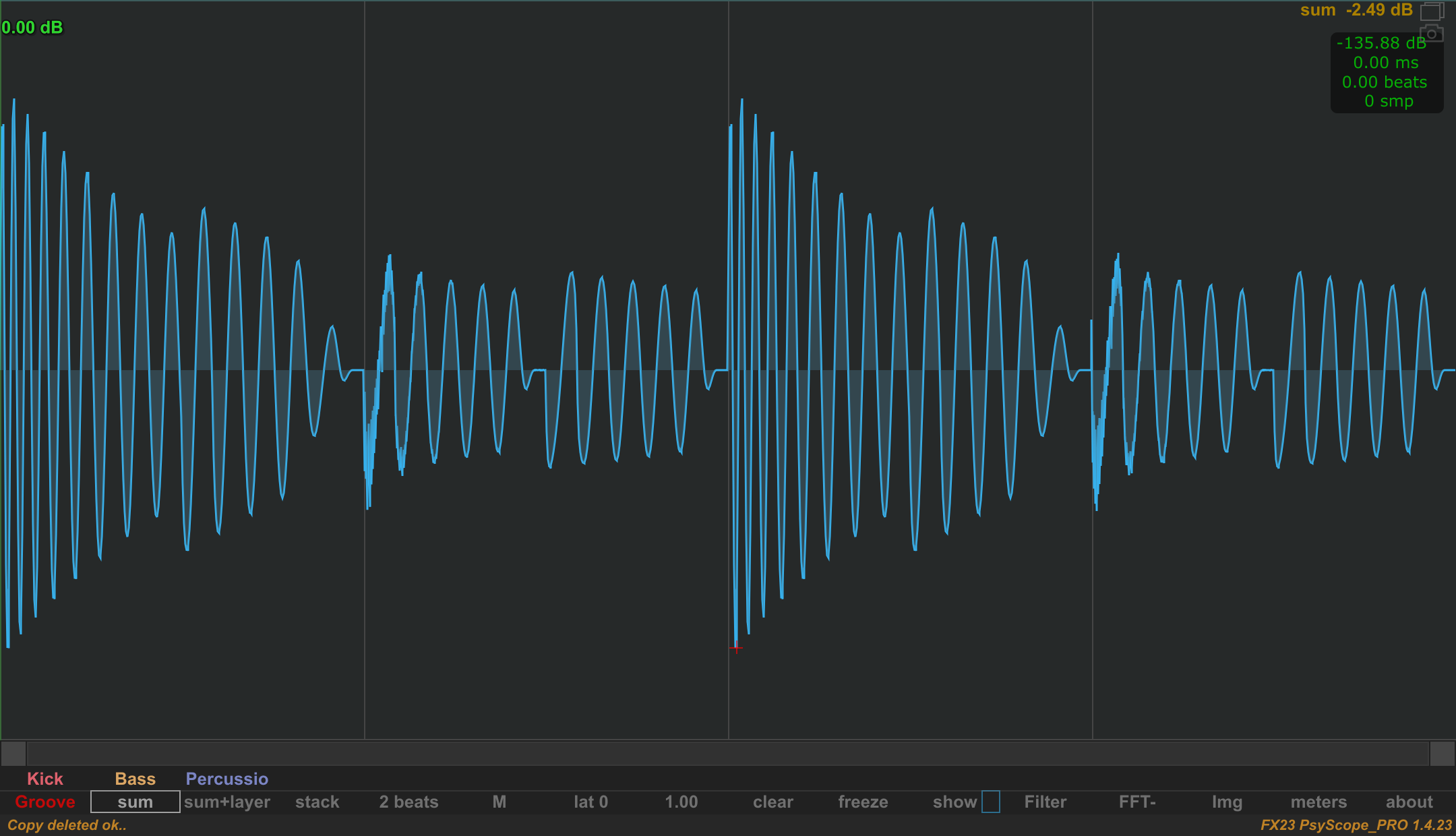
Select sum on the toolbar to see the enabled sounds added together. The layers view on the left keeps each source visible; sum on the right shows their combined waveform. In layers, sum or stack view, right-click a sound button to toggle that sound on or off in the comparison. This lets you choose which sounds contribute to the displayed result. See Sounds and display modes for the comparison modes and sound selection.
Navigate quickly with double-clicks
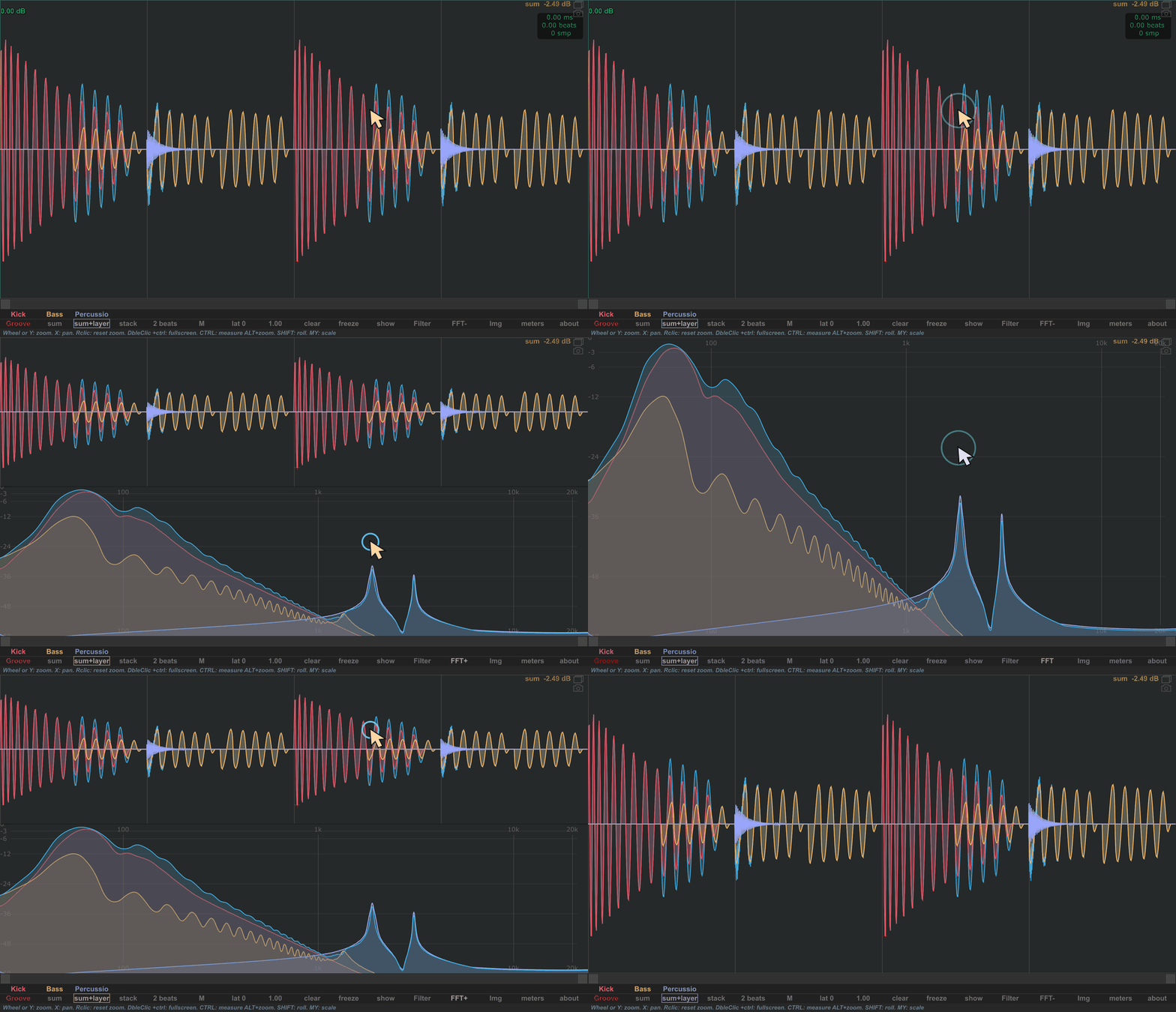
The native animation loops through waveform only → waveform + FFT → FFT only → waveform + FFT → waveform only.
The white cursor and two cyan pulses mark each double-click location. In the combined view, waveform and FFT each occupy half of the display height.
- Double-click in the waveform area to switch between waveform-only and the combined waveform/spectrum view.
- In the combined view, double-click in the FFT area to expand it to FFT only.
- Double-click in the FFT area again to return to the combined view, then double-click in the waveform to return to waveform only.
Use a plain left-button double-click, without Ctrl, away from editable reference lines and the LUFS data box. Those elements have their own double-click actions. Here, the combined or “dual” view means waveform + spectrum; L/R dual-channel display is a separate setting.
Reveal the meters panel
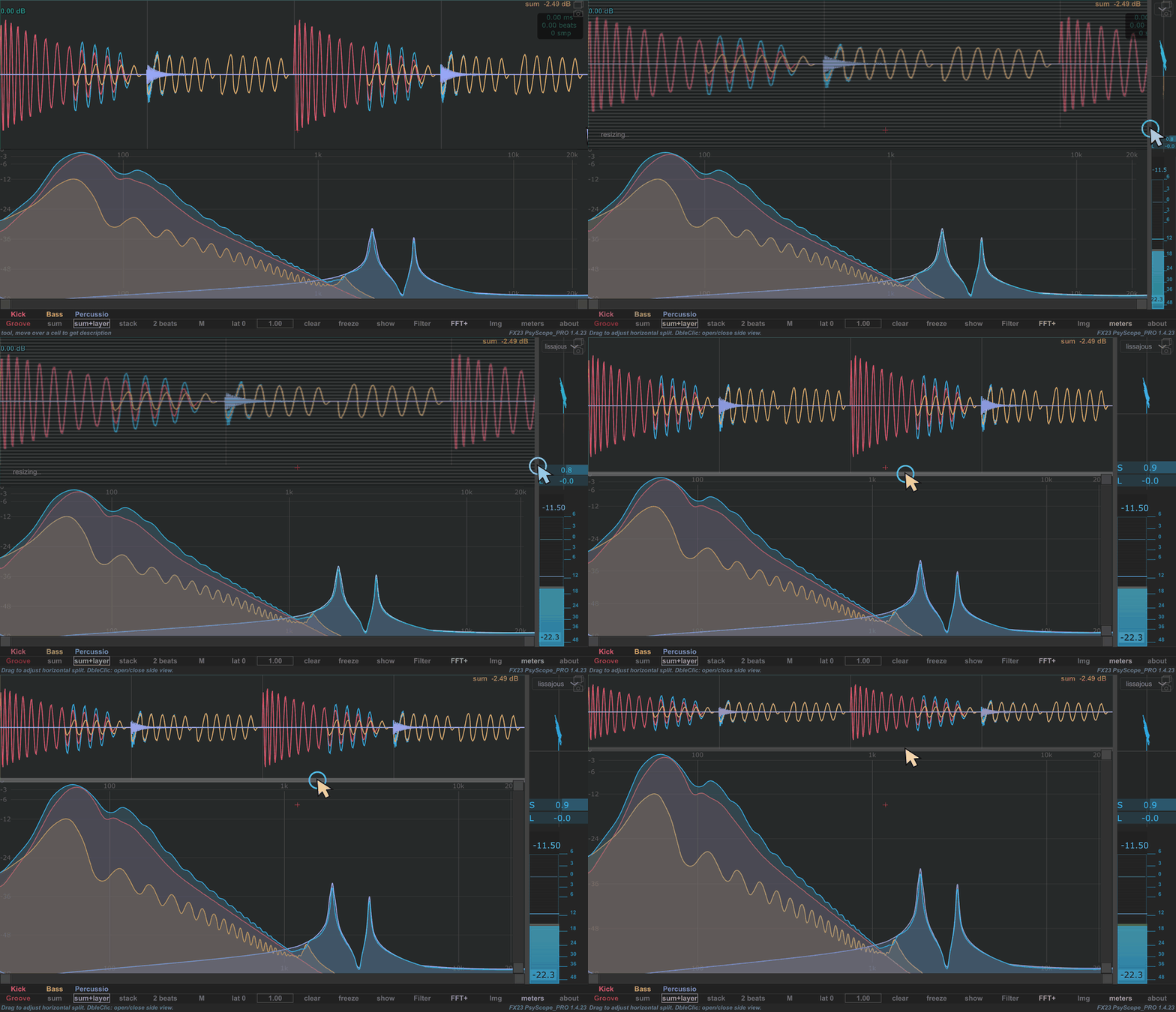
Start with waveform and FFT sharing the main display 50/50. Drag the right-hand separator to the left to reveal the meters panel, here about 10% of the editor width. Then drag the waveform/FFT separator upward: the waveform occupies 25% of the display height, leaving 75% for the FFT. Release the mouse button to keep the layout.
Resize the meter displays

Within the meters panel, drag the separator between the upper stereo display and the lower VU meter up or down to change their relative heights. Drag up to give the VU meter more room; drag down to enlarge the stereo display. This close-up shows the panel at about 10% of the editor width.
Main controls

| Native control | Area | Use it to… |
|---|---|---|
 |
Sound buttons | Select one sound for inspection or enable and disable its contribution to the comparison. |
 |
sum, layers, stack |
Switch between a combined waveform, overlaid sounds and separate stacked views. |
 |
Group / sets selector | Open the organization panel and choose which group to inspect. |
 |
Duration control | Choose a tempo-synchronized interval or use Hz mode. |
 |
Channel control | Select L, R, M, S, LR or MS. |
 |
lat (latency) | Adjust the analysis timing offset. |
 |
Scale value | Adjust the waveform display height. |
 |
clear | Clear the captured buffers. |
 |
freeze | Hold or resume waveform capture. |
 |
show |
Open display and appearance options. |
 |
Filter |
Open the analysis filter settings. |
 |
FFT |
Open spectrum and spectrogram settings. |
 |
Img | Toggle the spectrogram image. |
 |
meters |
Access level and stereo displays and their options. |
 |
about |
Open information and preferences. |
The channel, duration and group controls display their current value or name, so their text changes as you work. The spectrum button displays FFT, FFT+ or FFT- according to the selected view.
Alignment and scale
Use lat for alignment offsets, and the scale value for waveform display scale. Alignment changes the time relationship you inspect; scale changes the waveform's displayed height.
lat can manually correct a mismatch between the host clock and latency-compensated audio. Left-click a sound first for its individual correction, or select sum / layers / stack for the global correction. See PDC and manual alignment.
Read contextual help
To inspect a precise interval, Alt + left-drag in the waveform view to measure a region and zoom to it on release. Use Ctrl + left-drag for the measurements without the release-to-zoom action.
Move the pointer over a toolbar cell to read a short description in the interface's information area. Some cells offer different actions for left-click, right-click, the mouse wheel and dragging. See Mouse actions.
Display and preferences
Open show for display and appearance options, or about for product information and preferences. Use Filter, FFT and meters to open the analysis tools described in their chapters. The toolbar reference links every cell to its explanation.
Reading the example
The native view above compares Kick, Bass and Percussion. Sound selection and display controls are along the bottom; the main area shows their waveforms. Click an illustration to open its full-resolution PNG.