Show menu
Click show on the main toolbar to choose display overlays, extra analysis tools and drawing options. Start with the information you want to inspect, then enable the relevant overlay or choose a display mode.
Open the menu
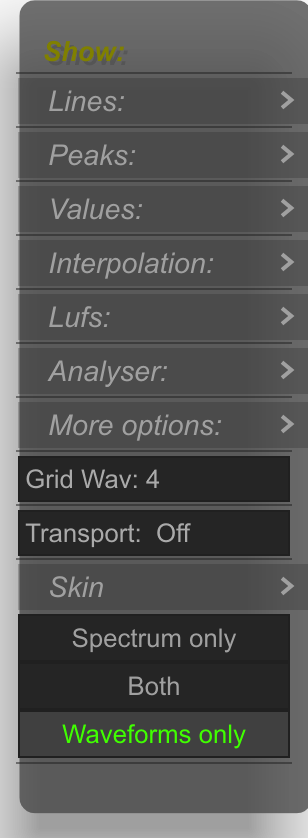
The native menu provides entry points to the submenus described here. Spectrum only, Both and Waveforms only choose which analysis areas are visible.
Lines
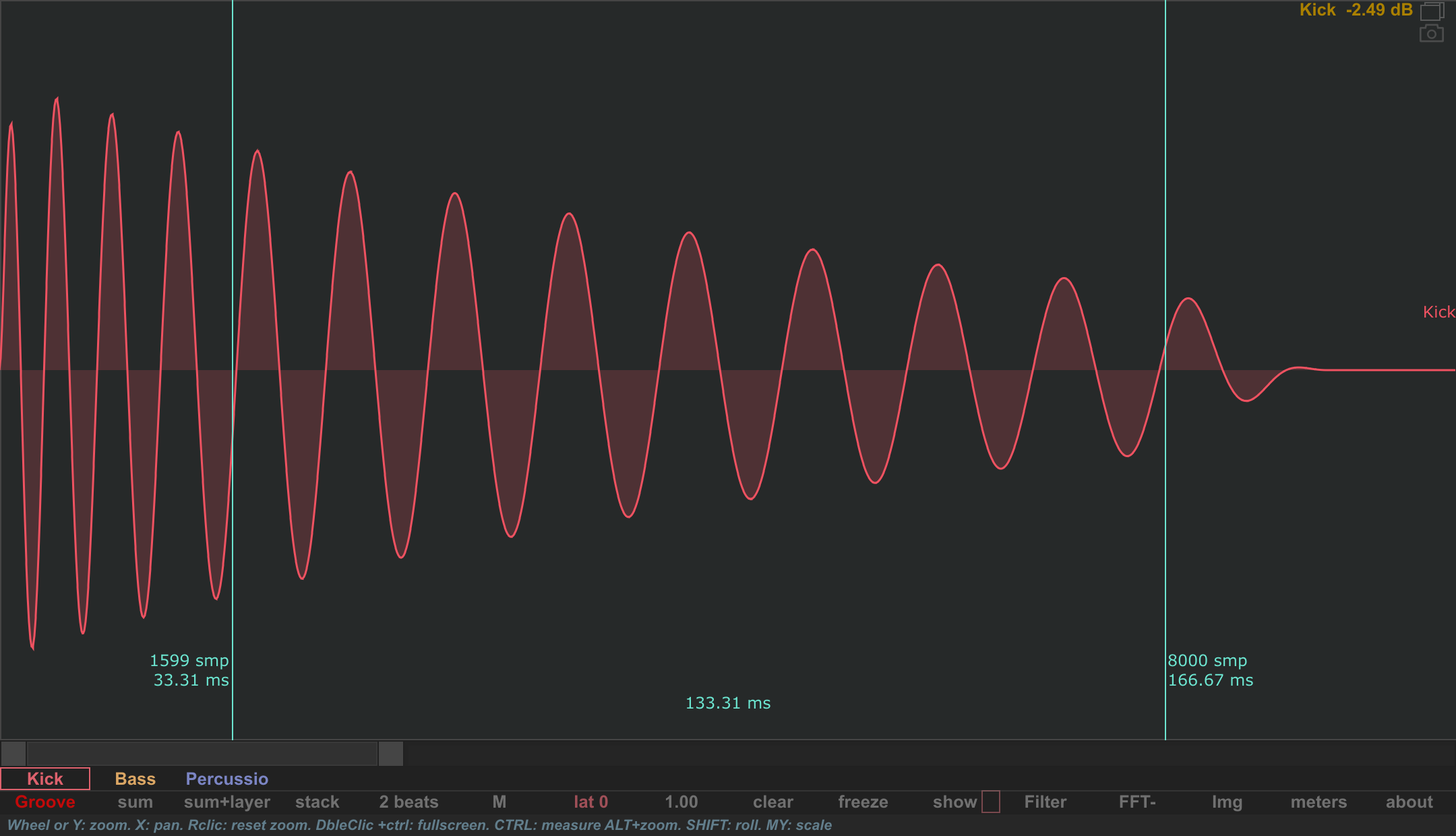
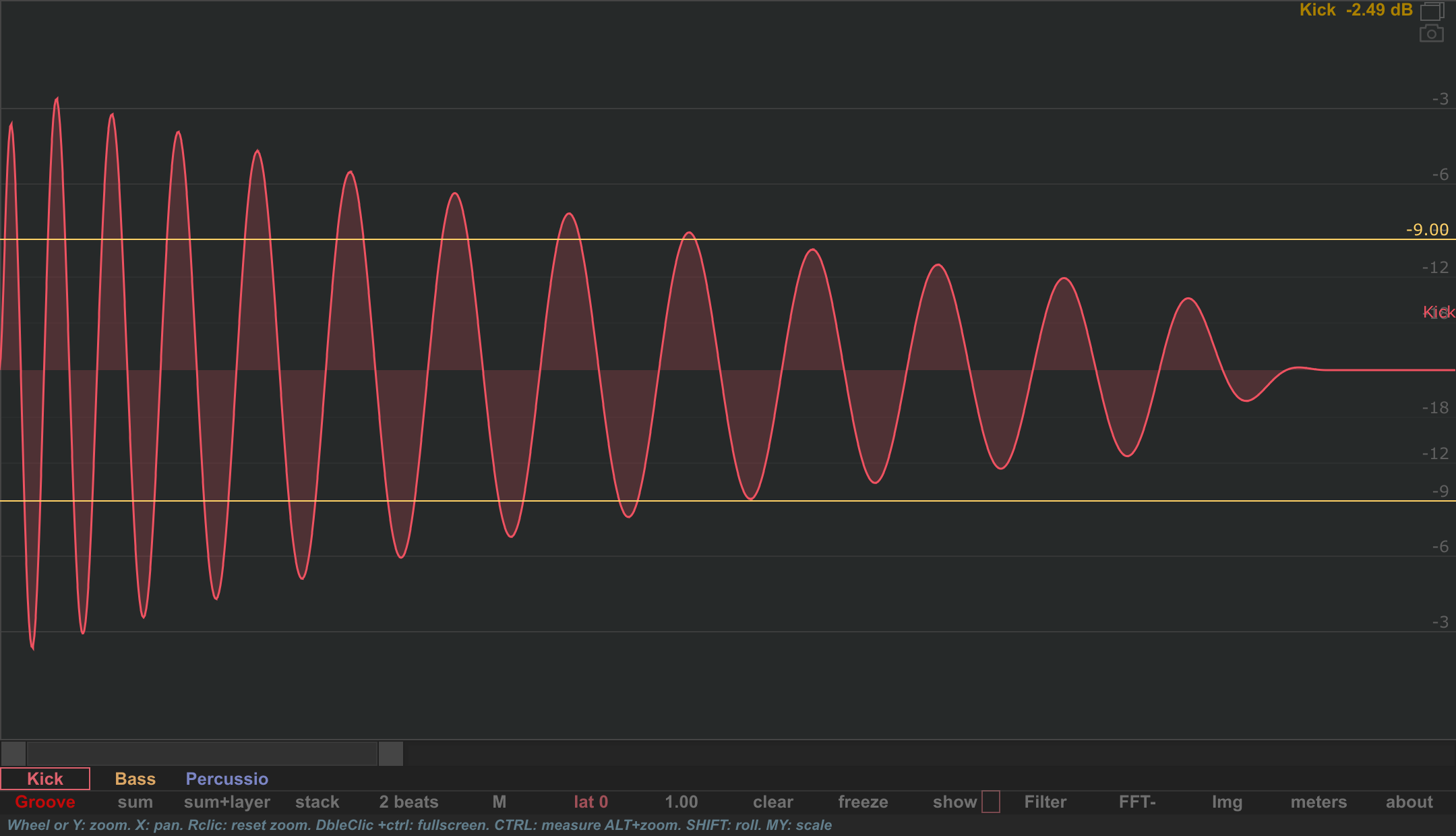
Both native examples show the same Kick at the same zoom. Left: the two cyan Ref time lines mark positions at about 33.33 ms and 166.67 ms. Right: the gold Ref dB lines mark a custom −9 dB reference on both sides of the waveform, with Extra dB lines adding fixed level guides.
Click and drag a Ref time line or Ref dB line to adjust it, or double-click near the line to enter a value. Time-line positions are entered as a percentage of the buffer; level references are entered in dB. Extra dB lines are fixed guides.
Open Lines: to control reference guides:
| Control | Use it to… |
|---|---|
| Ref time lines | Show the two movable time reference lines. Drag a line to reposition it; double-click near it to enter a position as a percentage of the buffer. |
| Ref dB lines | Show the adjustable dB reference. Drag it to change its level, or double-click near it to enter a dB value. |
| Extra dB lines | Add level guides to the waveform display. |
Use reference lines to keep comparison points visible. For a temporary region with duration and frequency readouts, use Measure. The adjustable dB reference applies to compatible waveform layouts; use an individual sound or sum view when setting a reference.
Peaks

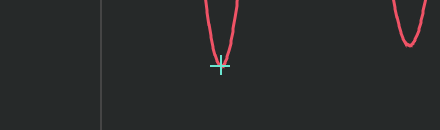

Peaks: controls the peak readout and markers: Peak value shows the value at the top right; Peak cross marks the peak position; Signed allows the cross to follow the peak's positive or negative side. True Peaks selects the true-peak display option. Use these with waveform zoom; use the meters for the separate level display.
Values
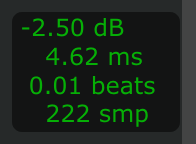
Values: configures cursor information independently for Wav area and Fft area.
| Area | Controls |
|---|---|
| Shared presentation | Use sound color changes the readout color. |
| Wav area | Values enables waveform information; Mouse places it near the pointer instead of at a fixed position. Choose dB, ms, beats and smp for the cursor information you need. |
| Waveform point | ball wav marks the waveform at the cursor's time; ball db adds that waveform point's level to the readout. |
| Fft area | Values and Mouse control spectral readouts and placement; dB fft and Hz fft control cursor guides/readouts. |
The waveform cursor's dB is a vertical-position reference; ball db follows the waveform itself. Keep this distinction in mind when reading a quiet sound at a large display scale.
Interpolation
Interpolation: chooses how the waveform curve is drawn between discrete samples: No interpolation, Linear, Cubic, dft Cubic, Lanczos or Sinc. Zoom in to inspect the difference. Only when zoomed limits the intersample curve presentation to close views. These are waveform drawing controls; they do not resample the track's audio.

The comparison uses a square wave alternating between 0 and 1, sampled at 48 kHz, with 64 samples per cycle (750 Hz). Every strip shows the same one-cycle interval at the same scale. The close zoom makes the joins between discrete samples visible; extra vertical headroom keeps overshoot around the transitions in view.
Compare the flat steps, straight joins and curved transitions across the six frames. Moving from No interpolation toward Sinc shifts the emphasis from the discrete sample values to an estimate of the continuous waveform reconstructed during digital-to-analog conversion. Sinc follows the principle of ideal band-limited reconstruction, so it is more useful for inspecting what happens between samples than a sample-only or straight-line waveform display. See the DSP Guide's explanation of reconstruction.
The reconstructed waveform can rise above the highest stored sample. These inter-sample peaks (ISP) can exceed 0 dBFS even when every sample stays within digital full scale. The overshoot and ringing around this square wave's transitions help reveal that distinction; a DAW view that only shows sample values may hide it. See AES: True peaks.
PSYSCOPE's Sinc display is a finite approximation of reconstruction: it helps visualize potential inter-sample peaks, but does not predict the exact output of every DAC or replace a dedicated true-peak measurement. The modes are different drawing methods, rather than a guaranteed accuracy ladder at every intermediate step. Cubic and dft Cubic can appear identical in this example.
Lufs
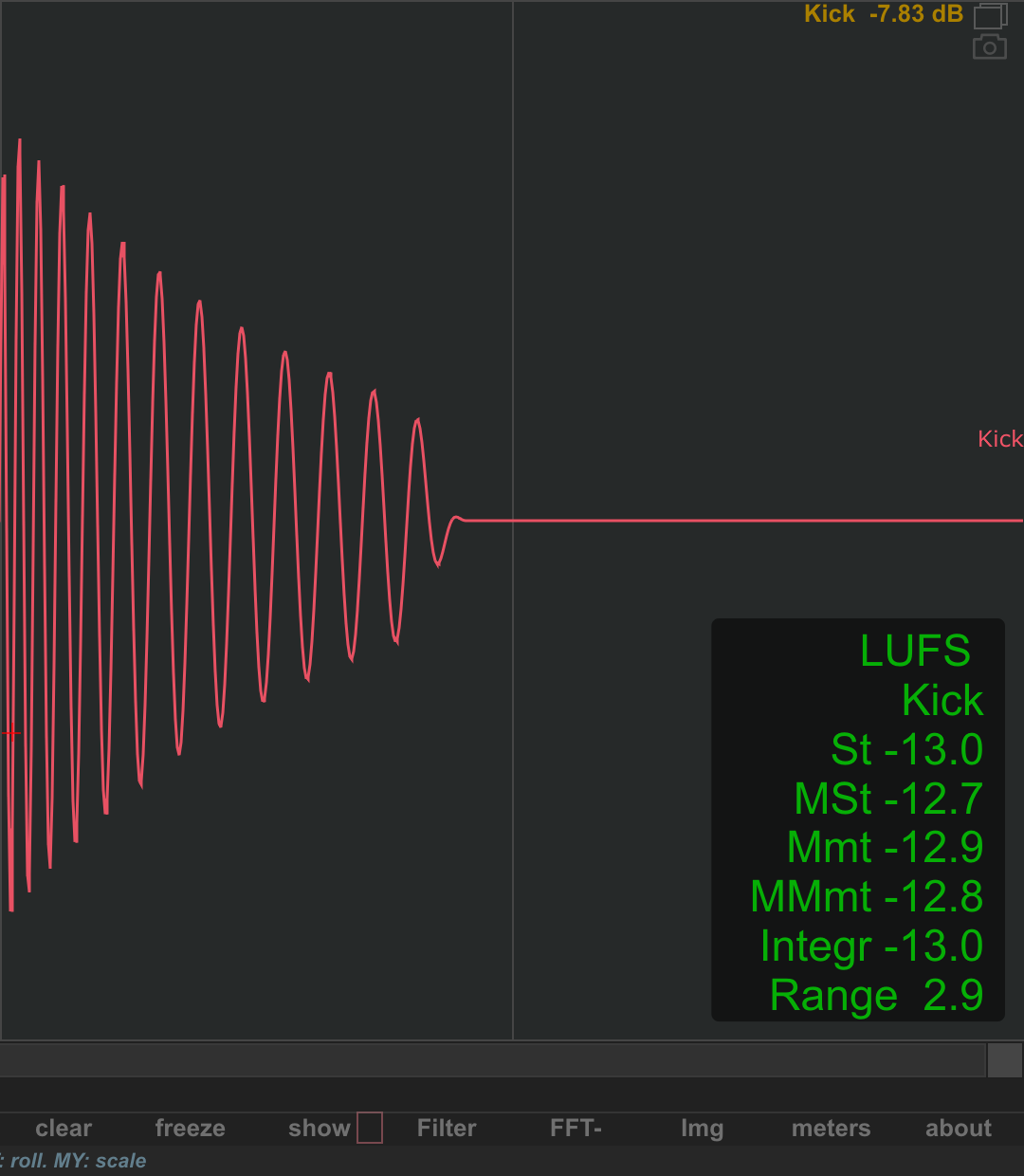
Open Lufs: and enable LUFS to show loudness information. Choose which fields appear: header, source name, short term, short term max, momentary, momentary max, integrated and range. Placement, Size and use sound color adjust the presentation.
The display follows the individual sound when a sound is selected, otherwise the sum. Double-click inside the LUFS data area to reset its accumulated measurements. This display is separate from the VU and stereo side panel.
Analyser
Analyser: opens the specialized tools. Follow each link for its gesture, interpretation and illustration.
| Tool or setting | Details |
|---|---|
| Wav cycle tracker | Detect a cycle under the pointer. |
| Phase correlation | Compare L/R or two sounds. |
| Delta A-B, Delta only | Inspect the difference between two sources. |
| Stereo analyser, min / max, nb samples | Show stereo distributions in the main analysis area. |
| Show ballistics, attack, release | Inspect the amplitude envelope. |
More options
More options: contains Stack 0dB lines, Extra icons, Instance Id, Fps and Force all paint dbg. Use Extra icons to show the fullscreen and snapshot icons in the analysis area's upper right. Instance and frame-rate overlays help identify the current display. Force all paint dbg is a diagnostic repaint control.
Grid and transport
Grid Wav: chooses the waveform's vertical time divisions, including Off, custom and numbered divisions. Transport: chooses Off, simple or shadow for the transport cursor. Use these guides with a synchronized interval to read positions in a repeating musical phrase.
Skin
Skin contains the drawing and color controls:
| Section | Controls and purpose |
|---|---|
| Paint Mode | Stroke, Fill or Both for waveform outlines and filled shapes. |
| Use Daw colors | Use supplied track colors when the plugin format and host provide them. |
| Gradient | Use Gradient replaces sound colors with gradient coloring. Choose a gradient map and adjust Gain, Contrast and Saturation. |
| 2nd offset | Hue, Sat, Lum and Alpha offset the second channel's color in dual-channel views. |
| Edit Skin | Open the Skin editor to edit interface and sound colors, save a .skin file or set your default appearance. |
With Use Daw colors enabled, compatible hosts supply the sound colors. Disable it to choose your own sound colors. In both cases, the Skin editor still lets you customize the other interface colors. See DAW colors and manual colors for the interaction with Use Gradient.
Choose the analysis areas
At the bottom of show, select Spectrum only, Both or Waveforms only. For spectrum and spectrogram options, continue to the FFT menu. For stereo or loudness overlays, use the corresponding submenus above.