Dry/Wet, setup and About
Dry/Wet: global and per processor
Use Dry/Wet (DW) to set how strongly the processing contributes. You can balance each processor separately, adjust the global amount, or use both together without redrawing your curves.
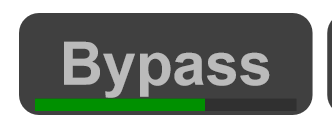
Global amount: under Bypass
The green bar beneath Bypass, in the program toolbar, is the global Dry/Wet control. Drag vertically on the Bypass control or use the mouse wheel to change the amount. Hold Ctrl for finer adjustment.
Individual amounts: under each processor
Each Phase, Freq, Correlator, Dynamics and Shaper case has its own small horizontal DW bar directly underneath it. Use these bars to keep one processor subtle while applying another more strongly.

Drag a bar vertically or use the mouse wheel to adjust it. Hold Ctrl for finer control. Right-click directly on the bar to restore its local setting to full; the global amount still applies. Right-clicking elsewhere on the case can open its options menu instead.
The processor must also be enabled using its on/off control at the right of its case. Selecting the case or changing its DW amount does not enable it automatically.
Combining global and individual DW
Start with the global amount at full and balance the processors using their individual bars. For example, keep Freq strong and Shaper more subtle. Then lower the global amount to reduce their contributions together while keeping that balance.
The individual bar displays also follow the global amount: lowering the global control shortens their displayed contributions without replacing their local settings. Restore the global amount to full to return to your individual balance.
Bypass comparison
A click on Bypass toggles bypass; a vertical drag adjusts global DW. Use the click to compare processing on and off, and the drag or wheel to find an intermediate amount.
Stereo and mono
The mono control selects single-channel processing to reduce CPU use. Check stereo changes in the appropriate channel mode.
Setup menu
Click Setup in the program toolbar. Its main menu contains spectral processing, latency and host-interaction settings. Graphics opens a submenu for display options. Click either capture to open it at full resolution.
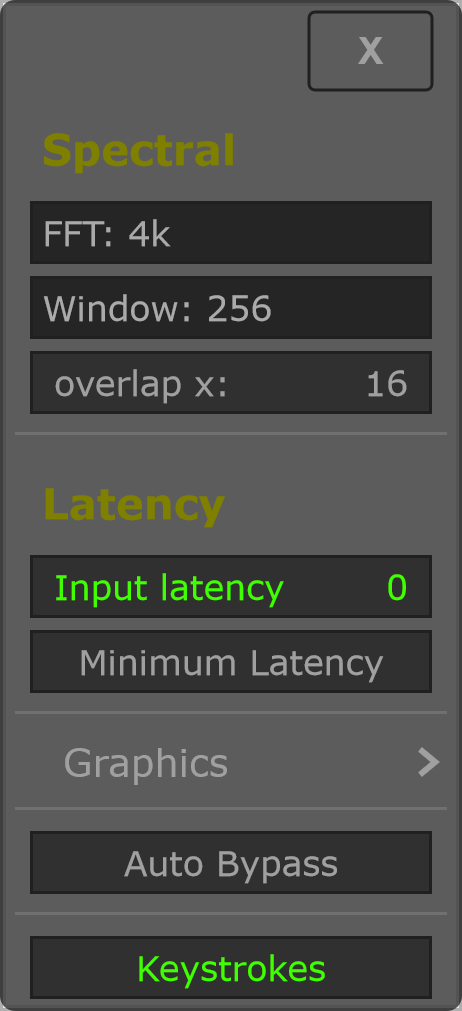
Window here means the interval between FFT computations. The current Setup menu does not expose a window-function selector. For example, FFT 4k with Window 256 gives 16 overlapping frames.
Graphics submenu
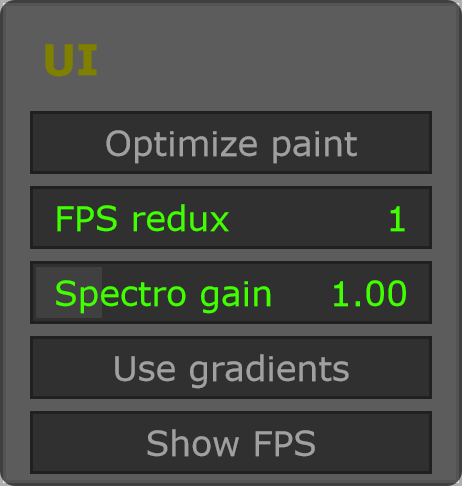
Open Setup → Graphics for controls that affect rendering and visual feedback.
Output and limiter
The right panel shows peak and Limiter. Click Limiter to toggle it. Open + for Limiter On, thr dB, attack ms and release ms.
Use the input and output controls in the program toolbar to set levels while comparing processing changes.
About
Open About from the program toolbar to view product/build information and check for updates. Registration information depends on the build and license state.