Phase
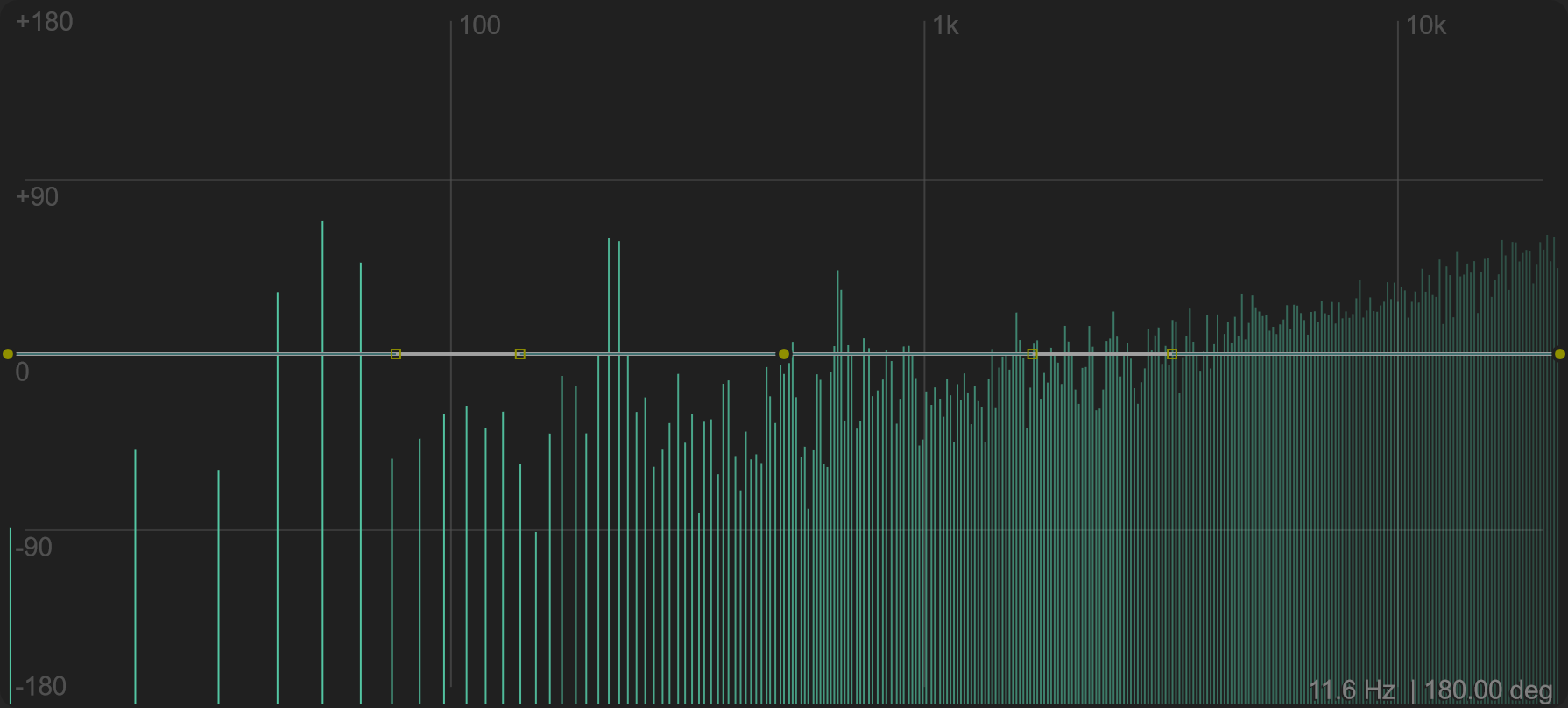
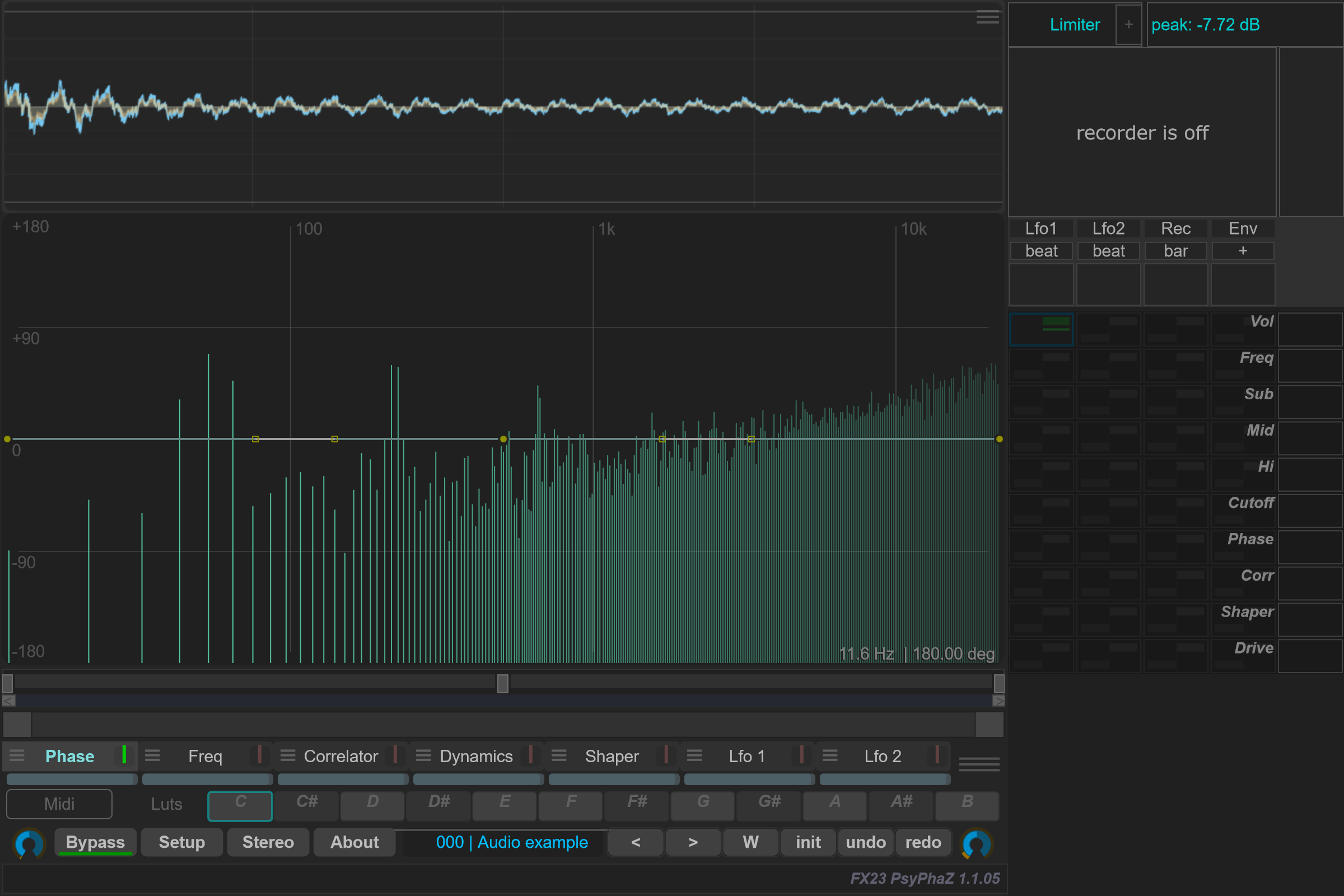
Phase provides a frequency-dependent phase curve. The spectral path combines that curve with general phase rotation and Curve Depth.
Select Phase and open its options. FIR Spectral controls the FFT-based phase path. L degrees and R degrees set broadband phase rotation; Link links those rotations. Curve Depth scales the frequency-dependent curve's contribution.
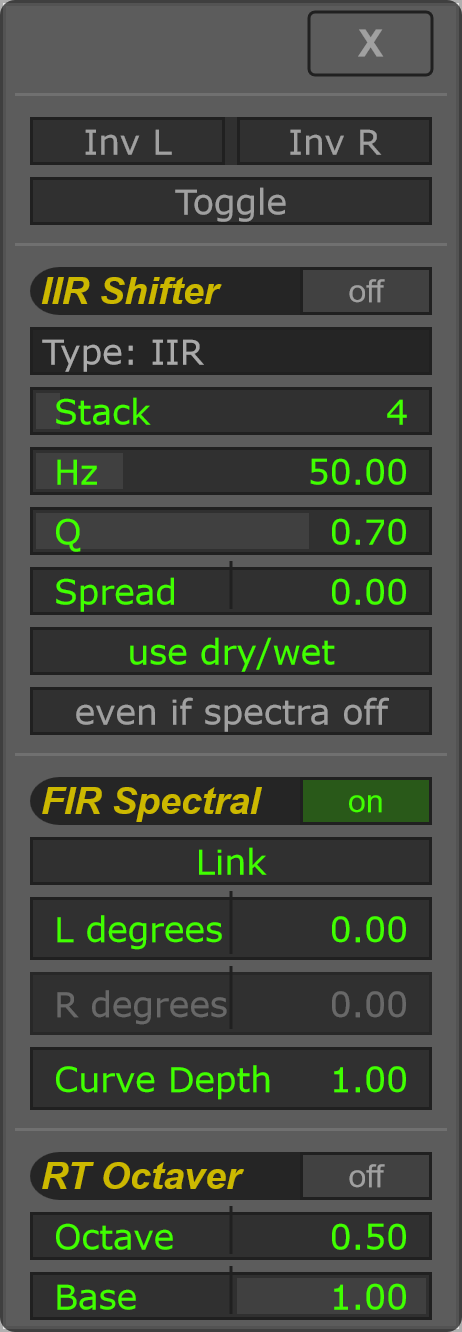
The same menu exposes an IIR Shifter, with filter type, stacking, frequency and spread controls. Its use dry/wet and even if spectra off switches determine how it relates to the main phase controls. Check these switches when disabling FIR Spectral does not remove the whole effect. The separate spectral group bypass in Processing order bypasses the group, including its IIR processing, while preserving these settings.
Inv L and Inv R invert polarity. Polarity inversion is a different operation from drawing a frequency-dependent phase curve.
Options and parameters
Open the small menu icon beside this case in the curve selector, or right-click its label away from the contribution bar. Select the case itself to edit its Bezier shape. Click a capture to view it at full size; displayed values are an example state.
The menu now also contains AUTO PHASE.... See Auto Phase for its native panel, learning/tracking controls and parameter tables.
The menu combines polarity, an all-pass shifter, spectral phase rotation and an octave-up effect. Their on/off switches let you use the sections separately.
TPT variant
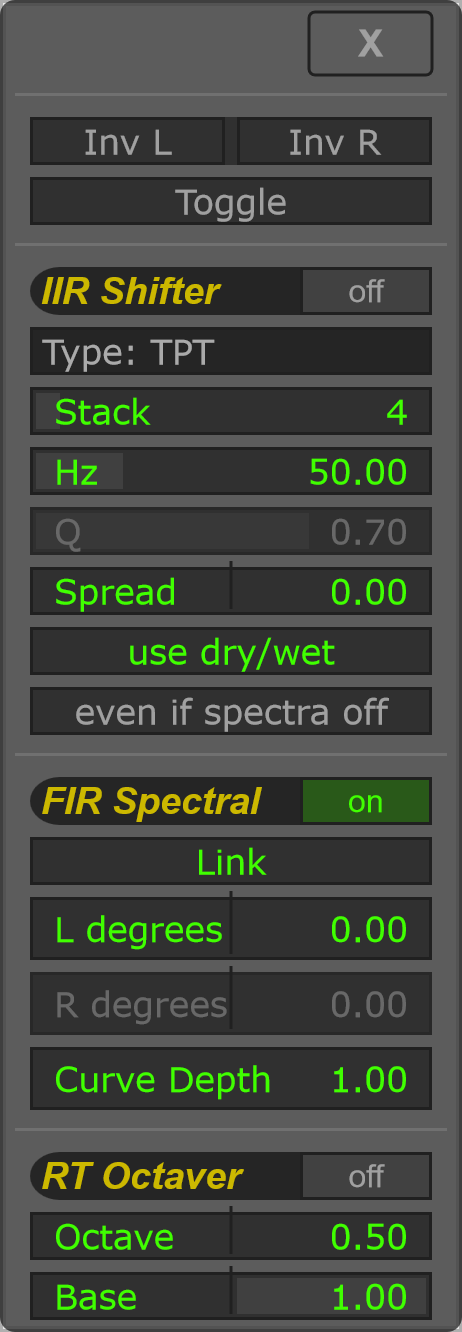
The parameter list stays the same. Choosing TPT makes Q inactive; Hz, Stack and Spread still control the shifter.
Spectral timing
Open Setup for FFT and Window. FFT size trades frequency resolution against time resolution. Window governs how often the FFT is recomputed; the overlap indicator describes their relationship. Smaller recomputation intervals require more CPU.
See Setup when comparing latency and processing cost.
Auto Phase
Open the Phase options menu, then choose AUTO PHASE.... Auto Phase analyses overlap between the main input and the sidechain and adds a common phase rotation to the main channels. A typical use is a bass on the main input and a kick on the sidechain.
Enable Phase and FIR Spectral, supply sidechain audio and play the host. Turn off RT Octaver and Corr’s sidechain-analysis mode before learning. The status message identifies missing sidechain, unavailable spectral processing or insufficient overlap.
Auto Phase: Learn a correction
Set Low frequency and High frequency around the shared low-frequency region. With Auto Track off, press Learn and let the chosen duration complete. A valid current result is adopted automatically. The result area reports the learned angle, agreement and estimated band-sum gain; it is not a general loudness measurement.
Opening the panel enables Apply correction. Use this checkbox to compare the correction on and off. The amount control scales it, alongside Phase and global Dry/Wet. By default the rotation is broadband. Enable Overlap band only (smooth edges) to confine it to the selected band, with Edge fade smoothing the transitions inside the band.
Auto Phase: Controls
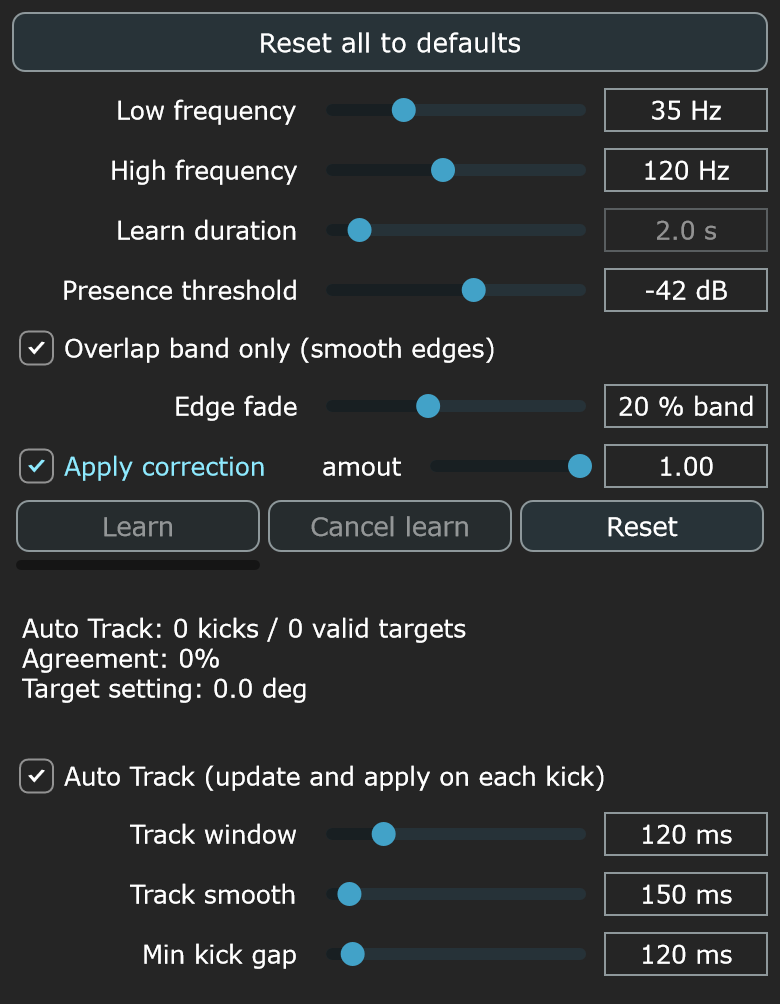
The capture below shows Auto Track and band-only mode enabled so their conditional controls are visible. It is a settings reference before analysis, with no learned result.
Auto Phase: Follow changing kicks
Enable Auto Track when the relationship changes during playback. Track window, Track smooth and Min kick gap then appear. The panel shows detected kicks and valid targets. Tracking holds its last valid target when no usable update is available; verify the correction by listening to the combined signals.
Right-click a parameter to restore that control’s default. Use Reset all to defaults for the whole panel. The saved correction settings belong to Phase; temporary learning results are not a substitute for saving a program.