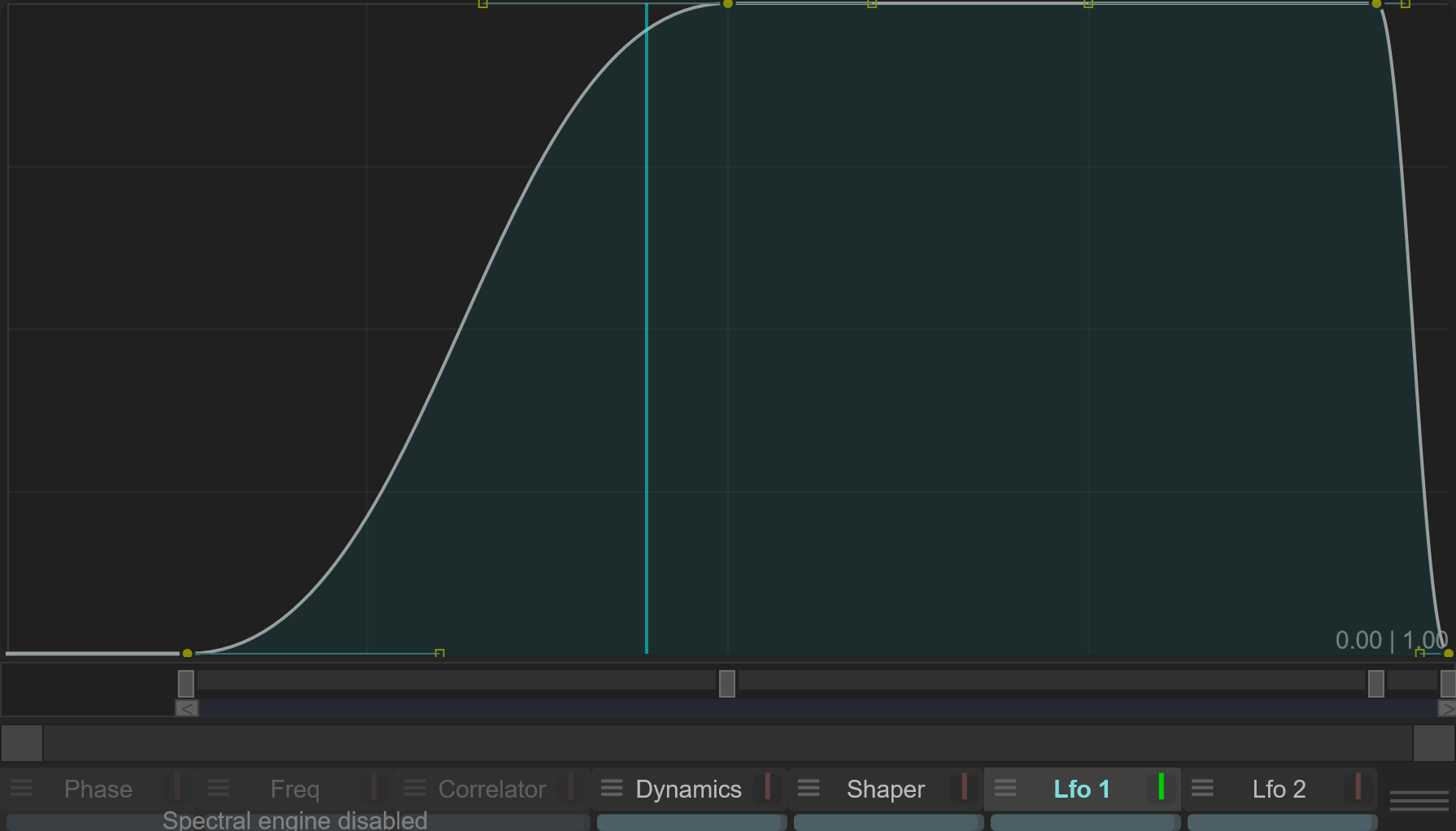
Editing curves
See the curve options reference for native menu screenshots and parameter-by-parameter tables.
Select and enable a curve
Select the curve you want to edit, then check its on/off control. The editor ignores point-editing gestures when that curve is disabled.
Main points define the path and tangent handles shape the segments between them. The meaning of the axes changes with the curve page, so a useful shape in one page can have a different purpose in another.
Points and segments
| Action | Gesture |
|---|---|
| Move a point or handle | Drag it |
| Add or remove a main point | Right-click or double-click in the curve area, depending on the point under the pointer |
| Open tangent options | Right-click a tangent handle |
| Change segment type | Use the mouse wheel over a tangent handle |
| Open the curve menu | Middle-click in the editor |
| Make a fine adjustment | Hold Ctrl while editing |
Hover over the editor to see its gesture reminder. Use the tangent menu and segment controls to experiment with a segment's shape, then compare the result before changing more points.
Navigate the curve
Use the zoom controls to inspect a smaller region. The mouse wheel away from an editable point is passed to the zoom control; over a handle it edits the segment instead.
Undo and redo
The program toolbar contains undo and redo. Use these to compare an edit or recover the preceding shape. Save important work to a program file as well.
Native interface captures
These images use the actual PsyPhaZ 1.1.05 editor with the same reproducible stereo audio example. Click an image to open it at full size.