Freq
Freq turns the editable curve into spectral gain values. Use it to shape the frequency balance of incoming audio. Eq → Max dB controls the gain scaling at the top of the curve. Use the bar underneath the Freq case to adjust its contribution, or combine it with the global Dry/Wet control.
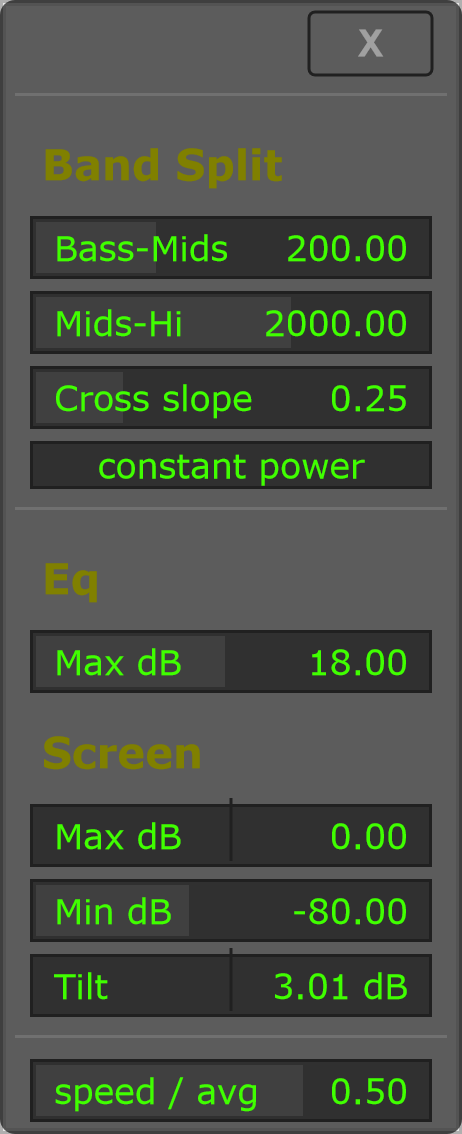
The options include Band Split controls for Bass-Mids, Mids-Hi and Cross slope. These define spectral bands used in the processing and modulation workflow.
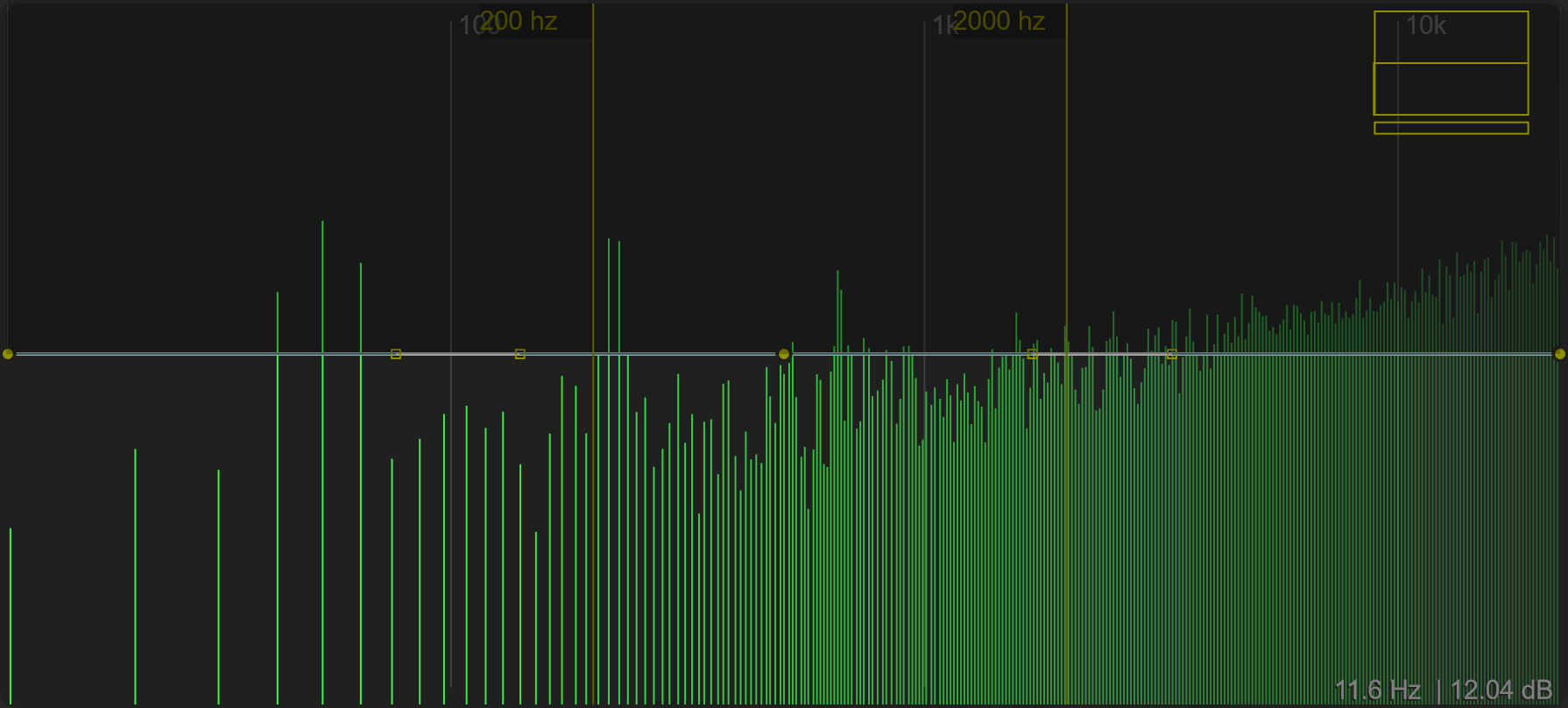
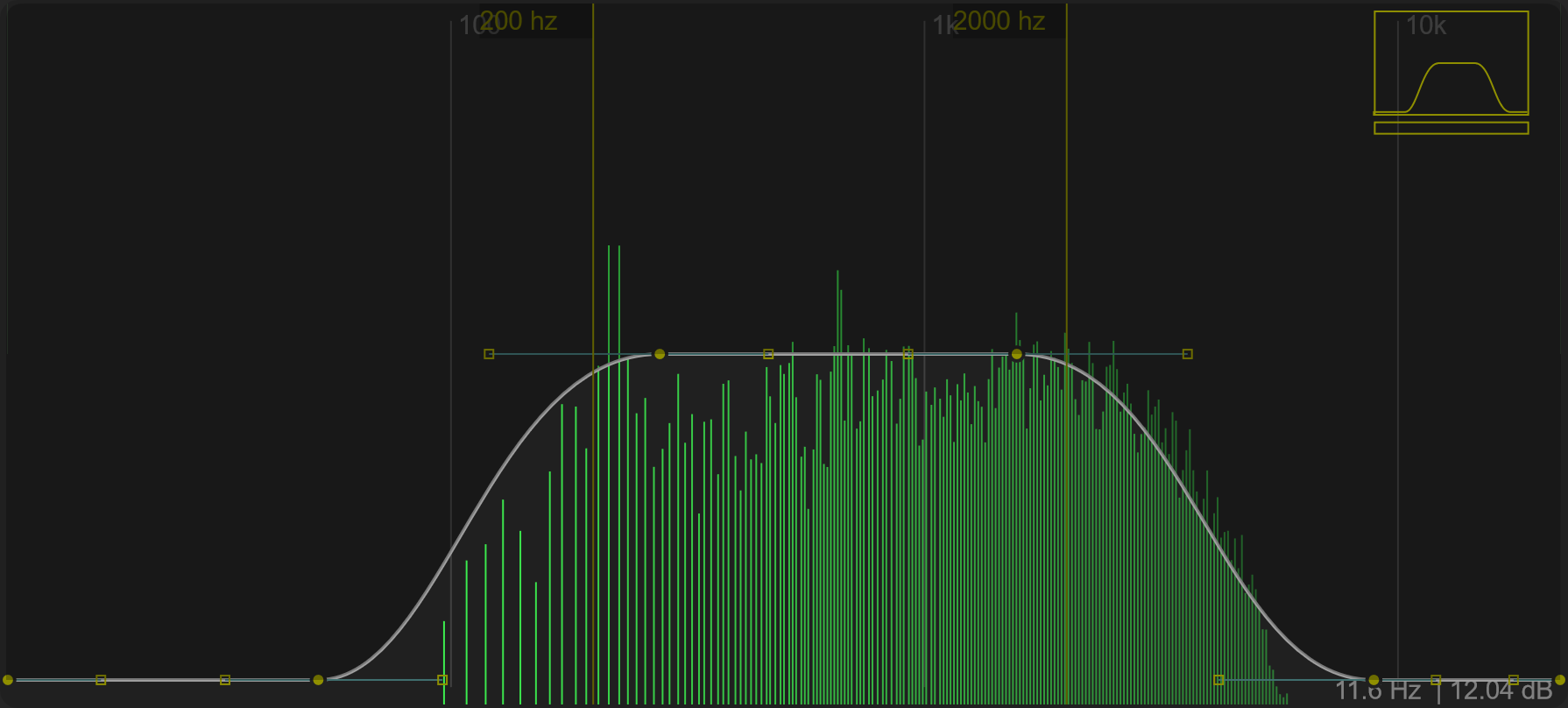
Sculpting a band-pass EQ
Draw a low curve at both ends and keep the middle higher to build a band-pass-shaped EQ. The example below preserves a central band while attenuating the lows and highs. Move the main points to change the band's width and use the Bezier handles to reshape its shoulders.
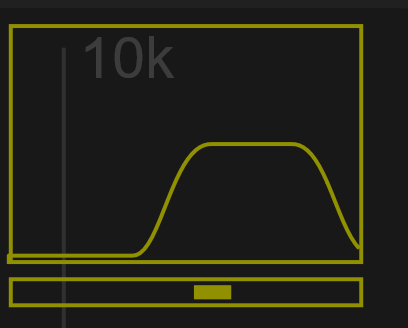
Cutoff preview and sweep
The small square at the upper right previews the Freq response with its Cutoff shift. Drag vertically in this control to sweep the response across frequencies while keeping the Bezier shape. The narrow slider underneath shows the manual offset. Right-click the control to reset that offset to the centre.
Options and parameters
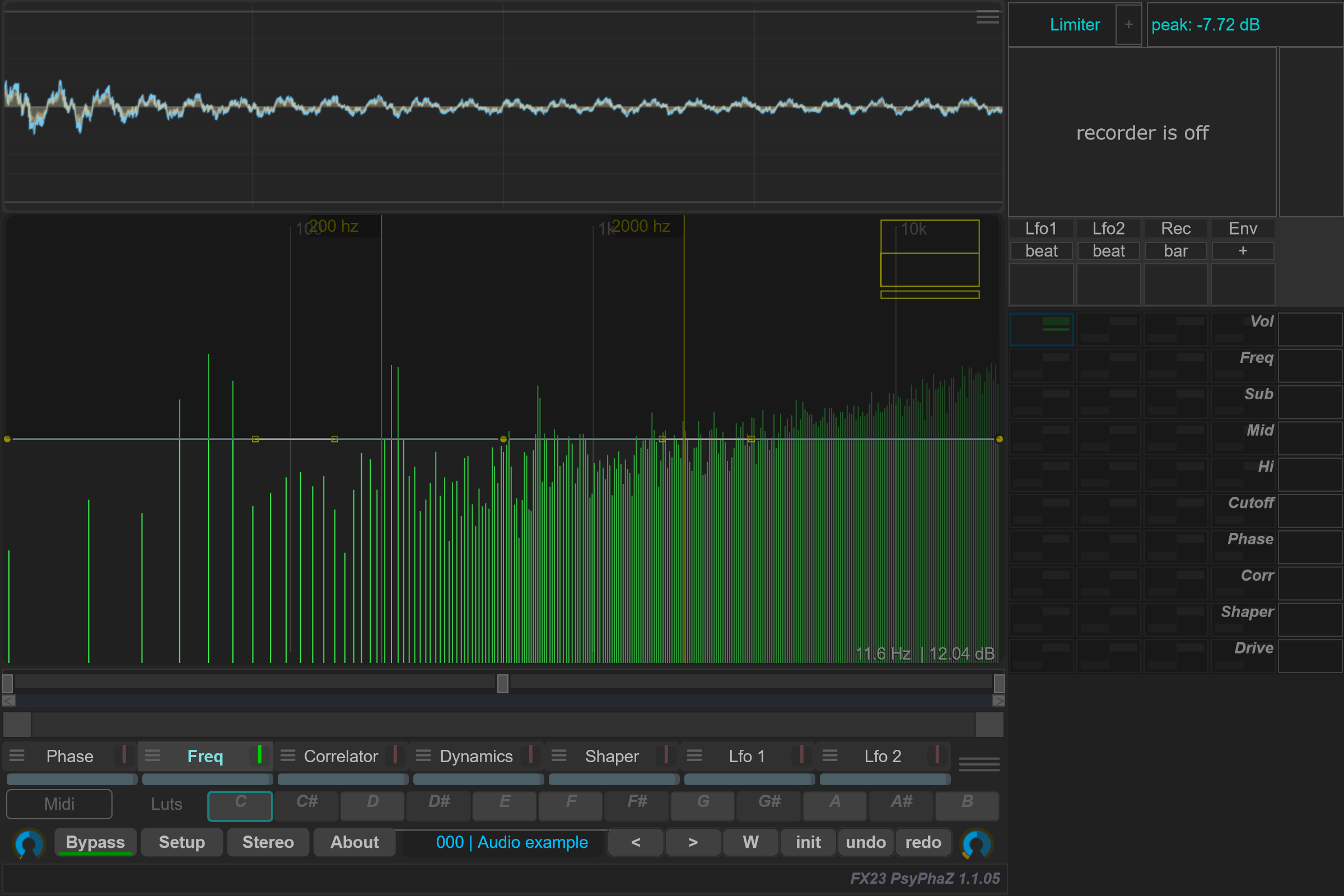
Open the small menu icon beside this case in the curve selector, or right-click its label away from the contribution bar. Select the case itself to edit its Bezier shape. Click a capture to view it at full size; displayed values are an example state.
Band Split defines the Sub, Mid and Hi regions used by band modulation. Eq scales the processed curve. Screen changes how the spectrum is displayed.
Separate display from processing
The Screen section contains Max dB, Min dB, Tilt and speed / avg. These affect how you read the analysis. Eq → Max dB sets the response scaling; it is distinct from Screen → Max dB.
Spectral timing
Open Setup for FFT and Window. FFT size trades frequency resolution against time resolution. Window governs how often the FFT is recomputed; the overlap indicator describes their relationship. Smaller recomputation intervals require more CPU.
See Setup when comparing latency and processing cost.