Processing order and SC ring
The lower right panel contains Processing order. Drag a block left or right to change where it processes the signal. The five blocks allow 120 arrangements.
Enable, open or reorder
Click a block’s upper LED strip to enable or bypass it. Green means enabled; a dark LED and dimmed cell mean bypassed. Click its name below the strip to open its controls. Bypassed controls remain editable. Drag either area horizontally to reorder without changing its on/off state.
- spectral selects the current spectral curve, or Phase when another page was selected. Its group bypass preserves Phase, Freq, Corr, Pan, Smooth and IIR settings.
- dyna and shaper select their curve pages; their LEDs use the same on/off state as those processors.
- ott shows or hides its panel without enabling it.
- vol selects Lfo 1, with the modulation matrix still available. Its group bypass disables both volume modulation and SC ring while preserving their settings.
Bypassing spectral dims its five curve-selector cells and displays Spectral bypassed. Those cells stay interactive. This differs from Spectral engine disabled, which indicates that the group is enabled but no spectral module is active. Group bypass does not by itself remove the configured spectral latency.

Reorder the processors
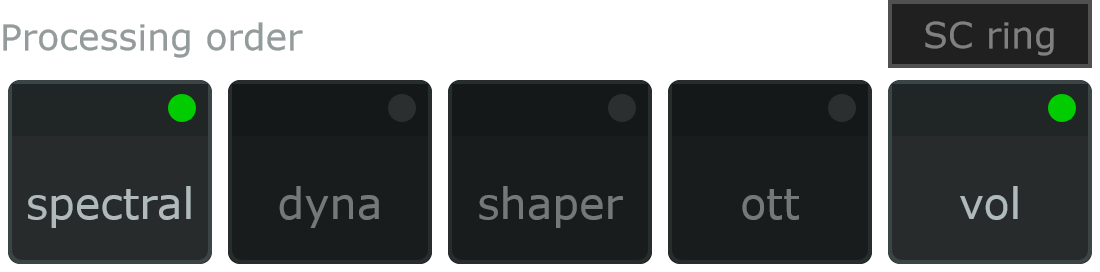
For example, moving Vol to the start applies volume modulation and ducking before spectral and nonlinear processing:
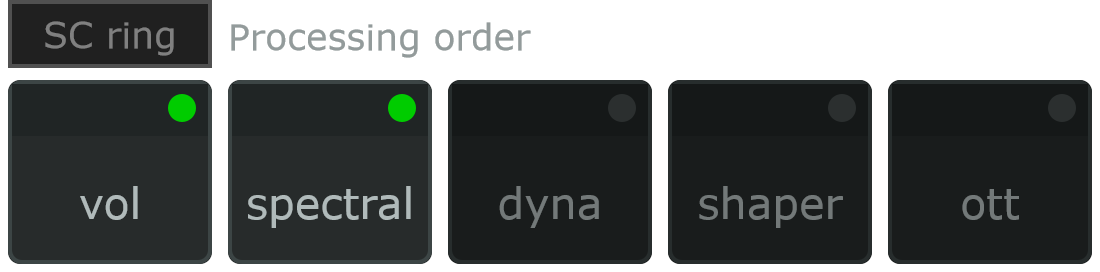
Input and Master stay outside this reorderable group. The analysis of modulation sources stays upstream of the chain. Vol’s modulation and sidechain timing follow the latency of the blocks preceding Vol; reordering does not remove the latency of an active FFT or oversampled Shaper.
The order and group bypass switches are saved with the program and Switcher state. Earlier four-block orders keep their relative positions, with ott inserted immediately after shaper. A program without an order uses spectral → dyna → shaper → ott → vol. Older versions cannot reproduce all 120 orders.
SC ring
Earlier versions called this control SC Duck. The current button and menu use SC ring; the block still reads vol / duck when it is enabled.
Click SC ring, or right-click vol, to open its menu. This is a direct, stereo-linked sidechain ducking control in the Vol block. It uses the larger absolute value of the two sidechain channels to reduce main-signal gain; it has no attack/release envelope or pre-filter.
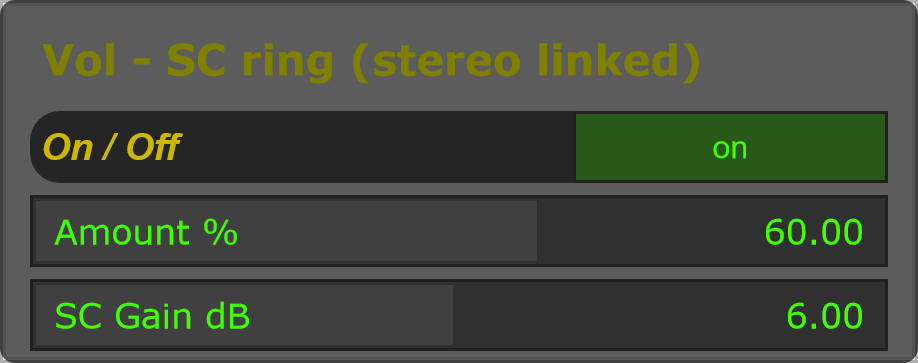
The gain is prevented from going below zero, and global Dry/Wet scales the ducking contribution. Place Vol before or after the other blocks depending on where you want this gain reduction applied.
SC ring or Env?
| Control | SC ring | Env routed to Vol |
|---|---|---|
| Signal shaping | Direct sidechain magnitude; no envelope smoothing | Attack, Release, Gain, inversion and optional pre-filter |
| Routing | Lives in the movable Vol block | Matrix route with minimum and maximum limits |
| Sources | External/virtual sidechain | Audio SC or Audio Self |
| Setup | On / Off, Amount %, SC Gain dB | Enable Env, choose detector settings, then enable its Vol cell |
Use Env when the detector needs a shaped attack/release or frequency selection. Use SC ring for the direct sidechain reduction described here. Both can contribute to Vol, so compare their combined action deliberately.