Dyna
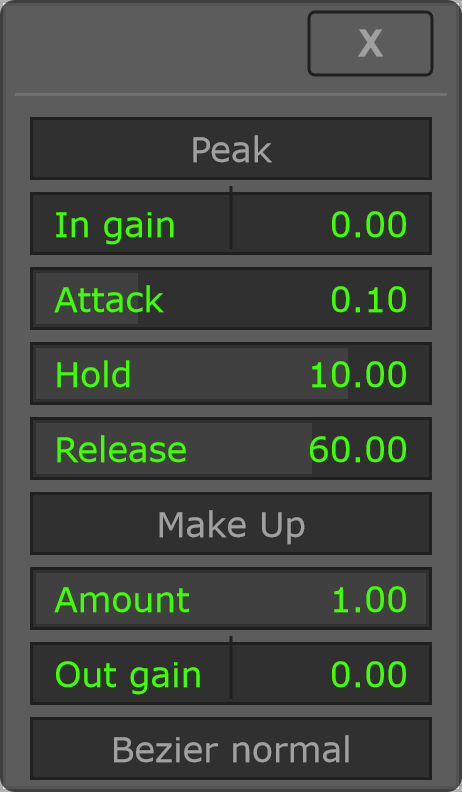
The selector labels these pages Corr and Dyna. Select Dyna to work with its curve and level-response controls. Open its menu for Peak / Rms, In gain, Attack, Hold, Release, Make Up, Amount and Out gain.
Try a small curve change on a repeating passage, then compare at a similar output level. Timing controls and detector mode interact with the shape, so keep them fixed while learning what a curve edit changes.
With Make Up enabled, a flat zero curve produces a zero wet contribution. Amount and Dry/Wet still control the blend.
Bezier normal / Bezier ultra selects curve evaluation modes with different CPU costs.
Options and parameters
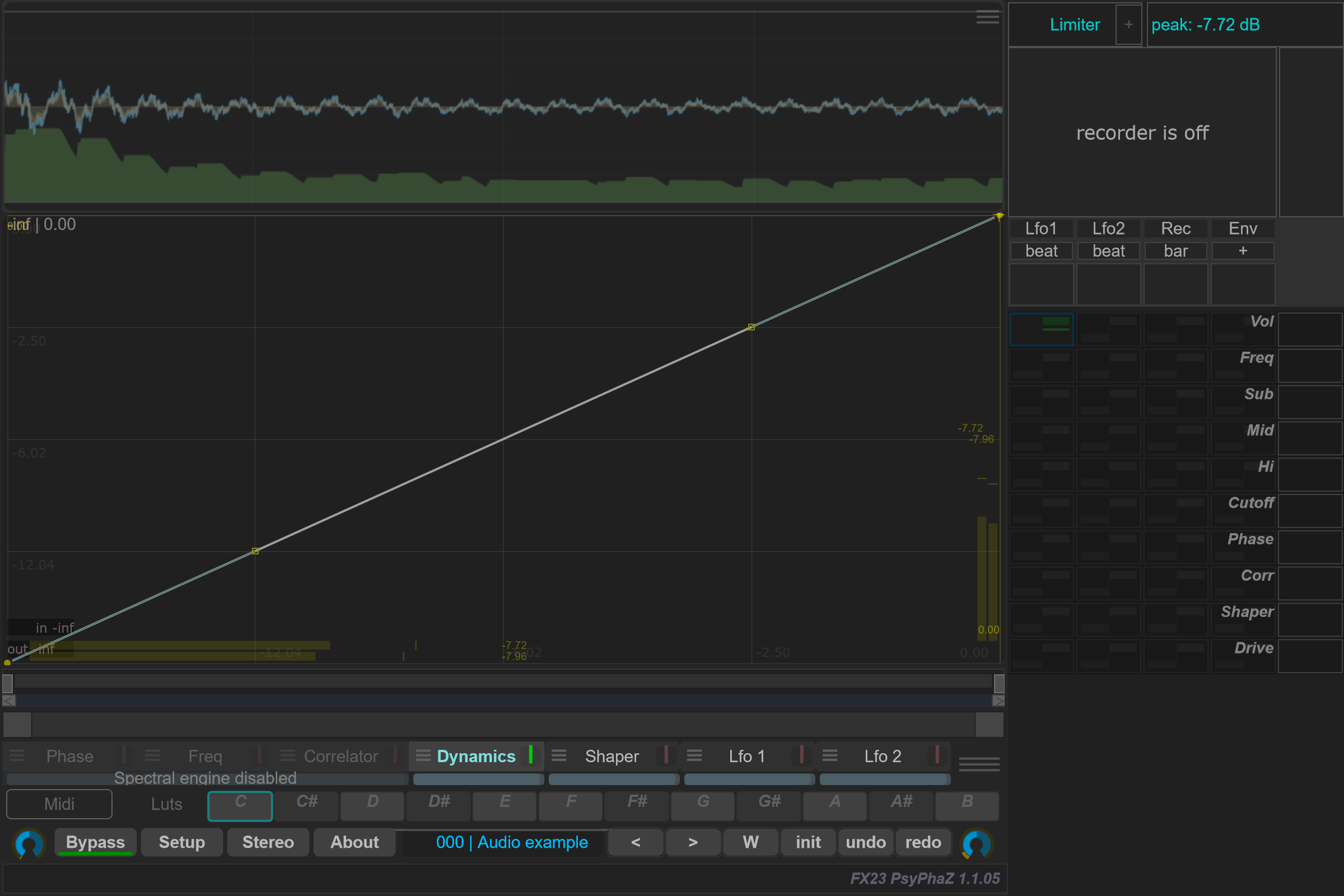
Open the small menu icon beside this case in the curve selector, or right-click its label away from the contribution bar. Select the case itself to edit its Bezier shape. Click a capture to view it at full size; displayed values are an example state.
The curve maps the detected envelope to a new level. Detector timing controls how quickly the input follows the signal; Amount blends the curve’s influence.