PARAMETERS EDITOR / WORKSPACE
Working with parameters
Open Parameters to edit the selected sound's synthesis, modulation and processing controls. The Sound selector chooses the sound; changing the tab keeps that selection. Use Dual when you want to see a curve and its related controls together.
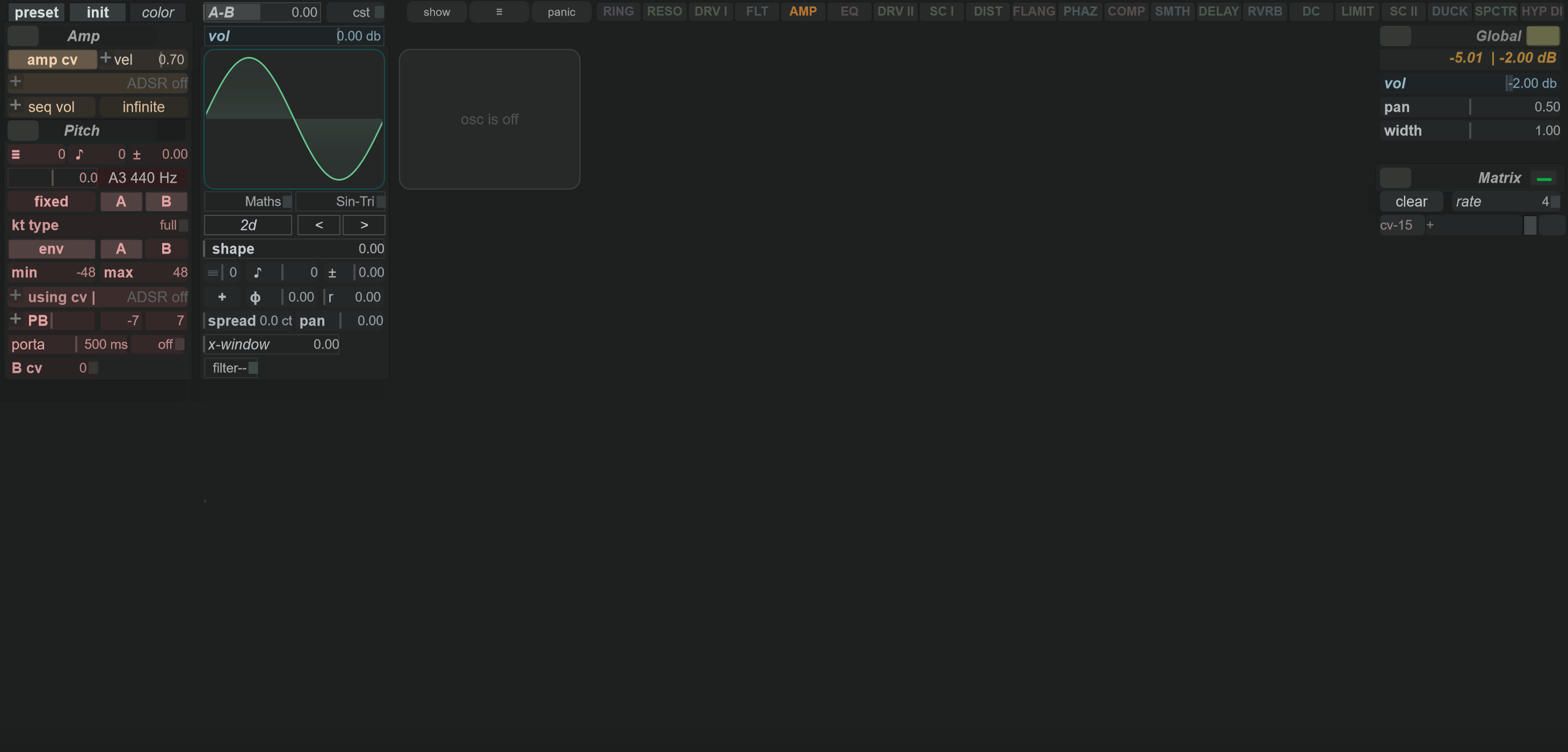
Read the workspace
Each column contains related controls. Oscillator A and B sit beside the amplitude and pitch settings; filtering, modulation and effects occupy other groups. The show menu and folded groups determine which controls you see. An engine change can also replace the controls inside an oscillator.
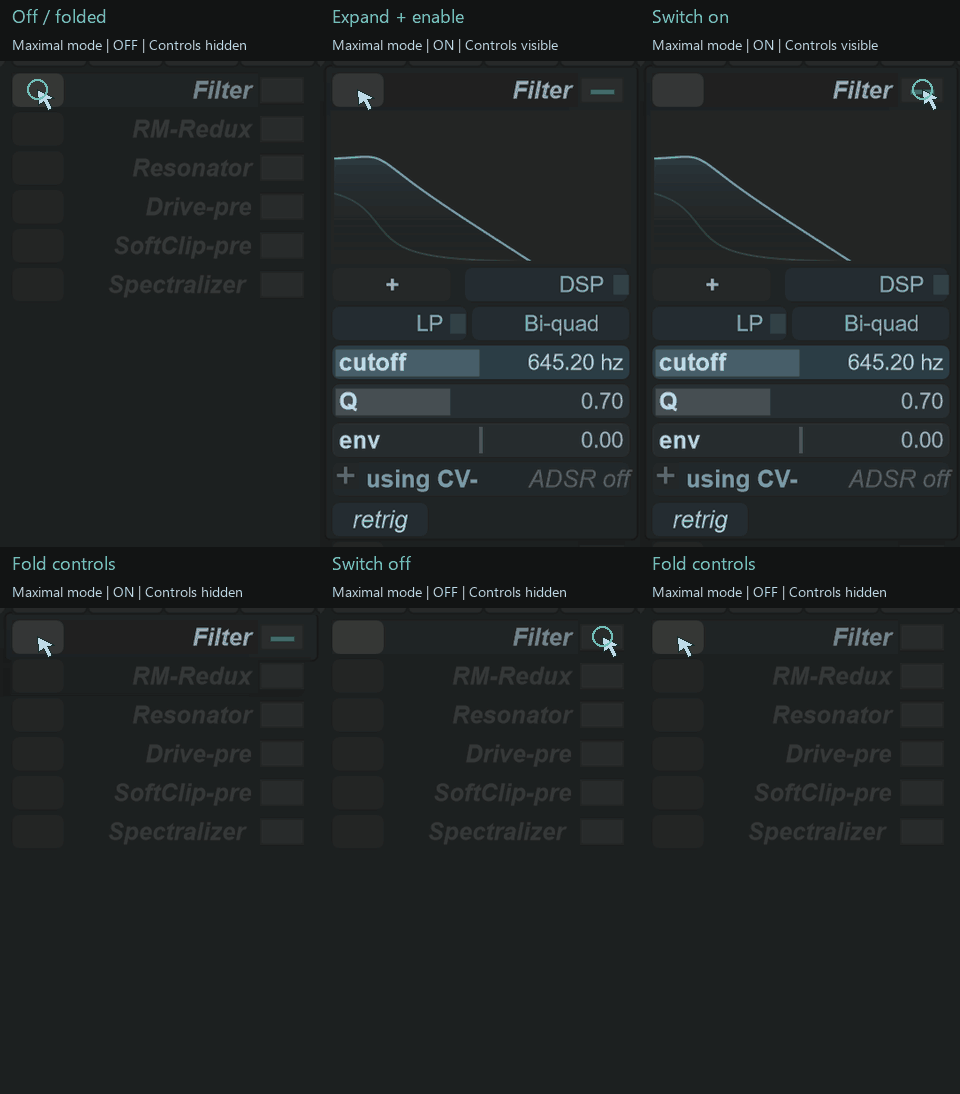
Expanding a group reveals its settings. Expanding the main filter individually also switches it on. Use its separate on/off control to disable processing. Its settings are visible when it is both enabled and expanded; folding the group does not switch it off.
| Control or gesture | Action |
|---|---|
| Click a group header's expand control | Open or fold its settings. |
| Click an on/off control | Enable or disable that function. |
| Drag a numeric parameter | Adjust its value. Drag direction follows the parameter-drag preference. |
| Ctrl-drag | Make finer adjustments. |
| Shift-drag on a floating-point control | Adjust in integer steps where this gesture is supported. |
| Double-click an editable numeric value | Open numeric entry with the parameter's current range; use Apply or Cancel. |
| Click a list control | Choose from its available options. |
| Right-click an ordinary value | Reset it. If assigned to an automation lane, this also disables that lane. |
| Right-click a group header | Open that group's template menu. |
| Drag an empty background area | Pan the viewport to reach controls outside the visible area. |
| Mouse wheel over an empty background area | Zoom the parameter viewport in or out. |
| Double-click empty background | Fold/unfold groups together. |
Read the value's unit and hover description before editing. Frequency, time, gain and list controls use different ranges; the numeric-entry dialog shows the range for the control you actually selected.
For a complete group index, including oscillator subsections and effect groups, see Parameters Modules.
Learn parameters
Hover over a parameter to read a short description in the trace console at the bottom of the interface. The text updates as you move between controls, helping you identify what a parameter does before changing it.

Use this help alongside the displayed unit and value, especially when exploring unfamiliar oscillator, modulation or effect controls.
Display controls
| Item | Purpose |
|---|---|
| show → minimal mode | Reduce the number of displayed sections. |
| show → minimal + chain | Use a compact layout with the processing chain. |
| show → maximal mode | Expose the additional parameter sections. |
| fx chain / fx all / lfos / filter / osc advanced / Matrix / Seq / Aux adsr / Macros | Show or hide the corresponding sections. |
| allow zoom | Allow the parameter view's zoom gestures. |
| darken off groups / routing wires / Shadows | Change the visual presentation. |
| Fold button beside show | Fold/unfold groups together. |
| panic | Stop the selected sound's sequencer notes. |
Hiding a section is a layout choice. Check its on/off state when you want to remove its contribution to the sound.
Presets and editing context
In this tab, the context toolbar works with sound presets (.SNP). The program toolbar still works with the complete four-sound program. Save a sound preset before exploring several engines or effect combinations; use the context toolbar's Undo / Redo to compare edits.
Continue with Oscillators and sources, Envelopes and filtering, Modulation, or Effects and processing order.