PARAMETERS EDITOR / MOVEMENT
Modulation
Modulation connects a changing source to a destination parameter. The selected sound has four LFOs, additional envelope and macro controls, and a modulation matrix. Sequencer lanes provide another way to vary parameters over a repeating pattern.
LFOs
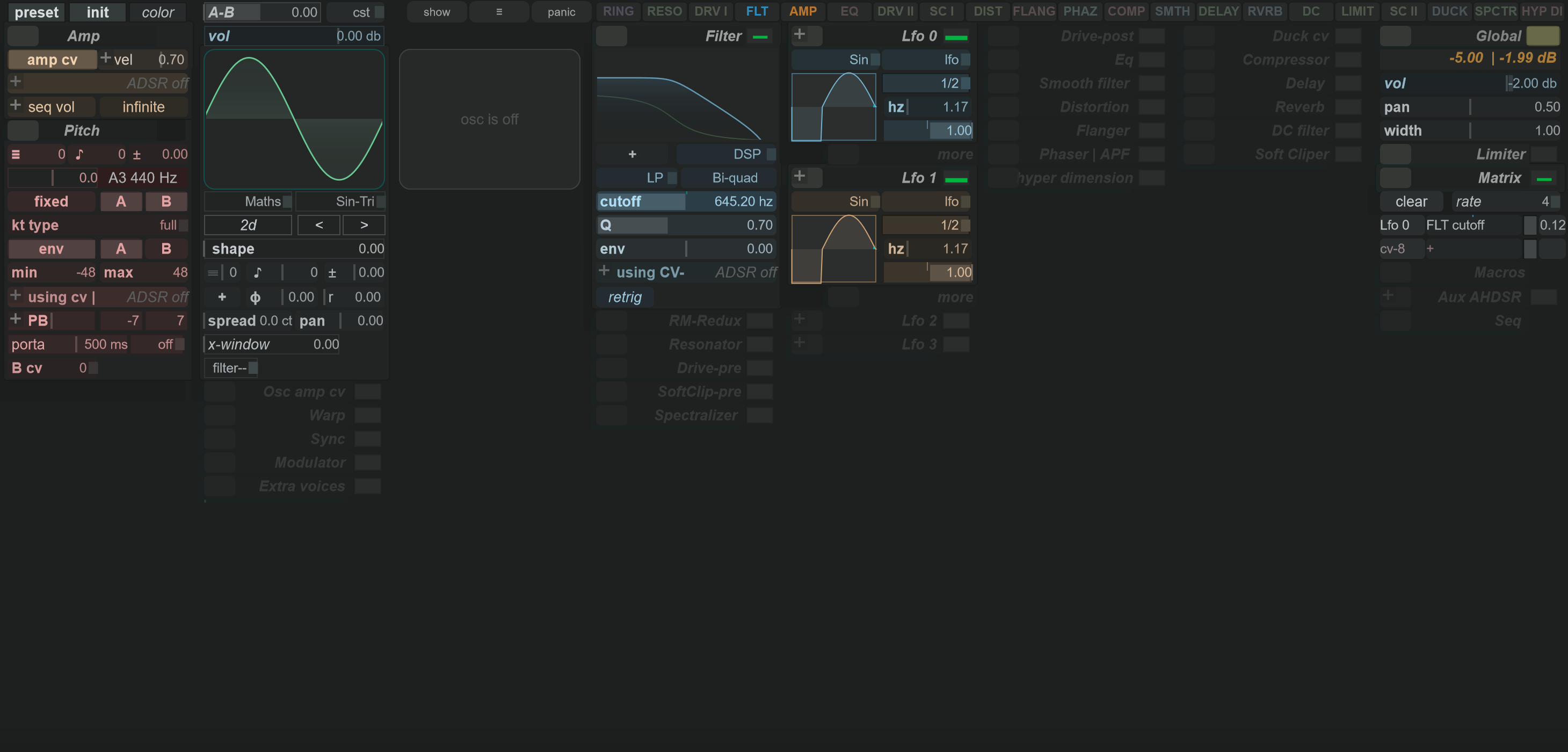
Open show → lfos, then expand Lfo 0–3 as needed. Choose a waveform, rate and operating mode before increasing the amount.
| Setting | Purpose |
|---|---|
| Waveform/type | Choose the LFO shape, including periodic and noise/pattern choices. |
| free rate or musical division | Use a free-running rate or a tempo-related speed. |
| lfo / retrigg / envelope | Choose the available continuous, retriggered or envelope-style operation. |
| Amount | Scale the LFO output. Its range is −1 to +1, with a reset value of +1. |
| Additional shape/pattern controls | Refine the chosen waveform; availability depends on its type. |
Use a slow rate and small routing amount while setting up a connection. This makes it easier to hear the destination move without covering the full parameter range.
Matrix routes
Open show → Matrix and expand the matrix. There are 16 routing slots. Each route contains a source, destination, polarity choice and amount. The matrix also has its own on/off control and clear command. Additional rows appear as destinations are assigned.
| Route field | What to check |
|---|---|
| Source | Which signal drives the movement: for example an LFO, curve or other available modulation source. |
| Destination | The parameter to vary. Choose an eligible target in the destination list. |
| Polarity/bidirectional choice | How the source is interpreted around the destination's base setting. |
| Amount | Strength and direction of the route, from −1 to +1, resetting to 0. Reduce it if the result reaches an extreme too quickly. |
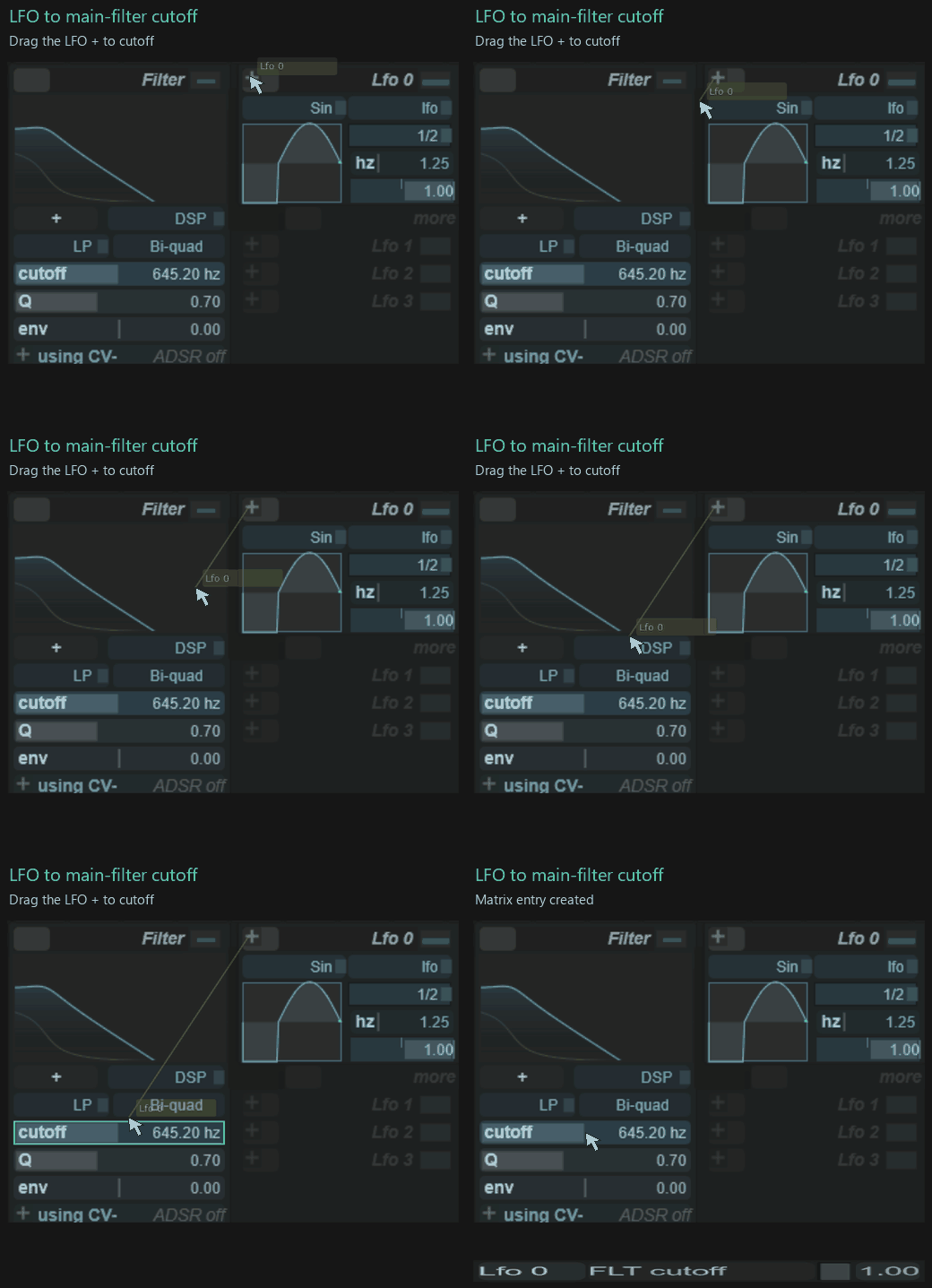
For sources with a small + modulation handle, drag that handle to an eligible parameter to create a connection in an unused matrix slot. Then inspect the resulting matrix row: verify its destination, polarity and amount before building another route.
The destination's base value still matters. A cutoff near its limit has less room for movement in one direction. To diagnose a busy sound, disable the matrix temporarily, set the base value, then restore the route and adjust its depth.
Envelopes, curves and macros
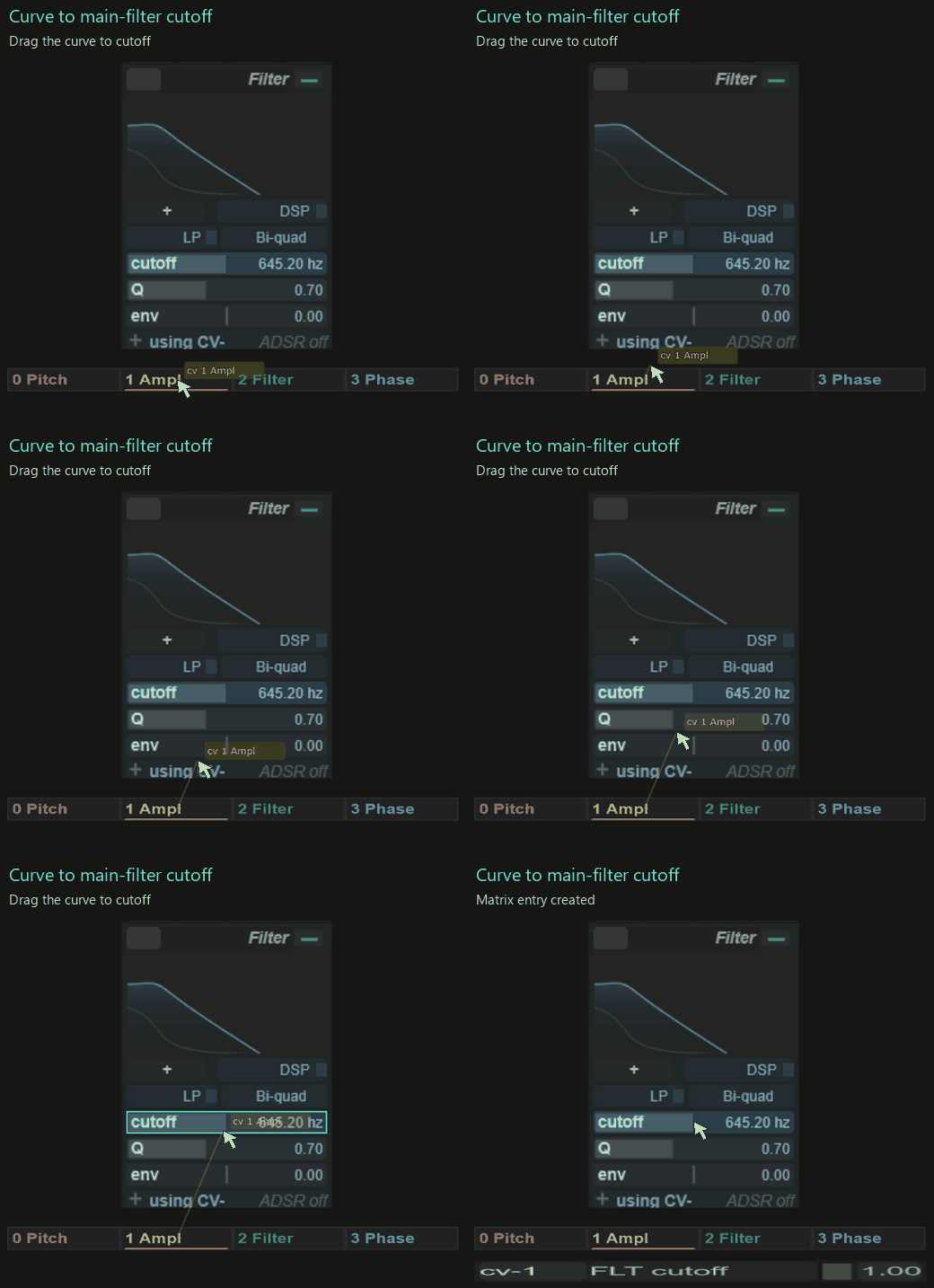
Drag a curve from the Curve Editor's curve selector and drop it onto an automatable parameter in Parameters or Dual to create a new matrix entry. Eligible destinations are highlighted during the drag. An unused matrix slot is required.
An auxiliary ADSR provides a note-shaped modulation source. A macro provides a shared control that can drive destinations through routes. Enable their display from show to reveal the relevant settings.
Curves used as modulation sources have the Env / Loop and timing choices described in Tools and timing. Check both the curve's own timing and the matrix assignment: changing a curve does not create a destination route by itself.
Assign a Sequencer lane
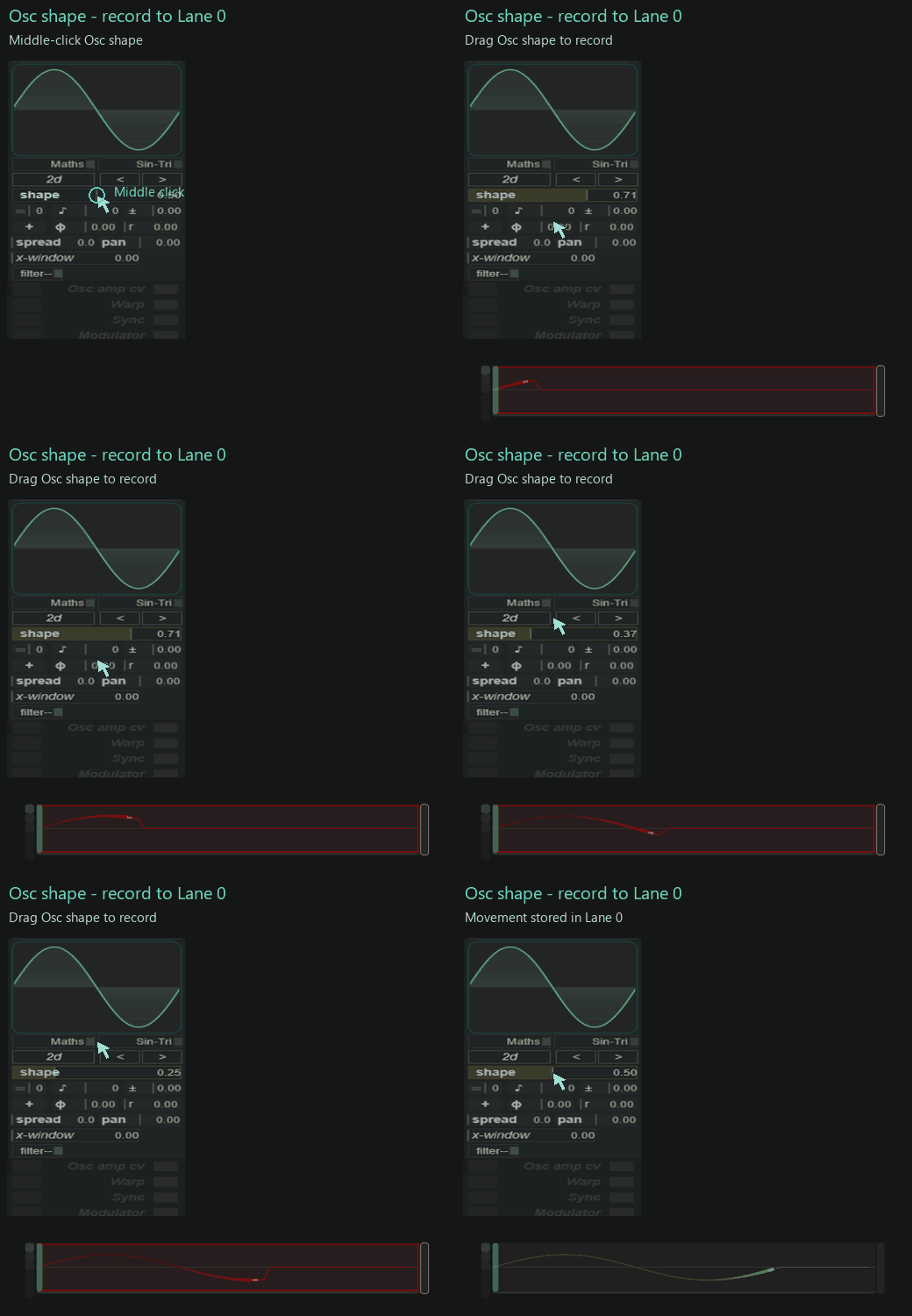
Middle-click an eligible parameter to open the lane-assignment menu. Choose Lane 0–7. Selecting its current assignment clears it; assigning the same parameter elsewhere removes the previous duplicate assignment. The newly assigned lane is enabled.
While an assigned parameter is edited with the mouse, its movement can be recorded into that lane. Right-clicking the parameter resets it and disables its assigned lane. Read Automation and XY pads before recording: automation changes stored pattern data, rather than simply offsetting a matrix route.