SEQUENCER / PITCH EDITING
Selection, scales and bends
The note area has separate ordinary, selection and bend interactions. Use the sel and bend buttons to choose the operation you intend; enabling one of these modes disables the other.
Select and move notes
Enable sel to work on several notes together. Drag a rectangle in empty grid space to select notes. Hold Shift when clicking to add or remove notes from the selection, then drag a selected note to move the group.
Press Esc or right-click in selection mode to clear the selection. A group move is refused if its destination is occupied or would violate the current gate-overlap constraint. When changing patterns, check the new pattern before editing; a selection is tied to its current note context. Turn sel off to return to ordinary insertion and gate editing.
Choose a scale
The scale button opens a root-and-scale chooser with Apply / Cancel. Choose a root from C–B, then select a scale. The choices include major, natural/harmonic/melodic minor, modes, pentatonic scales, blues and chromatic.
Apply updates the pitch-class choices and note-grid highlighting; Cancel keeps the current choices. Applying a scale does not automatically retune every existing note. Use the highlighted pitches as a guide when drawing or generating new material.
The pitch-class buttons can also be edited individually. Their selection is used by scale-aware note-generation operations. Choose them before using the random Notes tool if you want to constrain its results.
Bend within a note
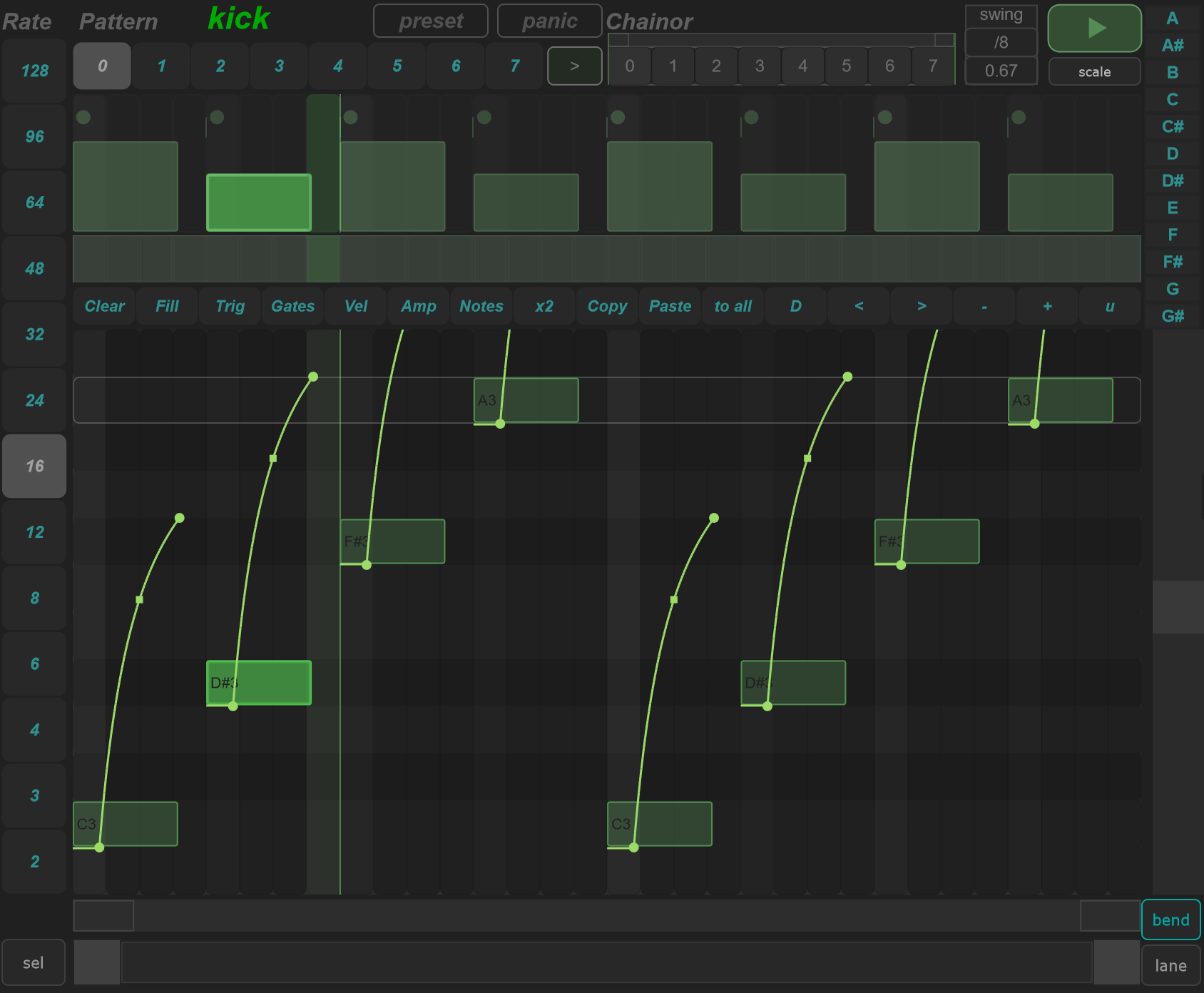
Enable bend to reveal per-note pitch-bend handles. A bend starts at a chosen point within the gate and moves towards its ending pitch offset by the end of the note. Changing its curvature changes how quickly that transition develops.
The end offset ranges from −12 to +12 semitones. The start can lie anywhere from 0–100% of the effective gate. Reset restores a 0-semitone offset, a start at 50% and neutral curvature.
| Handle or gesture | Action |
|---|---|
| Drag the start handle horizontally | Choose when the bend begins within the note. |
| Drag the end handle vertically | Set the ending pitch offset. |
| Drag the middle handle | Change the bend curvature. |
| Shift-drag a note in bend mode | Adjust the bend's start position. |
| Ctrl-drag a note in bend mode | Adjust its curvature. |
| Right-click a note in bend mode | Reset that note's bend. |
Per-note bends belong to the sequence, whereas the sound's Pitch curve and general tuning belong to sound design. They can contribute together. A rising pitch envelope plus a rising note bend can produce more movement than either alone.
Tip: Bend is also available as a modulation-matrix source. Assign it to another parameter if you want the bend movement to affect more than pitch.
A controlled bend exercise
- Use a simple sustained sound and a long enough gate to hear the transition.
- Enable bend and raise one note's end handle.
- Move its start later so the note begins at its original pitch.
- Adjust the middle handle and compare an early and late transition.
- Reset that bend with right-click, then compare with a pitch-curve edit.
When notes are short, only a brief part of the transition may be audible. Check the amplitude envelope and gate together before increasing the bend amount.