ABOUT / REGISTRATION
Register plugin
The Machine ID identifies the computer for the registration procedure. Obtain it from PSYLAB's full version on the computer you want to register.
Obtain your Machine ID
- Open PSYLAB and select the About tab.
- Click get Machine ID, below the product-information panel.
- Read the generated code in the field beside the button. PSYLAB also copies it to the clipboard and shows a Machine ID message.
- Close the message with OK.
- Log in to your FX23.net PSYLAB user area and follow the procedure explained there to generate a license file for that Machine ID.
- Place the downloaded license file in your PSYLAB database folder. On Windows, the default location is
C:\Users\Username\Documents\Psylab\psylab.license(replaceUsernamewith your Windows user name). - Restart the plugin or the Standalone application.
Use the account credentials sent to you by email when you purchased PSYLAB. Check your spam folder if you cannot find the email. If you have not received it, send a message using the contact form on the FX23.net website.
You do not need to type the code by hand. If you copy something else afterwards, click get Machine ID again to put the identifier back on the clipboard.
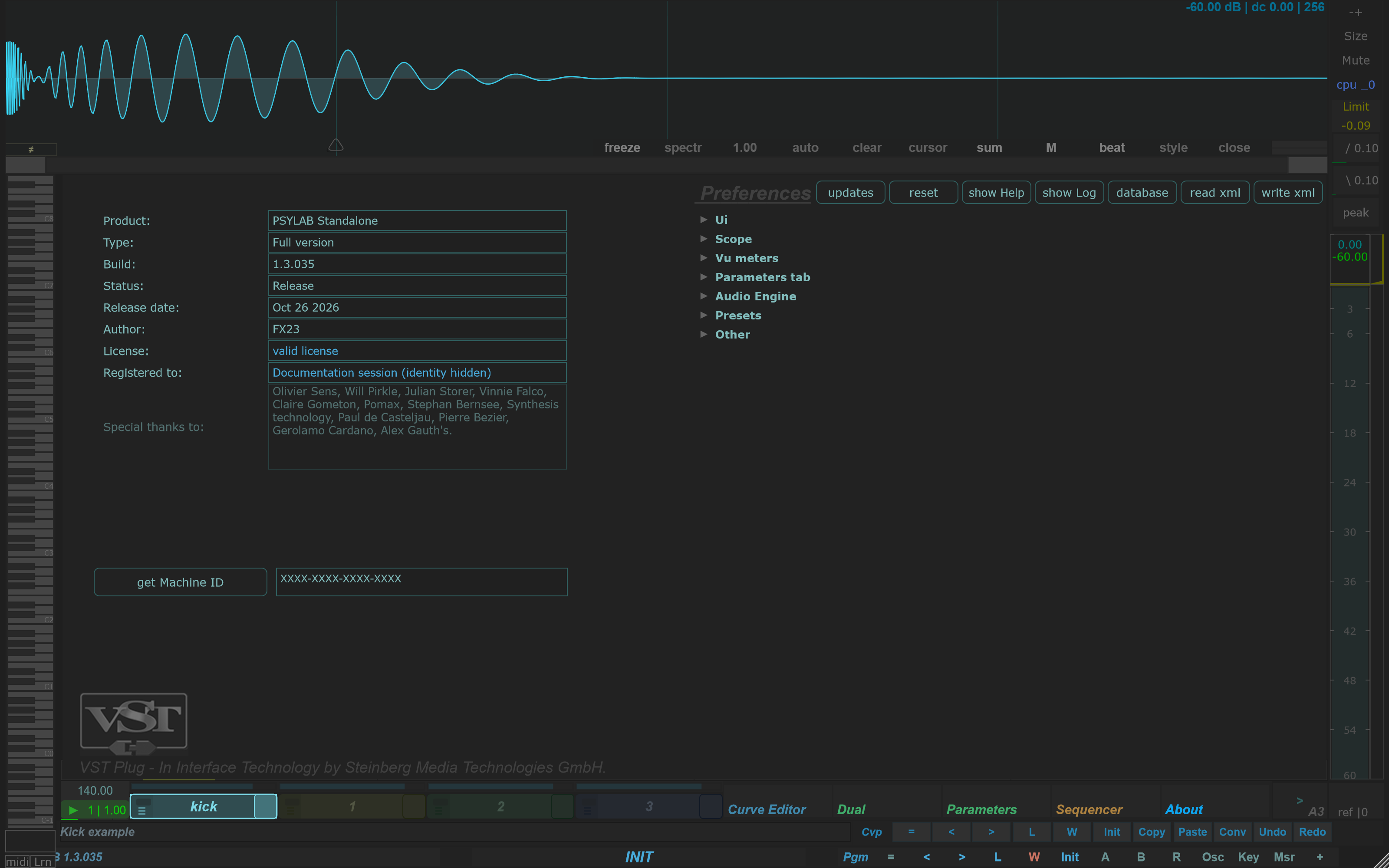
The screenshot shows the button and its field before requesting an identifier. XXXX-XXXX-XXXX-XXXX is the initial placeholder, not a Machine ID to use for registration. Registration details are hidden in the manual illustrations.
If the button does not provide an ID
The Machine ID is delivered only in the full version. In a demo build, the message explains this restriction and directs purchasers to the email containing their full-version installer instructions. Install and open that version before repeating the steps above.
Generating or copying the ID does not itself install a license. Follow the registration and license-installation instructions supplied with your purchase for the remaining steps.
Check the license status
Return to About after completing those instructions. In the full version, opening this tab checks the installed license and updates the information panel.
| Field | What to check |
|---|---|
| Type | Confirm that you are running the intended version. |
| License | A successful check displays valid license. An unsuccessful check displays no license. |
| Registered to | Shows the registration identity when the license is valid, or Unregistered - demo when it is not. |
If the status remains no license, check that you are running the full version and that you followed the supplied installation instructions for this computer. Have the Build number and newly copied Machine ID available when requesting registration assistance.
See About and preferences for the preference sections and utility buttons.