SEQUENCER / AUTOMATION
Automation and XY pads
The right pane contains eight automation lanes, labelled 0–7. Each stores a repeating shape for the current pattern. A lane must be assigned and enabled to drive a parameter; its selection checkbox instead determines whether lane tools affect it.
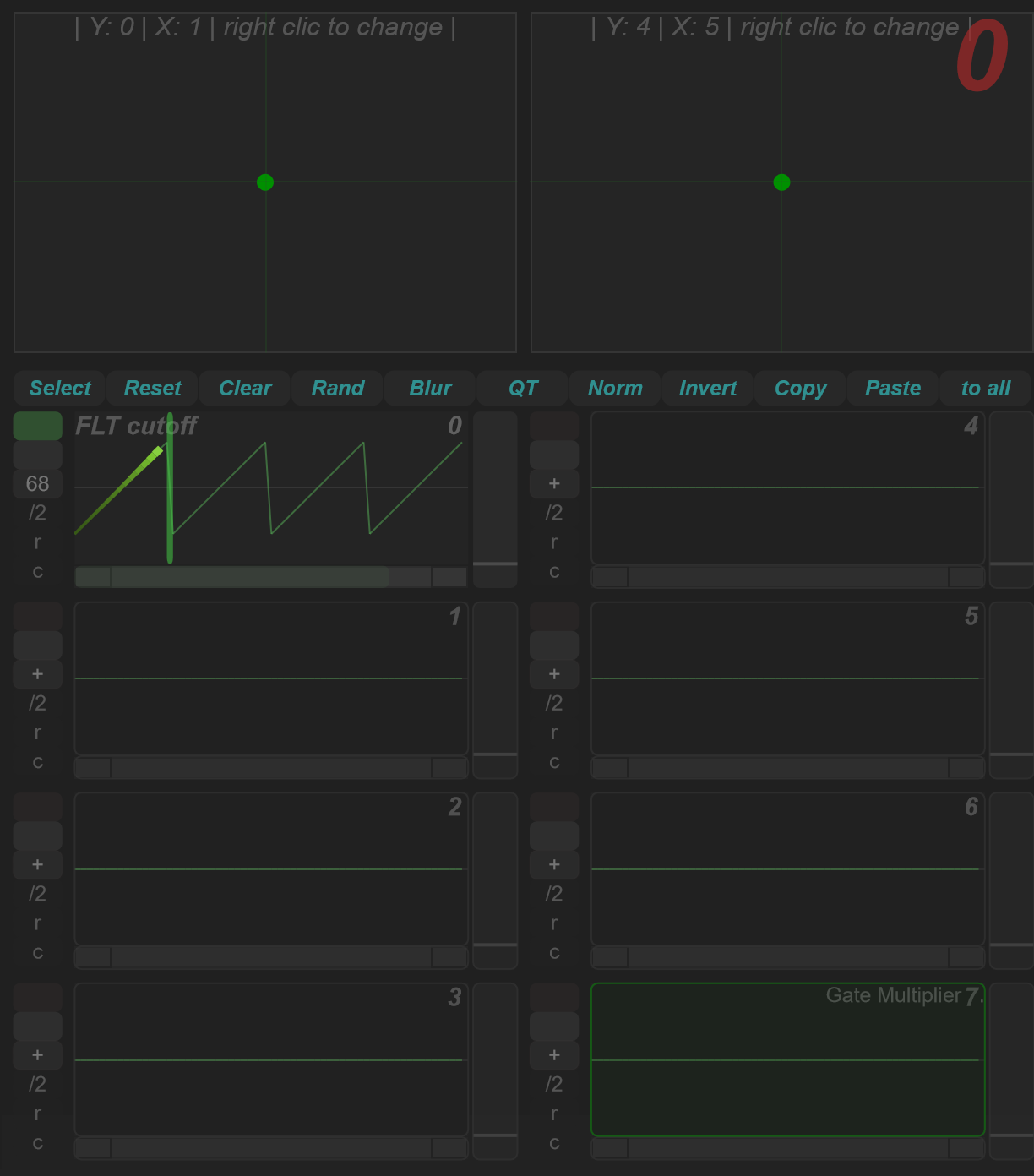
Assign and draw
Click a lane's target field to choose a parameter; right-click it to clear the assignment. You can also middle-click an eligible parameter in Parameters and choose its lane. After assigning, check the target name and enable state before drawing.
| Lane control or gesture | Action |
|---|---|
| On/off control | Enable or disable that lane. |
| Selection control | Include/exclude the lane from bulk lane tools. |
| Drag across the graph | Draw automation; movement between sampled points is interpolated. |
| Shift-drag | Draw stepped values. |
| Ctrl-drag | Offset/scale the existing shape. |
| Right-drag the graph | Set the pattern to a flat value at the pointer's height. |
| Double-click the graph | Reset the pattern to its centre value. |
| r | Randomize the lane; right-click resets it to centre. |
| Output-range handles | Map the shape into a narrower output range. |
| C | Commit the range mapping into stored data, then reset the range control. |
| Half-speed control | Change the lane's clock division with data resampling. Inspect the stored shape afterwards. |
The graph represents a normalized parameter position. A value halfway up the lane is not necessarily halfway between the displayed physical limits: the target can use a nonlinear conversion. Judge the resulting parameter readout and sound.
Lane 7 also acts as the sequencer's gate multiplier when enabled. Its shape and range can therefore change note lengths. Treat it carefully even when experimenting with parameter assignment.
Record movement
Use a lane's recording fader to write movement during playback. Editing a parameter already assigned to a lane also engages recording while the mouse gesture is active. This replaces automation at the positions traversed during recording.
If a parameter keeps returning to another value, disable its lane and compare. Right-clicking the assigned parameter in Parameters resets the value and disables its lane; it does not erase the lane's stored pattern.
Lane tools
| Tool | Operation on selected lanes |
|---|---|
| Select | Select all lanes; right-click deselects them. |
| Reset | Clear assignments, reset stored shapes and disable the selected lanes. |
| Clear | Reset the current pattern's shape to centre. |
| Rand / Blur | Randomize or smooth the shape. |
| QT | Quantize the lane; right-click uses the alternate step count. |
| Norm | Expand the shape's value range. |
| Invert | Invert values; right-click reverses the shape in time. |
| Copy | Copy all lanes of the current pattern into memory. |
| Paste | Paste the copied data into selected lanes of the current pattern. |
| to all | Paste the copied data into selected lanes across all patterns. Use Copy first. |
Selection does not bypass a lane. Deselect a lane to protect it from tools, and switch it off to stop its contribution.
XY pads
The two pads write two lanes together. Right-click a pad to choose its Y and X lane assignments. Drag inside it during playback to record the horizontal and vertical movements into those lanes; releasing ends that pad's recording gesture.
The axes select lanes, not destination parameters directly. Assign the lanes first—for example two eligible filter controls—then record the pad movement. Keep their output ranges modest while testing.
The lane overlay menu above the timeline can display a lane over the notes for timing comparison. Showing an overlay does not create or change a parameter assignment.