FAQ / MIDI ASSIGN
MIDI assign
Use MIDI assignments to control PSYLAB parameters from the knobs, faders or buttons on your MIDI controller. MIDI Learn assigns a controller directly from a parameter in the interface. MIDI Map gives you an overview of the assignments for each sound and the master section.
Both methods create the same kind of assignment: a MIDI channel + Control Change (CC) number connected to a parameter.
Before assigning a controller
Make sure your controller's MIDI input reaches PSYLAB. In a DAW, route the controller to the plugin track and enable input monitoring as required by your host.
Show the keyboard to access MIDI Learn
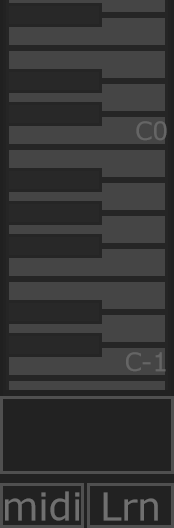
- Click Key in the toolbar to show the on-screen keyboard on the left of the interface.
- Look directly below the keyboard: the MIDI monitor and its two buttons are at the bottom of this area.
- Click Lrn to enable MIDI Learn, or midi to open the MIDI Map.
The buttons appear with the keyboard area. If you cannot find Lrn or midi, check Key first.
The midi button opens the MIDI Map; Lrn enables MIDI Learn. The monitor above these buttons displays the incoming channel, CC number and value.
Move a controller: the monitor should show ch, cc and the incoming value. Use a control that sends CC messages; notes, pitch bend and aftertouch are not learned by these tools.
MIDI Learn: parameter first, controller second
- Select the sound you want to control with the Sound selector, then open Parameters and locate the target parameter.
- Show the keyboard with Key if needed, then click Lrn in the MIDI monitor below the keyboard. Eligible parameters are highlighted in orange.
- Click the parameter you want to assign.
- Move the hardware knob or fader. The next incoming CC supplies the channel and CC number for that parameter.
- Learn mode switches off automatically after the assignment. Move the controller again to change the parameter.
Repeat these steps for each assignment. Learning a new controller for an already assigned parameter replaces that parameter's previous assignment. Eligible controls in the master section can also be assigned with Lrn.
For example, select the first sound, enable Lrn, click the main filter's cutoff parameter, then turn a hardware knob. Subsequent movements of that knob control that sound's filter cutoff.
MIDI Map: controller first, parameter second
- Click midi in the MIDI monitor to open the map.
- Choose 0, 1, 2 or 3 for the first through fourth sounds, or Master for master parameters. This selector chooses which assignments you are editing; it is not a MIDI channel selector.
- Move the hardware controller you want to assign.
- Click an eligible, unassigned parameter cell. PSYLAB assigns the last received MIDI message, provided it is a CC.
- Check the ch and cc shown in the assigned cell, then move the controller again to test it.
In the Techno skin, assigned cells are orange. Unavailable, dark grey parameters cannot be assigned. Avoid sending notes or other MIDI messages between moving the controller and clicking the cell: they can replace the last received CC.
Remove or replace assignments
Click an assigned cell to remove its assignment. To replace it from the map, remove the old assignment first, move the new controller, then click the now-unassigned cell.
The clear button removes all assignments for the sound or Master currently selected in the map. It does not clear every sound at once.
Save and load a map
Use save to write a MIDI map file (.mmp) and load to restore one. These files contain the assignments for all four sounds and Master, even when you are viewing only one of them. Loading a map therefore replaces the complete mapping.
MIDI assignments are also stored in presets. To keep your controller layout when changing presets, enable About → Preferences → Presets → Disable presets midi maps. See About and preferences.
How the assigned control behaves
The assignment matches both the controller's channel and its CC number. CC 74 on channel 1 and CC 74 on channel 2 are different sources. The sound's Global → midi setting controls note reception; it does not replace the channel stored in a CC assignment.
Incoming CC values 0–127 cover the parameter's control range, following that parameter's scaling and available choices. Use controllers that send absolute values. An incoming value sets the parameter directly, so its value can jump to the hardware control's position.
Each parameter has one CC assignment. The same channel/CC pair can control several parameters, including parameters on different sounds or in Master. Changing the selected sound does not redirect existing assignments.
If the result is unexpected
| Symptom | Check |
|---|---|
| Nothing appears in the MIDI monitor | Check the controller input, DAW routing and track monitoring. |
| Learn mode does not finish | Click an eligible target first, then send a CC message. |
| A map cell does not accept an assignment | Choose an eligible unassigned cell, then send a fresh CC immediately before clicking it. |
| The controller no longer changes the parameter | Check both ch and cc in the map, and whether a preset or map load replaced the assignment. |
| Several parameters move together | Check for repeated assignments of the same channel/CC pair across sounds and Master. |
| The parameter jumps or barely moves | Use an absolute CC control rather than a relative encoder, and check the value shown in the monitor. |
For playing sounds from DAW notes and using host automation, see How to remote from DAW.