Correlator, Dynamics and Shaper
See the curve options reference for native menu screenshots and parameter-by-parameter tables.
Each page has its own curve, on/off control, contribution control and options menu. Select the page before editing its shape.
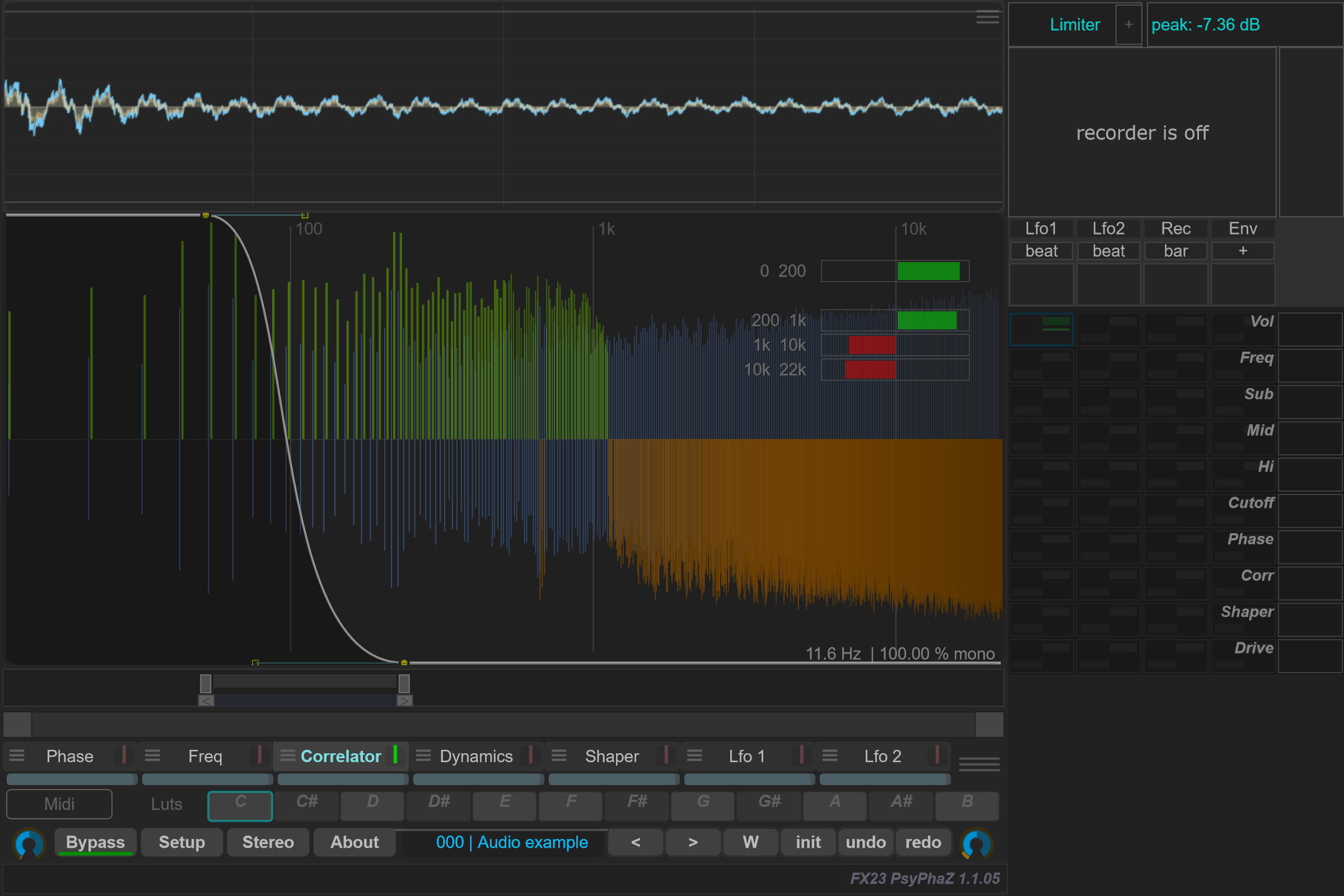
Correlator
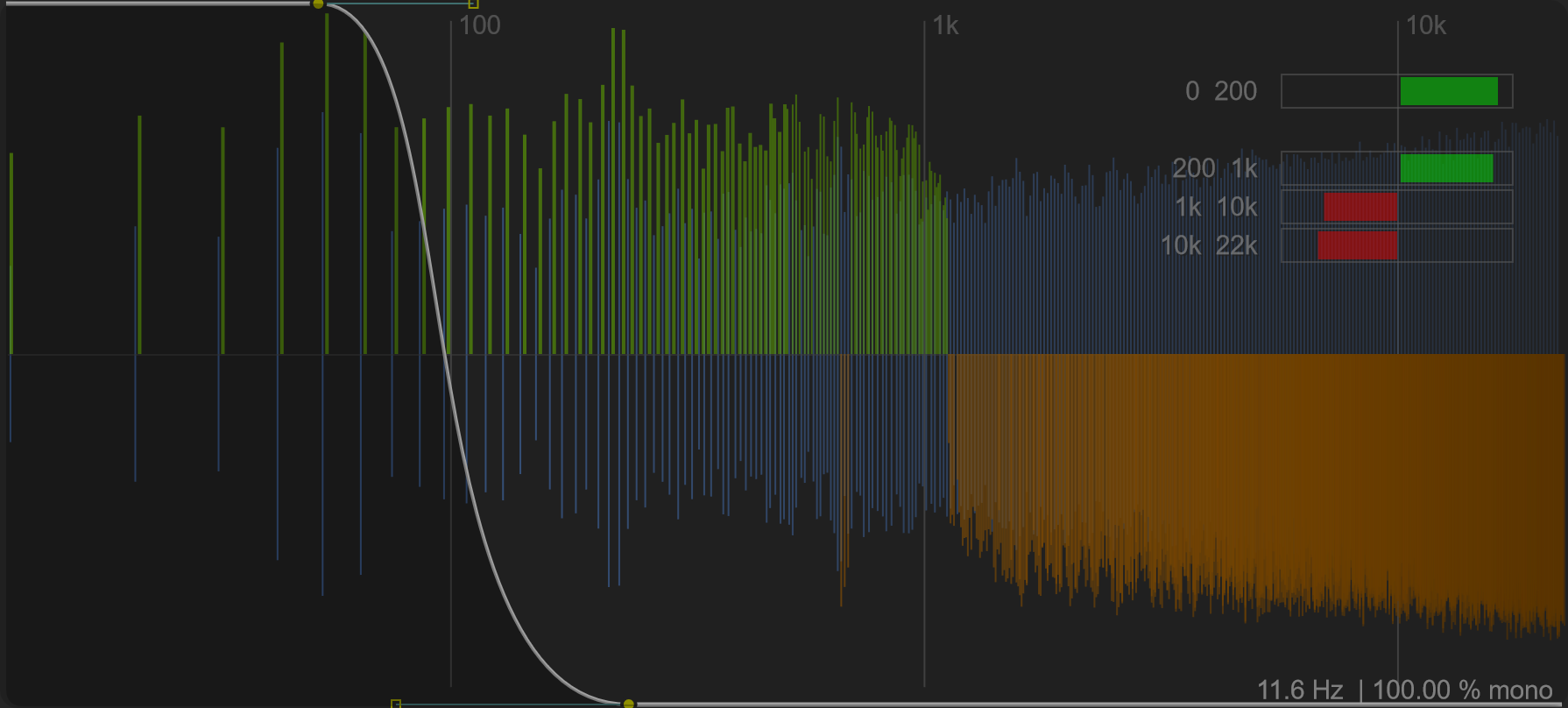
Correlator combines spectral correlation analysis with stereo-processing controls. Its menu includes Inv L, Inv R, HAAS, Mid / Side and Pan.
Analysis can compare L vs R, or compare input and sidechain as mono signals with SC vs Input monos. Choose the comparison that matches your routing. A sidechain comparison requires the host to supply sidechain audio.
Speed / avg changes analysis averaging. Sym view type changes the visual representation; when enabled, its menu guidance identifies green as in phase and orange as out of phase. Use analysis alongside listening when comparing stereo changes.
Dynamics
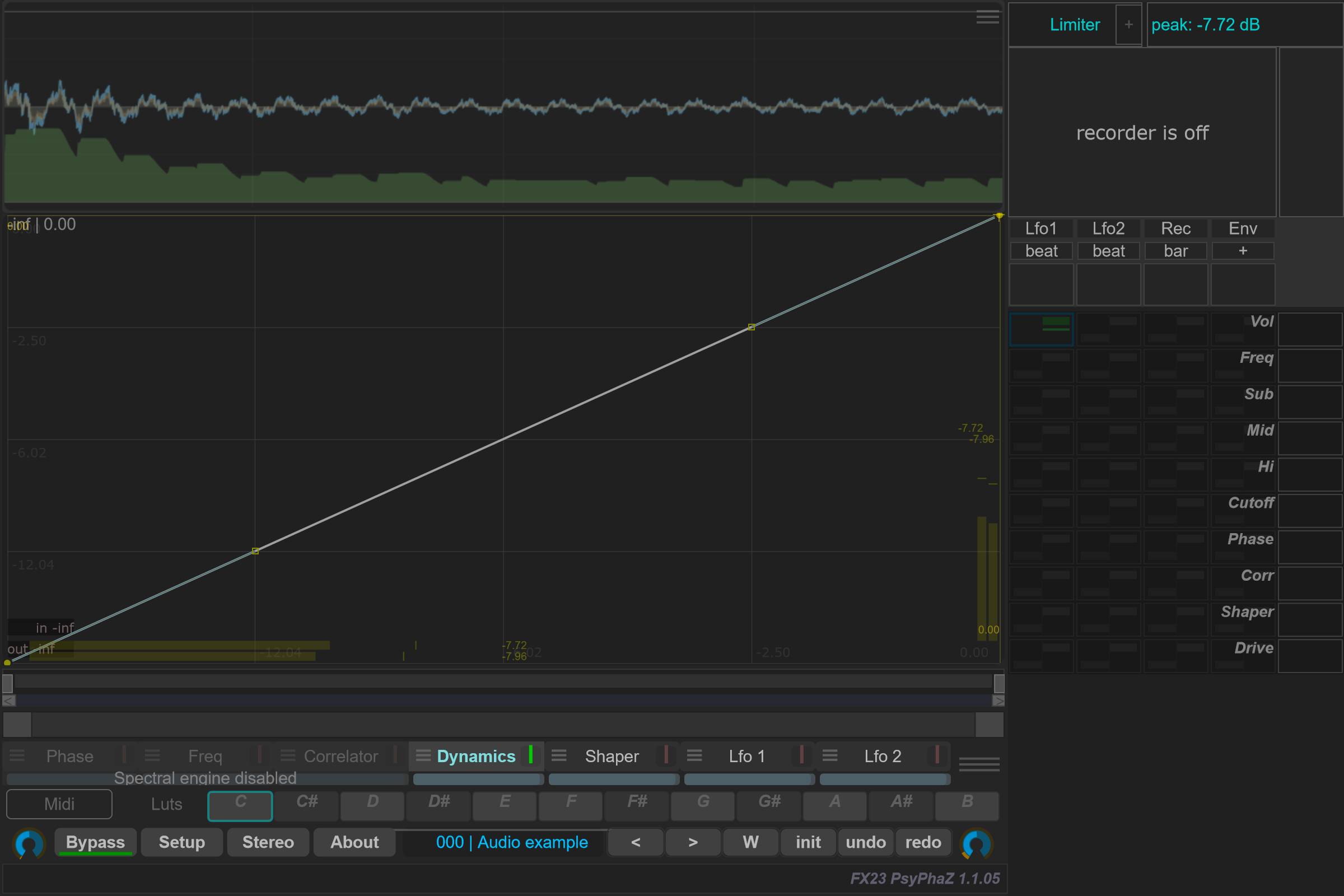
Select Dynamics to work with its curve and level-response controls. Open its menu for Peak / Rms, In gain, Attack, Hold, Release, Make Up, Amount and Out gain.
Try a small curve change on a repeating passage, then compare at a similar output level. Timing controls and detector mode interact with the shape, so keep them fixed while learning what a curve edit changes.
Bezier normal / Bezier ultra selects curve evaluation modes with different CPU costs.
Shaper
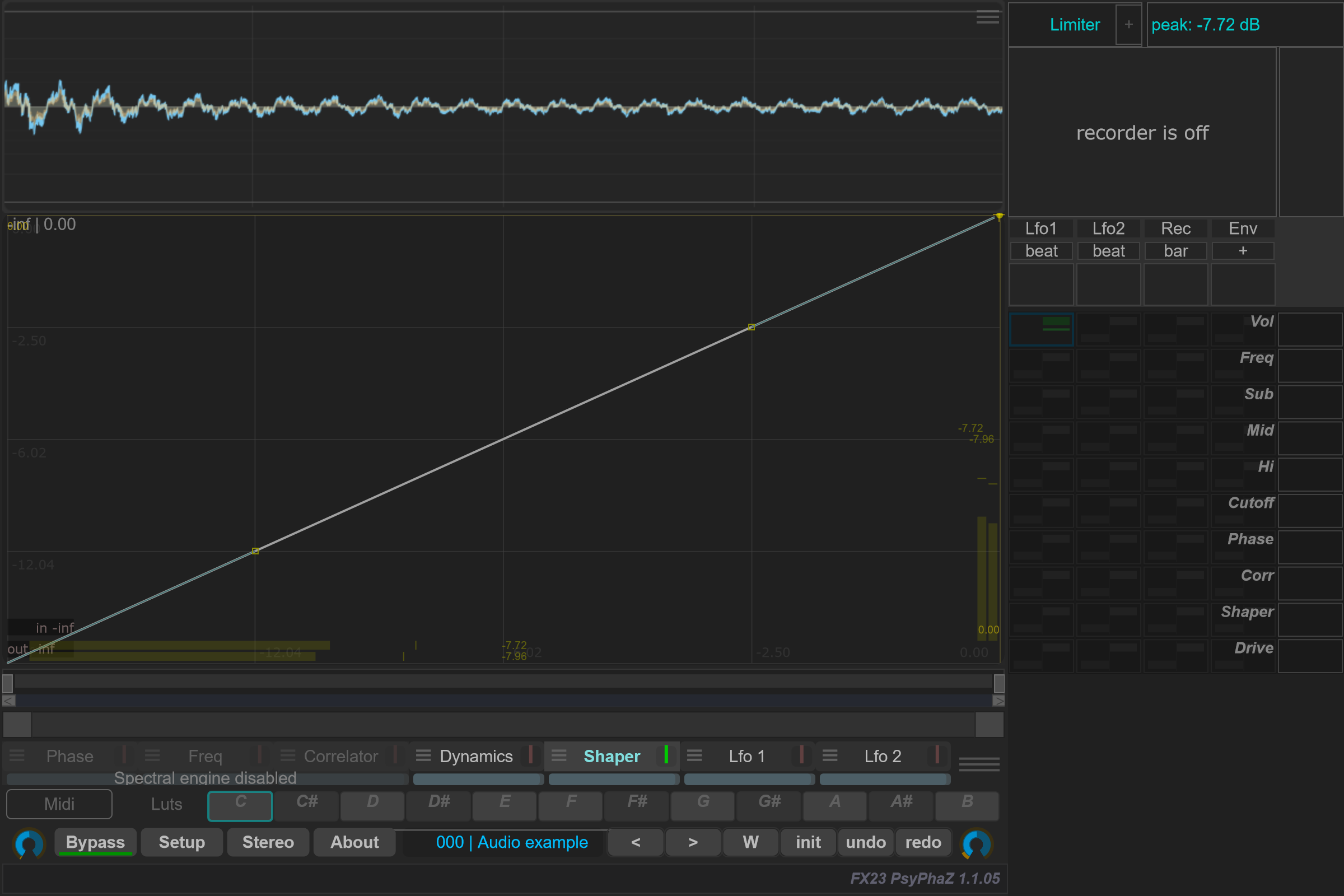
Shaper uses a Bezier waveshaping curve. In gain is applied before waveshaping and Out gain after it. Raising In gain changes how the input drives the curve; Out gain adjusts the level after processing.
Start with a small curve change and moderate input gain. Compare using the page's on/off control, then adjust output level before judging the sound. This separates timbral changes from simple loudness changes.
Native interface captures
These images use the actual PsyPhaZ 1.1.05 editor with the same reproducible stereo audio example. Click an image to open it at full size.