Curve options: parameter reference
Open a curve's menu with its small menu icon in the curve selector, or right-click its label away from the Dry/Wet bar. Select the curve itself to edit its Bezier shape.
These are native PsyPhaZ 1.1.05 menus. Each screenshot opens at full resolution. Tables follow the menu order; ranges describe the controls, and the displayed values are an example state. The close button at the top dismisses the menu.
Phase · Freq · Correlator · Dynamics · Shaper · Lfo 1
Phase
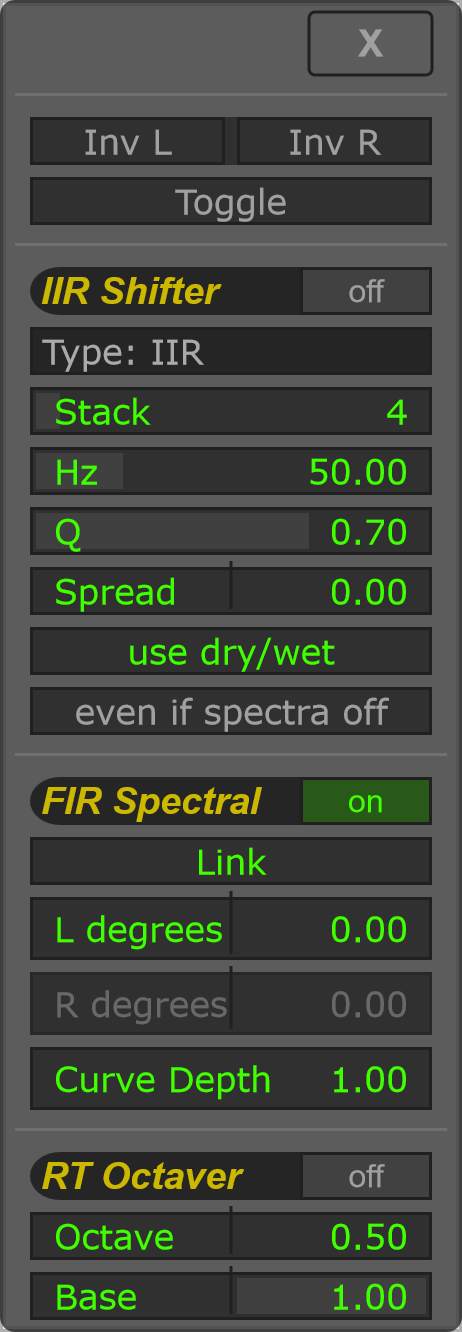
The menu combines polarity, an all-pass shifter, spectral phase rotation and an octave-up effect. Their on/off switches let you use the sections separately.
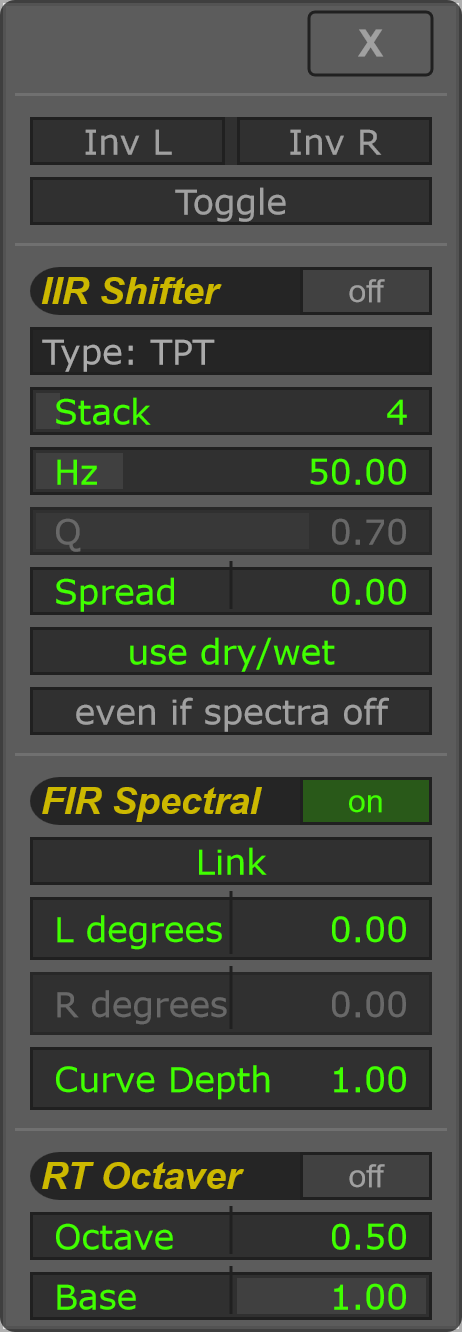
TPT variant
The parameter list stays the same. Choosing TPT makes Q inactive; Hz, Stack and Spread still control the shifter.
Freq
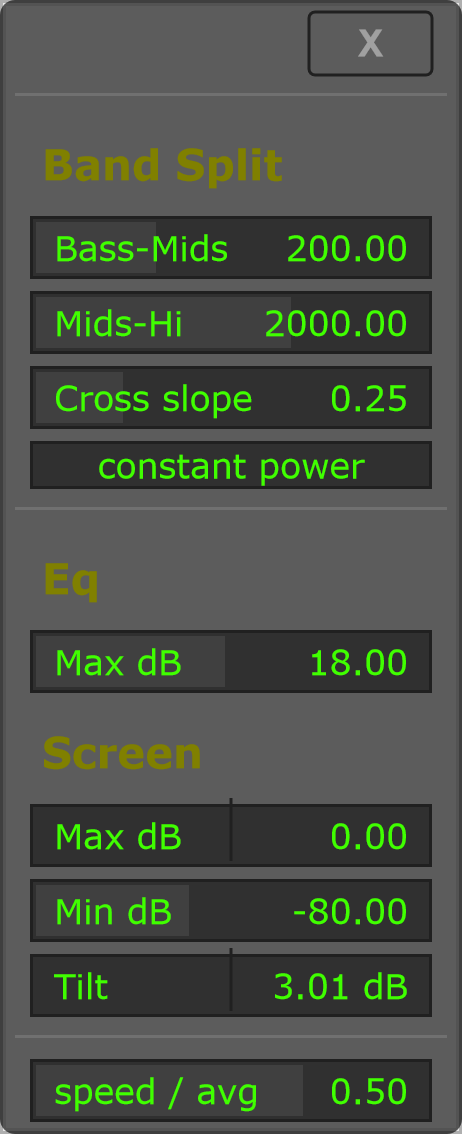
Band Split defines the Sub, Mid and Hi regions used by band modulation. Eq scales the processed curve. Screen changes how the spectrum is displayed.
See Phase and Freq for the band-pass Bezier example and cutoff square.
Correlator
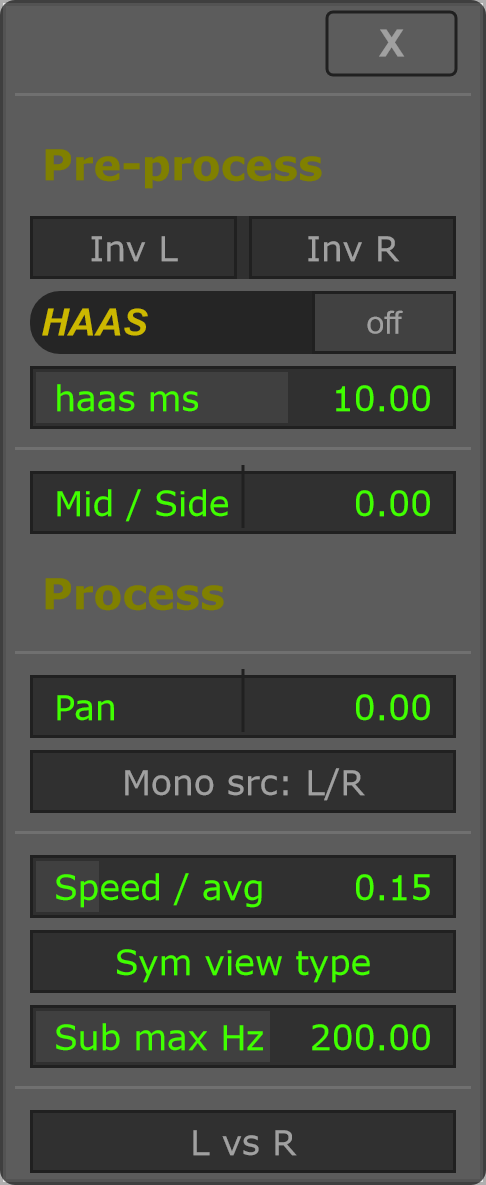
The upper controls affect stereo processing. Averaging, view type and the comparison selector control the correlation analysis.
Dynamics
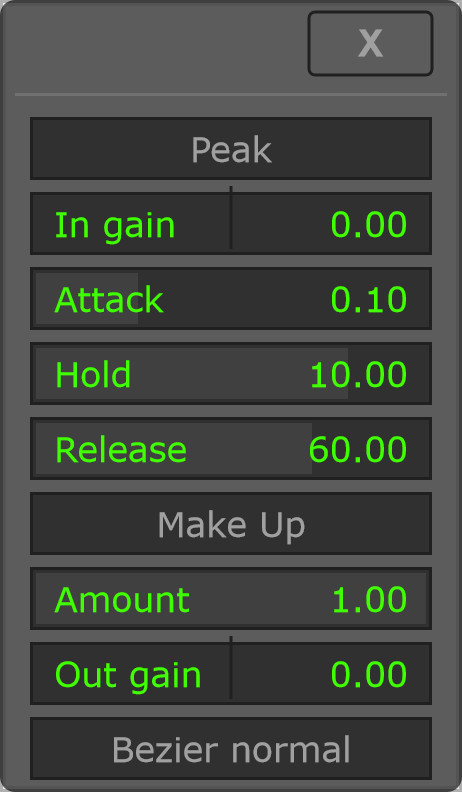
The curve maps the detected envelope to a new level. Detector timing controls how quickly the input follows the signal; Amount blends the curve’s influence.
Shaper
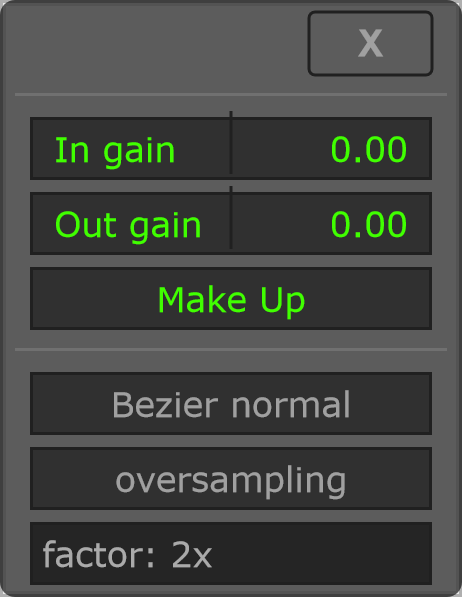
The curve maps audio sample amplitude directly. In gain changes how hard the signal drives the curve; Out gain sets its processed output level.
Lfo 1
Lfo 2 has the same menu and parameters. The reference below applies to both LFOs; screenshots show Lfo 1.
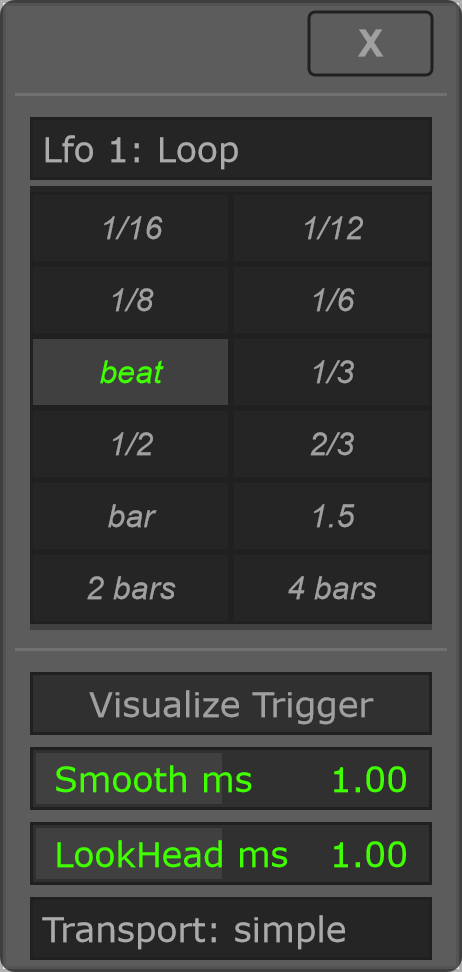
The trigger mode and Sync duration belong to this LFO. The visualization, smoothing, look-ahead, transport style and audio-detector/filter settings are shared by Lfo 1 and Lfo 2.
Loop
Use Loop for a repeating, tempo-synchronized modulation curve.
Midi (ch 2)
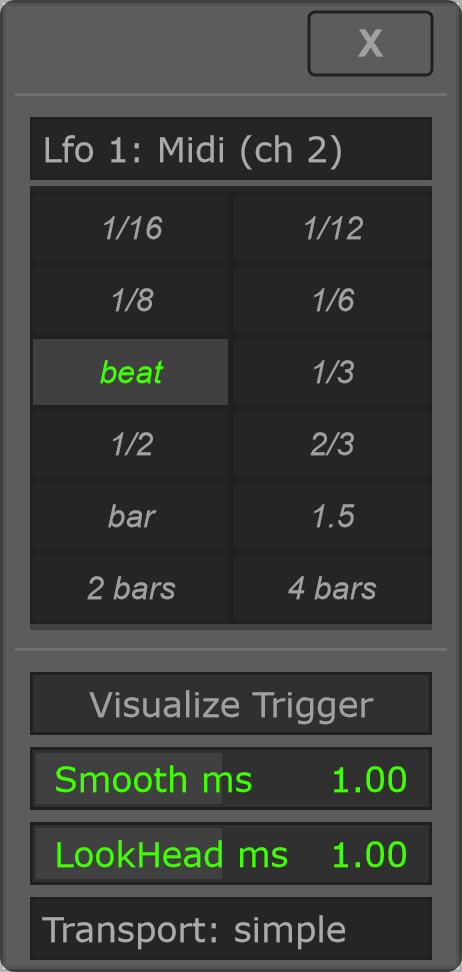
Incoming MIDI note-ons on channel 2 restart the curve. Sync still sets its duration; this mode does not add detector controls. Route MIDI to PsyPhaZ in the host to use it.
Audio
Audio transients restart the curve. This mode adds the Audio column; the left column keeps the controls documented under Loop. Filter controls remain visible when Pre-Filter is off, so you can prepare their settings before enabling it.
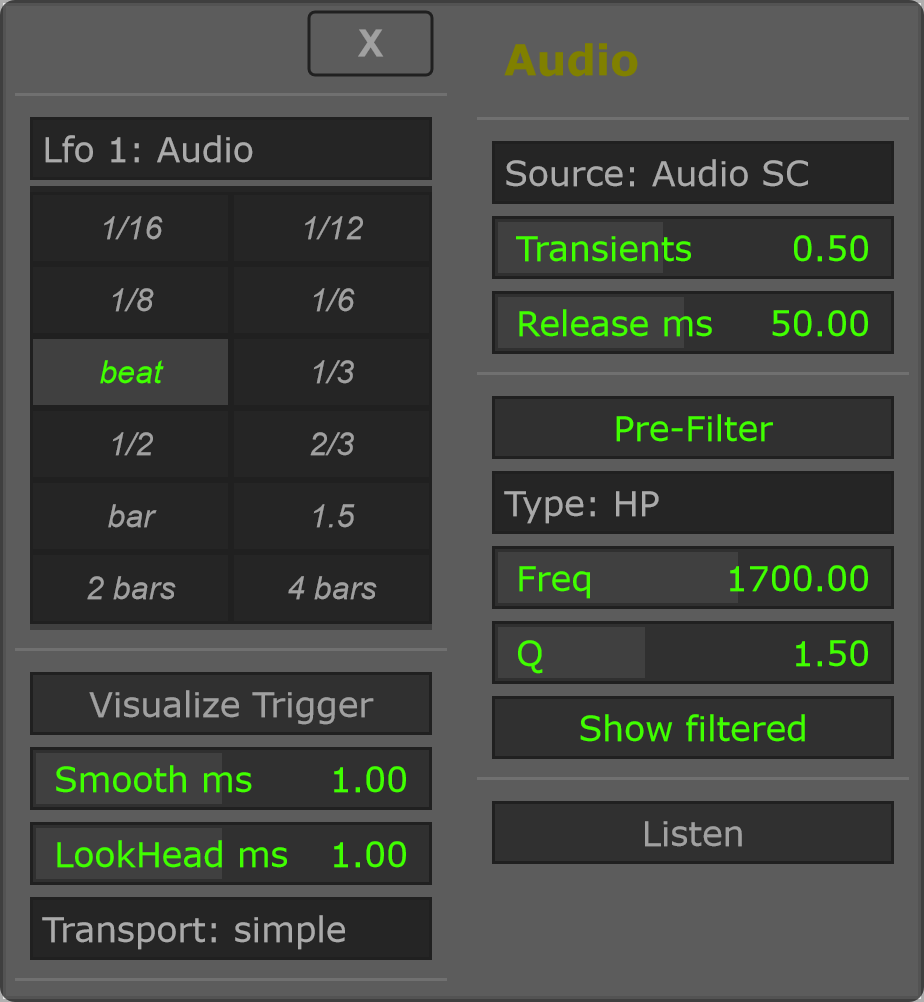
Start with Audio Self, enable Visualize Trigger, then adjust Transients while watching the scope. Use Pre-Filter to focus detection on a frequency region; disable Listen after auditioning the detector input.
For the other options menus, see Rec and Env options and Setup and Graphics.